




















How to Switch to a New POS System Without Stopping Sales
A practical plan to switch POS systems without stopping sales: what to export, how to clean your data, test printers, train staff and pick the right go-live day.
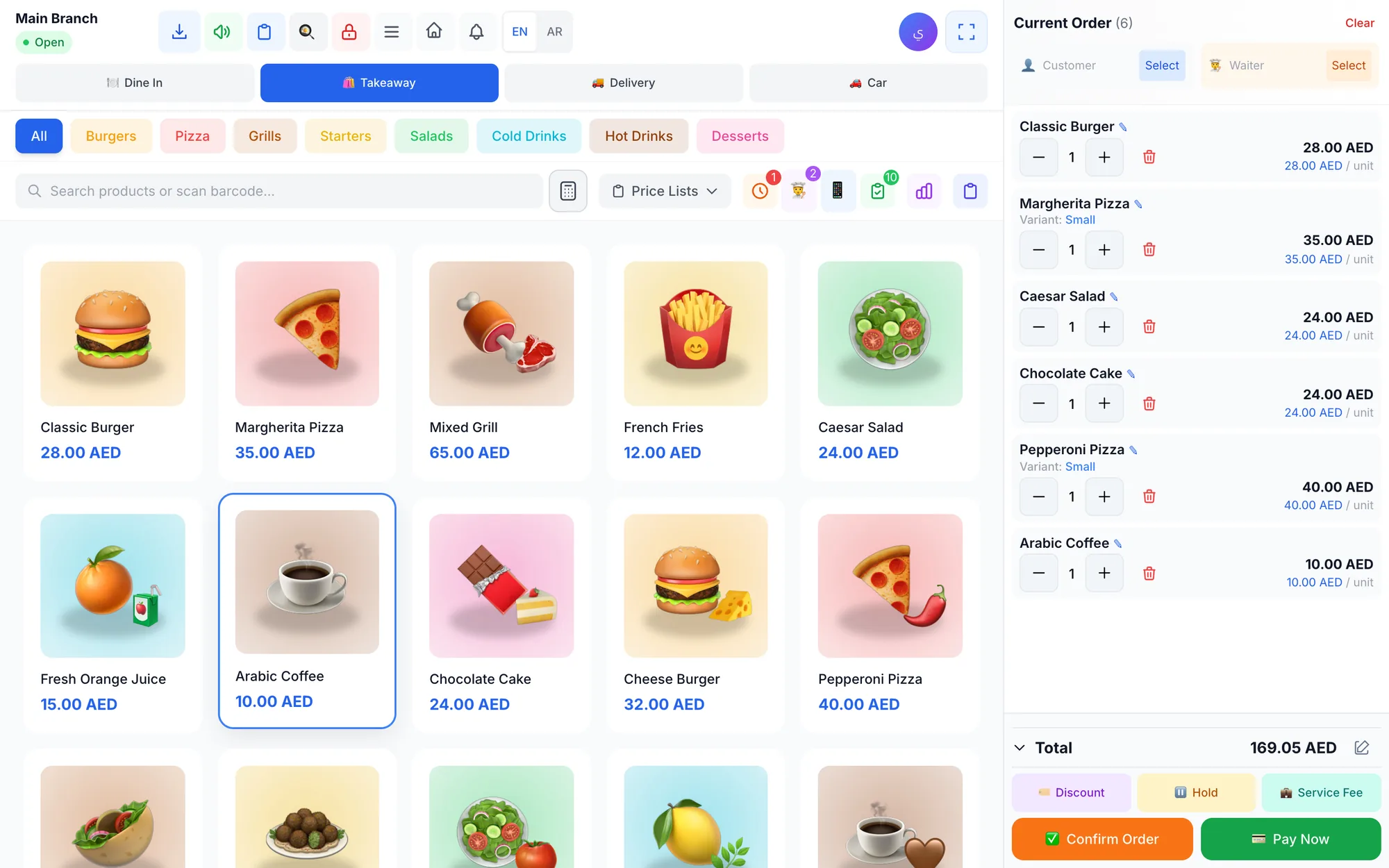
To switch POS systems without stopping sales, export your products and customers to Excel, clean and import them into the new system, test your printers and scanners, train staff on a practice shift, run both systems side by side for a few days, and go live on your quietest day. Most of the risk sits in preparation.
Many owners put off a switch for years because they fear losing a busy Friday, their product list or their staff's patience. Meanwhile they live with the old system's problems: it stops when the internet drops, the reports are thin, receipts come in one language only, or adding a branch means buying another licence.
The good news is that a POS migration is a project of days, not months, when you follow a clear order. This guide gives you the signs it is time to move, what to export, a seven-step plan, a timeline table and the mistakes to avoid.
- Export products, prices, barcodes, customers and balances from the old system before you cancel it.
- Clean the data in Excel first; importing a messy list only moves the mess.
- Test every printer, scanner and kitchen ticket before staff touch the new screen.
- Run both systems in parallel for a few days, then go live on your quietest day.
- Keep the old system's export for your records and check local rules on how long to keep it.
When is it time to switch POS systems?
Switching costs time and attention, so do it for the right reasons. These are the most common ones:
- The till stops selling when the internet drops.
- You cannot see today's sales unless you are standing in the shop.
- Stock lives in a separate spreadsheet and never matches the shelf.
- Opening a second branch means a second, separate system.
- Staff cannot use it in their language, or receipts cannot show Arabic and English together.
- Refunds and discounts happen with no record of who made them.
- You pay for each update, each device or each extra user, and support is slow.
- The vendor no longer updates the software, or it only runs on one old computer.
If two or more of these sound familiar, the cost of staying is probably higher than the cost of moving. For a full picture of what a modern system should do, keep our POS features checklist open while you compare options.
What to prepare before a POS migration
The quality of your data decides how smooth the switch will be. Spend most of your preparation time here, not on the setup screens.
Data to export from your old POS
- Products: name, category, price, cost, barcode, tax setting and photos if you have them.
- Variants: sizes, colours or pack sizes, each with its own price and stock.
- Opening stock: a fresh count per branch, done as close to go-live as possible.
- Customers: names, phone numbers, addresses, loyalty points and any balances they owe.
- Suppliers: names, contact details and what you owe each one.
- Staff: names, roles and the branch where each person works.
Most systems can export to Excel or CSV. If yours cannot, print the product report and type it into a spreadsheet. It is tedious, but you only do it once.
Your hardware list
List every device: counter computers, tablets, receipt printers, kitchen printers, barcode scanners, cash drawers and kitchen screens. Note how each printer connects (network or USB) and its IP address if it is on the network. Many standard ESC/POS thermal printers work with modern cloud systems, so you may not need to buy anything new.
What you can leave behind
You rarely need to import years of old transactions. Keep a full export of your sales history for your records and your accountant, check your local rules on how long you must keep it, and start the new system with clean opening balances.
How to switch to a new POS system in 7 steps
1. Choose your go-live date
Pick your quietest day of the week, ideally at the start of a week or month, and away from your peak season. A restaurant in Dubai should avoid Ramadan evenings and Eid; a clothing store should avoid back-to-school and big sale weekends. Write the date down and share it with the team.
2. Clean your product list in Excel
Remove items you no longer sell, merge duplicates, fix spelling and make sure every barcode is unique. Group products into the categories you want on the new screen; ten clear categories beat forty confusing ones. If you sell in two languages, add a column for the second name.
3. Import products and set up the basics
Import the spreadsheet, then check twenty random items against the shelf: price, barcode, variant and category. Set up branches, tax settings (check your local rules), payment methods, the receipt header and logo, and discount limits.
4. Connect and test the hardware
Connect every printer and scanner, then print a test receipt and a test kitchen ticket from each station. Check that drinks go to the bar printer and grills to the grill printer, that Arabic text prints clearly, and that the scanner reads your real labels. Our guide to thermal printer setup and kitchen routing walks through this step.
5. Set up staff and permissions, then train
Create each employee with the right role and a PIN, decide who may refund, void and discount, then run short training sessions by role. Cashiers practise sales and refunds, waiters practise sending orders, and managers practise closing a shift.
6. Run both systems in parallel
For two to five days, use the new system on one till or during your quieter shifts while the old one stays available as a fallback. At the end of each day, check the new system's totals against the actual cash and card takings. Differences usually reveal a wrong price, a missing item or a habit that needs a minute of retraining.
7. Go live and close the first shift together
On go-live day, switch every till, be there yourself and keep the old system's export at hand. Close the first shift with a cash count, read the over/short and sales reports with your manager, and fix anything odd the same evening. Cancel the old subscription only after a clean week.
POS migration timeline at a glance
| When | Tasks | Owner | Done when |
|---|---|---|---|
| Week 1 | Pick the date, export data, list hardware | Owner | Spreadsheet and device list ready |
| Weeks 1–2 | Clean data, import, basic settings | Manager | 20 random items match the shelf |
| Week 2 | Connect printers and scanners, test prints | Manager | Every station prints correctly |
| Week 2 | Staff accounts, permissions, training | Manager and team | Everyone completes a practice sale |
| Week 3 | Parallel run on one till or shift | Whole team | Daily totals match takings |
| Go-live day | Switch all tills, close the first shift | Owner and manager | Clean over/short report |
How to train staff on a new POS system
Staff confidence decides whether go-live day feels calm or chaotic. These habits make training stick:
- Train by role, not everyone at once. A waiter does not need the stock screen.
- Keep sessions short: 20 to 30 minutes of hands-on practice beats a two-hour presentation.
- Use real scenarios: a split bill, a refund with a reason, a held order, a barcode that will not scan.
- Pick a champion on each shift who learns first and helps the others.
- Print a one-page cheat sheet for the counter with the five most common tasks.
- Let staff practise in a demo or trial company where mistakes cost nothing.
- Train in the language each person understands best; a multilingual interface helps a lot here.
Common POS migration mistakes to avoid
- Going live on a Friday night or in the middle of a sale.
- Importing an uncleaned product list full of duplicates and old prices.
- Testing printers on go-live morning instead of the week before.
- Cancelling the old system before its export is saved.
- Skipping the opening stock count and starting with wrong quantities.
- Giving every employee full permissions for now and never changing them.
- Training only the manager and expecting the team to work it out.
How Quip POS makes switching easier
Quip POS is built so a small team can make the move without outside consultants. You can import products from Excel with images and prices, generate barcodes for items that do not have one, and set separate prices and stock for each branch. The POS runs in any web browser with nothing to install, and the desktop app for Windows and Mac discovers network printers automatically and keeps selling and printing offline.
You do not have to do it alone. The Quip POS team helps you add products, connect printers and train staff over WhatsApp or phone, and there are video tutorials for every screen and business type. Roles, PIN sign-in and permissions are ready for owners, managers, cashiers, waiters, kitchen staff and drivers, and the audit log records sensitive actions from day one. Get the desktop app from the download page when you are ready to set up the counter.
Because the 14-day trial needs no card and includes every feature, you can run the whole plan above, including the parallel run, before paying anything. Our guide to testing a POS system during a free trial gives you a day-by-day plan.
Next step: plan your switch this week
Pick a go-live date, export your product list and block an hour for setup. You can explore a ready company first in the live demo, then start your free trial to import your products, connect your printers and run your first practice shift with the team.
Frequently asked questions
How long does it take to switch to a new POS system?
Can I transfer my products from my old POS system?
Do I need new hardware when I switch POS systems?
Should I run the old and new POS systems at the same time?
What is the best day to go live with a new POS?
What should I do with my old POS sales data?
Talk to the Quip POS team
Tell us about your business and we will show you the right setup, help you add your products and connect your printers.
Related articles
POS guides
Best POS System in 2026: How to Choose the Right Point of Sale
There is no single best POS system for everyone. Use these criteria, red flags and a weighted scoring checklist to find the point of sale software that fits your business.
 POS guides
What Is a POS System? A Complete Guide for Business Owners
A plain-language guide to POS systems: the hardware and software, what happens at checkout, how stock and reports work, cloud vs local, and who needs one.
 POS guides
POS System in the UAE and Gulf: How to Choose the Right One
What businesses in Dubai, Abu Dhabi, Riyadh and Doha need from a POS system: bilingual receipts, staff languages, tax reports, AED pricing, WhatsApp and local support.