




















Thermal Printer Setup: Receipt and Kitchen Printers, Step by Step
A practical setup guide for thermal receipt and kitchen printers: choosing ESC/POS models, network or USB, routing items to the right station and fixing common problems.
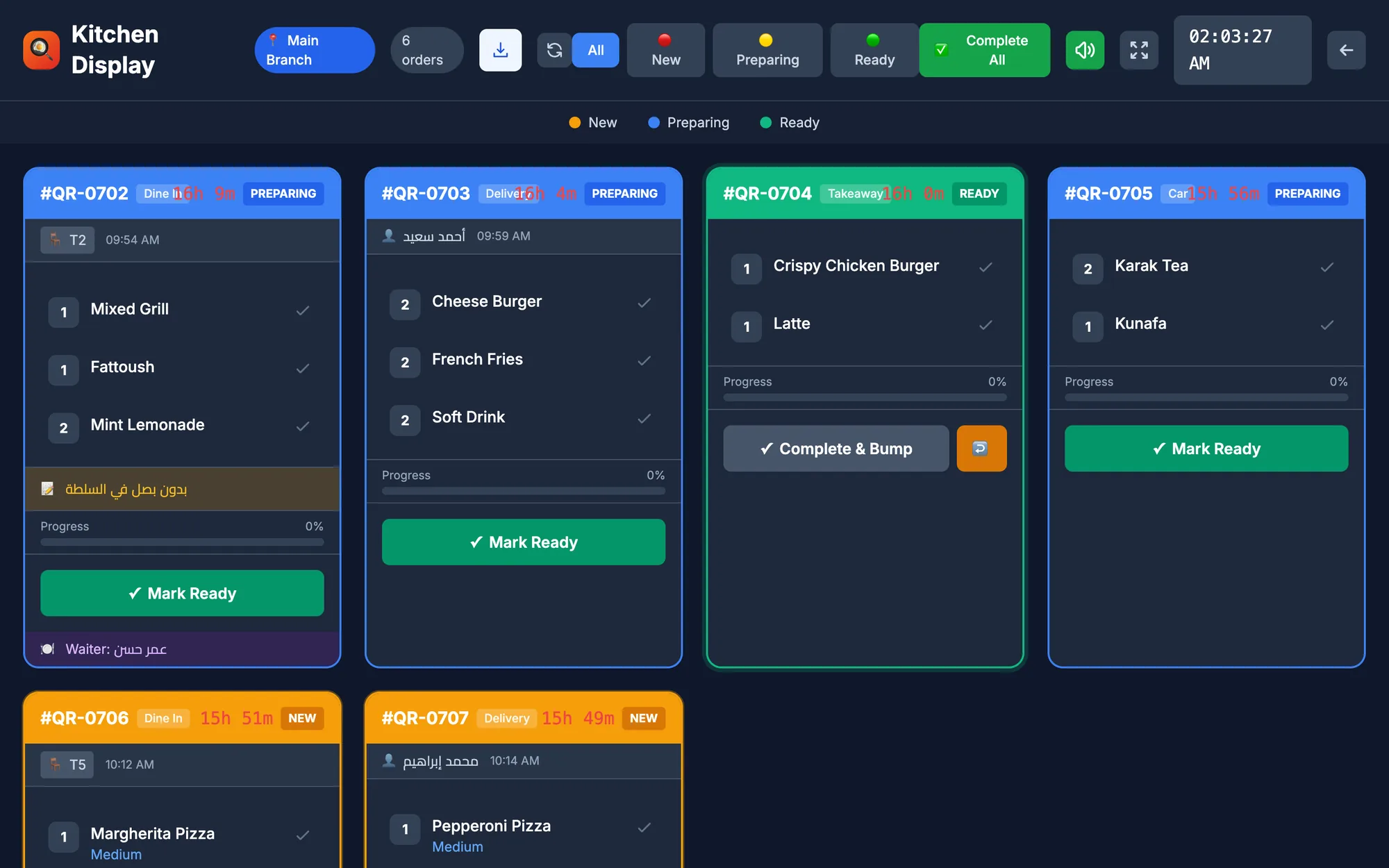
To set up a thermal receipt or kitchen printer, choose an ESC/POS model, connect it by USB to the till or by cable to your network, give each network printer a fixed IP address, add it in your POS, route each category of items to the right kitchen printer, and run a test print from every station before service starts.
Printers are the least glamorous part of a POS and the part most likely to fail at the worst moment. Picture a café in Dubai at the lunch rush: the bar printer silently drops off the network, drinks orders stop coming out, and the queue grows while staff restart devices. Thirty minutes of careful setup prevents most of these days.
This guide walks through how thermal printers work, choosing between USB and network, a step-by-step setup, kitchen routing, test prints, printing during internet outages and the fixes for the most common problems.
- Buy ESC/POS thermal printers; it is the standard most POS software speaks.
- Use USB for a single printer beside the till and a wired network connection for kitchen and bar printers.
- Give every network printer a fixed IP address so it never “disappears”.
- Route item categories to stations, then test with a real mixed order.
- Keep spare paper rolls and test offline printing before you need it.
What is a thermal printer and why do POS systems use them?
A thermal printer prints by heating special coated paper, so it needs no ink, toner or ribbon. The only consumable is the paper roll. Thermal printers are quick, quiet and compact, and they tolerate long days, which is why they dominate receipts and kitchen tickets around the world.
Most of them understand ESC/POS, a command language that has become the common standard for receipt printers. When a POS says it supports ESC/POS printers, it means you can choose from many brands and models instead of one locked device.
Two limits are worth knowing. Thermal paper darkens with heat and fades over months, so keep important records digital rather than relying on old slips. And standard thermal printers print in one colour, so design receipts around a clear logo and strong text, not shading or photos.
USB or network: which printer connection should you choose?
| Connection | Best for | Strengths | Watch out for |
|---|---|---|---|
| USB | One receipt printer next to one till | Simple, very reliable, no network needed | Only that computer can print to it |
| Wired network (Ethernet) | Kitchen, bar and shared receipt printers | Can sit wherever the cable reaches; stable | Needs a fixed IP address |
| Wi-Fi | Places where a cable cannot run | No cable back to the router | Weaker signal near ovens, fridges and metal walls |
In restaurants, wired network printers are the safe default for the kitchen. A grill station a few metres from the router, with a microwave and a steel fridge in between, is exactly where Wi-Fi printing becomes unreliable.
How to set up a network receipt or kitchen printer, step by step
- Load the paper correctly. The coated side must face the print head. If a test page comes out blank, the roll is usually upside down.
- Connect the cable. Plug the printer into your router or network switch with an Ethernet cable and switch it on.
- Print the self-test page. On many models you hold the feed button while switching on. The page shows the printer’s current IP address.
- Fix the IP address. Reserve that address for the printer in your router (a DHCP reservation) or set a static address outside the router’s automatic range. This is the single most important step.
- Keep everything on one network. The till and the printers should be on the same local network, not on a guest Wi-Fi.
- Add the printer in your POS. Name it clearly, such as “Bar” or “Grill”, and choose whether it prints receipts, kitchen tickets or both.
- Run a test print from the POS, then a real test order.
For a USB printer the steps are shorter: connect the cable, install a driver if the manufacturer requires one, add the printer in the POS and print a test receipt.
How do you route items to the right kitchen printer?
Routing decides which items print where. Instead of sending the whole order to one printer and making the chef shout across the kitchen, each station receives only what it prepares.
| Menu category | Prints at | Why |
|---|---|---|
| Hot and cold drinks | Bar printer | Baristas start immediately |
| Grills and mains | Hot kitchen printer | Longest preparation, starts first |
| Salads and desserts | Cold kitchen printer | Prepared in parallel |
| Full bill | Receipt printer at the till | For the guest and the cashier |
Set routing by category where possible, then check the exceptions: an item that belongs to two stations, a dessert that the bar plates, or a dish that moves from the grill to the cold kitchen on a summer menu. Re-test routing every time you add a category or a station.
Where should kitchen printers sit?
Place each printer where the cook reads the ticket, not where the cable is easiest: above the pass, beside the grill line or at the end of the bar. Keep it away from direct steam, splashes and fryer heat, which shorten its life and darken thermal paper, and leave enough room to change a roll quickly in the middle of a rush.
Some kitchens replace or complement printers with screens. If tickets keep getting lost or you want timers and ready alerts, read our guide to the kitchen display system.
Test prints: what to check before you open
A test print proves the printer works; a test order proves the whole setup works. Run both, ideally in the quiet hour before your first service on the new system.
- The logo is sharp and the business name, address and phone number are correct.
- Both of your languages print correctly, especially Arabic letters joining in the right direction.
- Totals, discounts, tax lines and the payment method are easy to read.
- Kitchen tickets show the order number, order type, table and guest notes.
- Each item of a mixed test order prints at the right station and nowhere else.
- The paper cutter works and the ticket length is sensible.
- Ten orders sent in quick succession all print, in order, without delay.
- Printing still works when you unplug the internet connection (see the next section).
How do you keep printing when the internet goes down?
With a cloud POS, the order travels from the till to the printer over your local network, but the system itself lives online. If your POS needs the internet to print, an outage stops the kitchen. Ask how the system behaves offline and test it yourself.
A desktop app that sells and prints offline solves this: orders keep printing on the local network and sync to the cloud when the connection returns. Put the router, the network switch and the main till on a small backup power unit, because a power cut takes out the network even if the internet line is fine. Our offline POS guide has a full preparation checklist.
Common thermal printer problems and quick fixes
| Problem | Likely cause | Fix |
|---|---|---|
| Paper comes out blank | Roll upside down, or not thermal paper | Flip the roll; use thermal paper |
| Faint or patchy print | Low-quality paper or a dirty print head | Change paper brand; clean the head when cool |
| Printer shows offline | IP address changed or cable loose | Reserve a fixed IP; check the cable |
| Strange symbols instead of text | Character set or language not supported | Test your languages; choose a compatible model |
| Items print at the wrong station | Category routed to the wrong printer | Review routing and send a test order |
| Paper is not cut | Cutter jammed or disabled | Clear the jam; check the printer settings |
Tape a note with each printer’s IP address inside its cover. When something goes wrong at 8 pm on a Friday, nobody wants to dig through router menus.
How Quip POS works with receipt and kitchen printers
Quip POS supports ESC/POS thermal printers over the network or USB, so you can use standard printers from many manufacturers.
- Automatic printer discovery in the desktop app for Windows and Mac, available from the download page.
- Offline printing: the desktop app keeps selling and printing when the internet drops and syncs orders when it returns.
- Routing items to the right kitchen printer, so each station gets only what it prepares.
- Receipts with your logo, in the two content languages you choose, such as Arabic and English.
- Any screen or tablet with a browser can also become a kitchen display, alongside or instead of printers.
Step-by-step videos are in the video tutorials, and the team helps connect printers over WhatsApp or phone. For the rest of your counter, see our POS hardware guide.
Next step: connect one printer and run a test shift
Start small. Create a free 14-day trial with no card, install the desktop app on your till computer, connect one receipt printer and one kitchen printer, and send a dozen test orders across your categories. Once the routing and layout look right, add the remaining stations with confidence.
Frequently asked questions
How do I connect a thermal printer to my POS?
What is an ESC/POS printer?
Should my kitchen printer be USB or network?
Why does my receipt printer keep going offline?
Why does my thermal printer print blank paper?
Can I print Arabic on a thermal receipt printer?
Talk to the Quip POS team
Tell us about your business and we will show you the right setup, help you add your products and connect your printers.
Related articles
 Hardware & technology
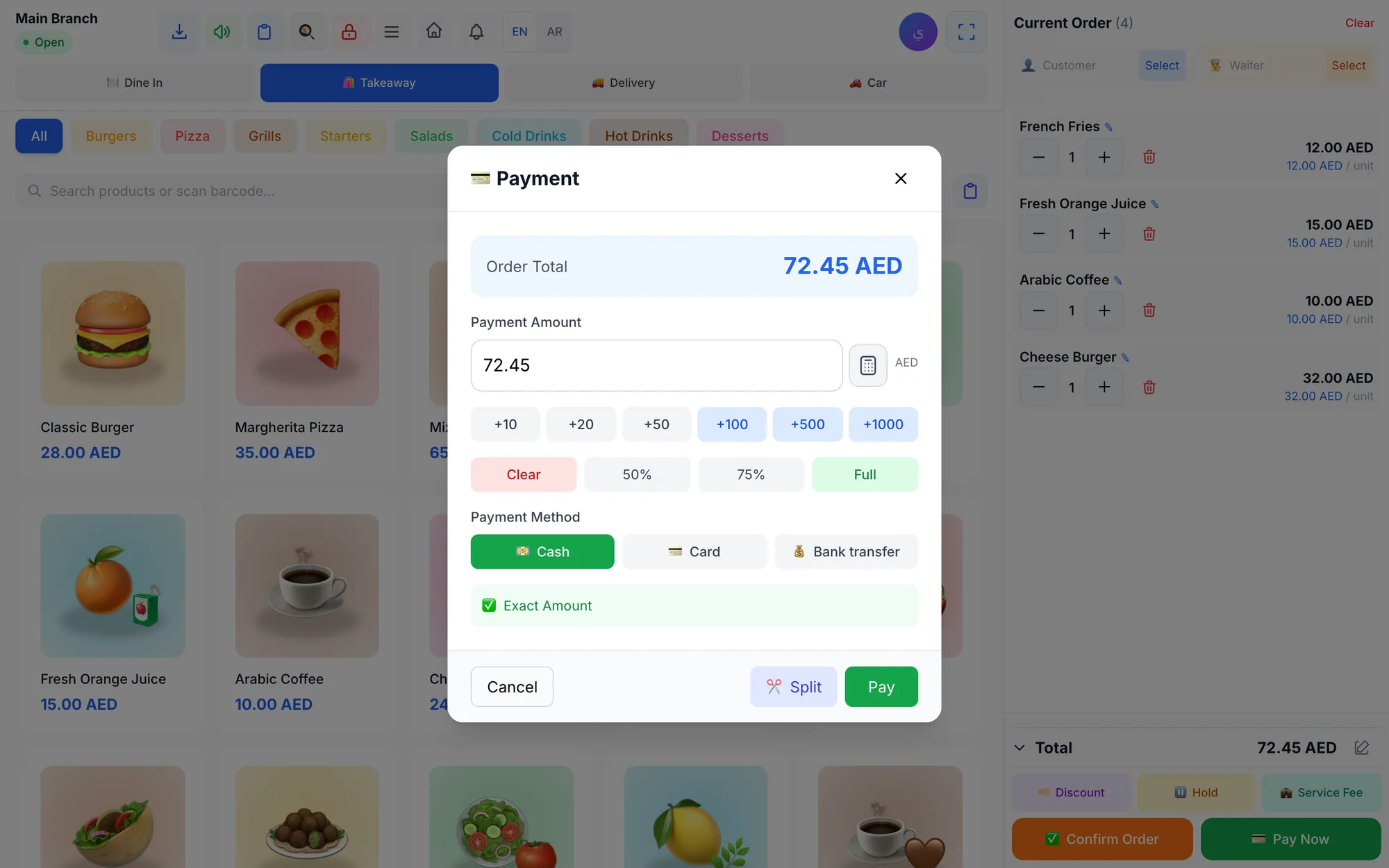
POS Hardware Guide 2026: Printers, Scanners, Screens and Tablets
What hardware a shop, café or salon really needs to run a POS: printers, scanners, screens, tablets and phones, with setups by business type and mistakes to avoid.
 Retail stores
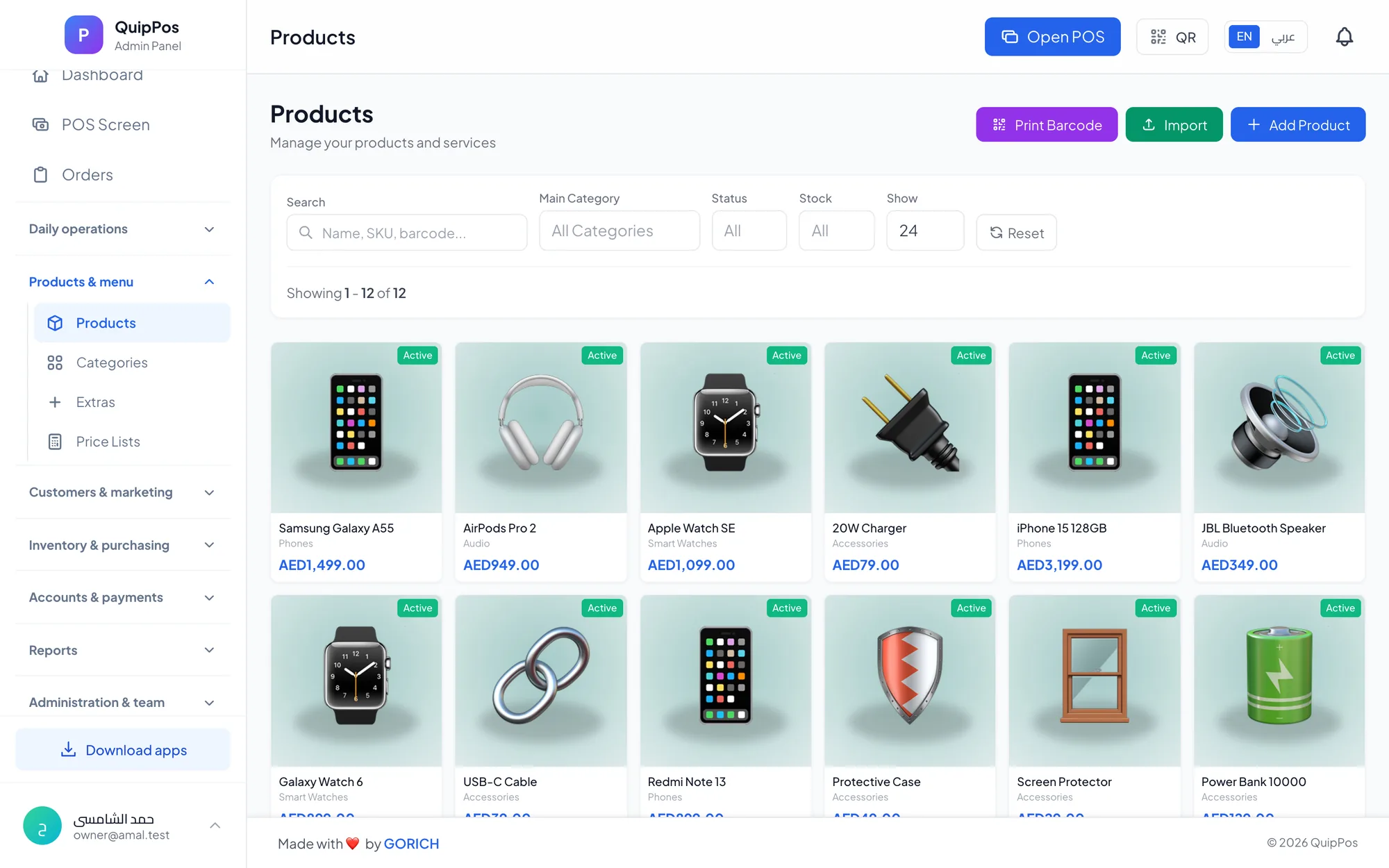
Flower Shop POS for Gift, Chocolate and Bouquet Orders
A flower shop POS should handle bouquets, chocolates, gift bundles, delivery, and deposits without slowing checkout. This guide shows what to set up before busy seasons.
 Restaurants & cafés
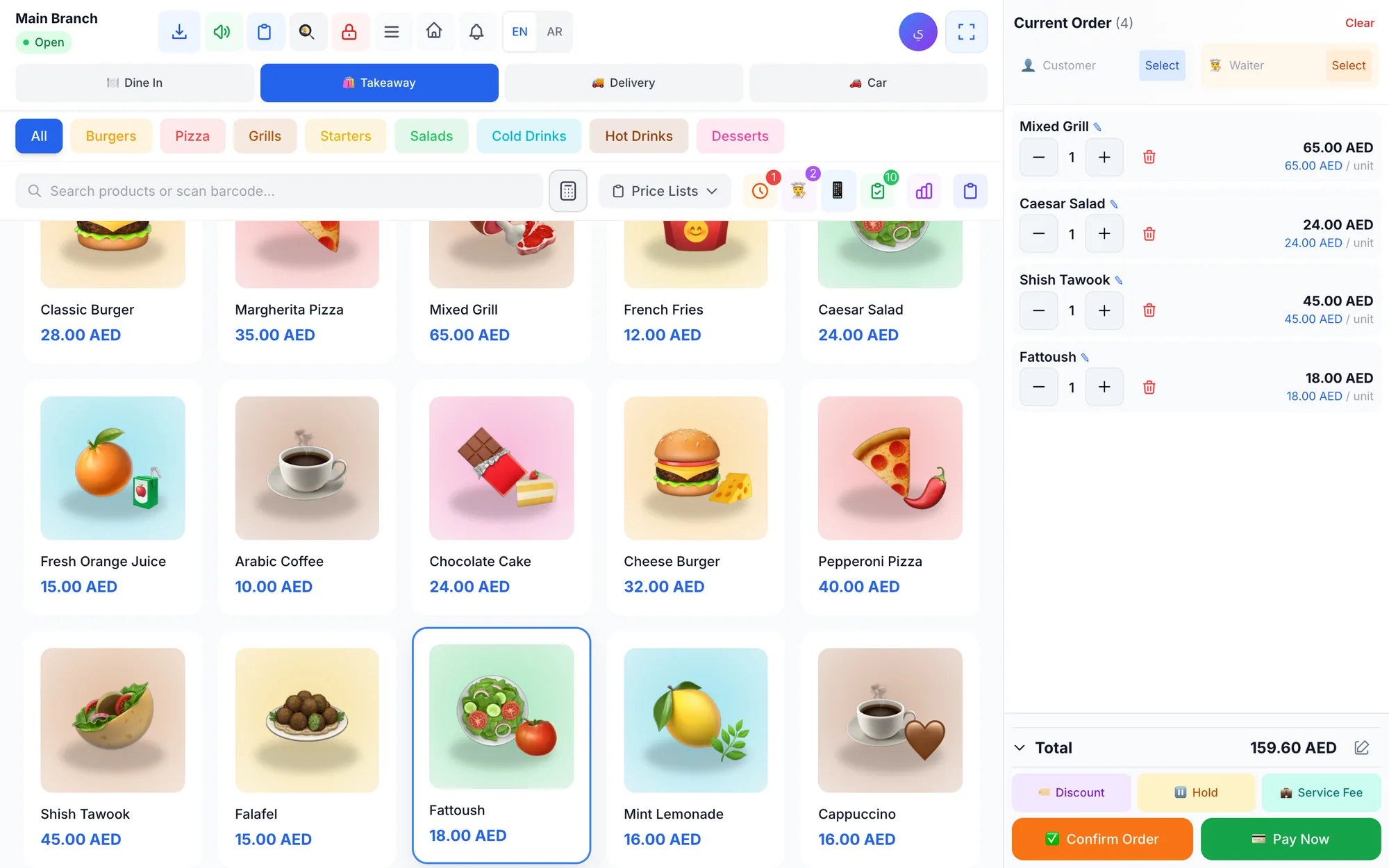
Opening a Restaurant: Technology and Operations Checklist
Before you open a restaurant, make sure your menu, printers, kitchen screens, staff roles and payment methods are ready. This checklist helps you test service before day one.