




















POS Hardware Guide 2026: Printers, Scanners, Screens and Tablets
What hardware a shop, café or salon really needs to run a POS: printers, scanners, screens, tablets and phones, with setups by business type and mistakes to avoid.
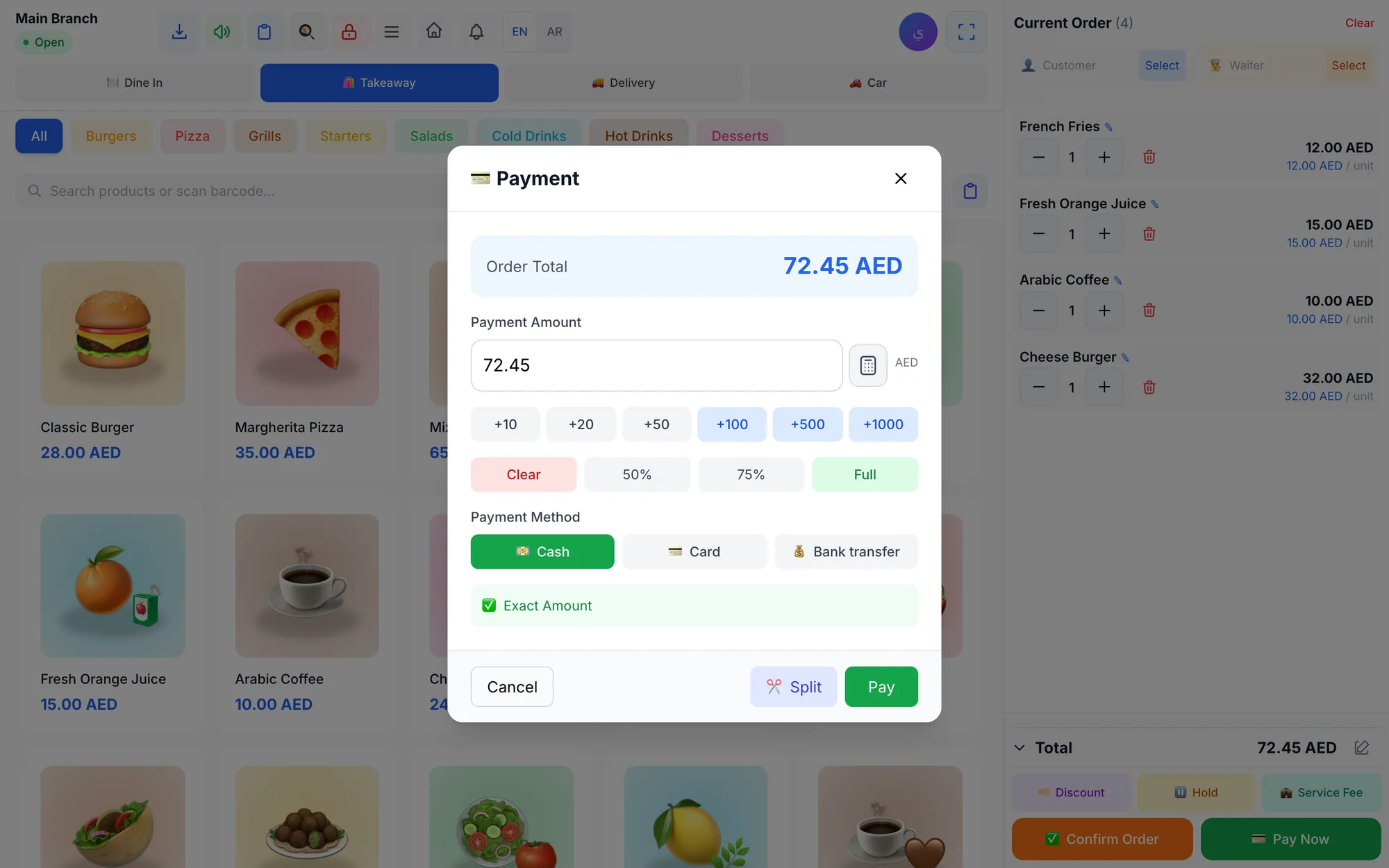
POS hardware is the physical equipment around your point of sale software: a screen or tablet to sell on, a thermal receipt printer, a barcode scanner for retail, and kitchen printers or screens for restaurants. With a cloud POS, most businesses need far less hardware than they expect, and part of it can be devices they already own.
A small café in Dubai can open with one tablet or laptop, one receipt printer and one kitchen printer. A grocery store in Riyadh adds a barcode scanner at each till. A salon in Doha may need nothing more than an iPad and a printer at reception. The right setup depends on how you sell, not on what a vendor bundles.
This guide explains each piece of POS hardware, the choices that matter (network or USB, printer or screen, tablet or computer), sample setups by business type, and a checklist to buy without overspending.
- Start with the minimum: a device to sell on and a receipt printer. Add the rest when a real need appears.
- Choose thermal ESC/POS printers; network models are easier to share and to place in kitchens.
- A standard USB or Bluetooth barcode scanner is enough for most retail; pick a 2D model if you scan codes from phone screens.
- Any screen or tablet with a browser can become a kitchen display.
- Test hardware during a free trial before buying in bulk.
What POS hardware do you actually need?
Separate the essentials from the nice-to-haves. Most businesses need only the first two rows on day one.
| Hardware | What it does | Who needs it | Tip |
|---|---|---|---|
| Selling device | Runs the POS screen | Everyone | A touch screen or tablet is fastest |
| Receipt printer | Prints receipts and bills | Almost everyone | Thermal, 80 mm paper is the common choice |
| Kitchen printer or screen | Sends orders to the kitchen | Restaurants and cafés | Network printer near the kitchen pass |
| Barcode scanner | Adds items by scanning | Shops, supermarkets, parts counters | USB for fixed tills, Bluetooth for stock counts |
| Phones or small tablets | Take orders at tables | Restaurants with table service | Staff phones often work |
| Card terminal | Takes card payments | Businesses accepting cards | Comes from your bank or payment provider |
| Cash drawer | Holds the float and takings | Businesses taking cash | Confirm compatibility before buying |
Notice what is missing: a dedicated, all-in-one POS terminal. With cloud software, a standard computer or tablet does the same job and is easier to replace when it breaks.
Which device should run your POS: computer, tablet or phone?
A cloud POS runs on anything with a browser, so the real question is which form fits each job in your business.
Computer with a touch screen
The best choice for a busy main till. A Windows or Mac computer can run a desktop app that connects directly to printers and keeps selling when the internet drops. Pair it with a touch monitor so cashiers tap instead of clicking.
Tablet
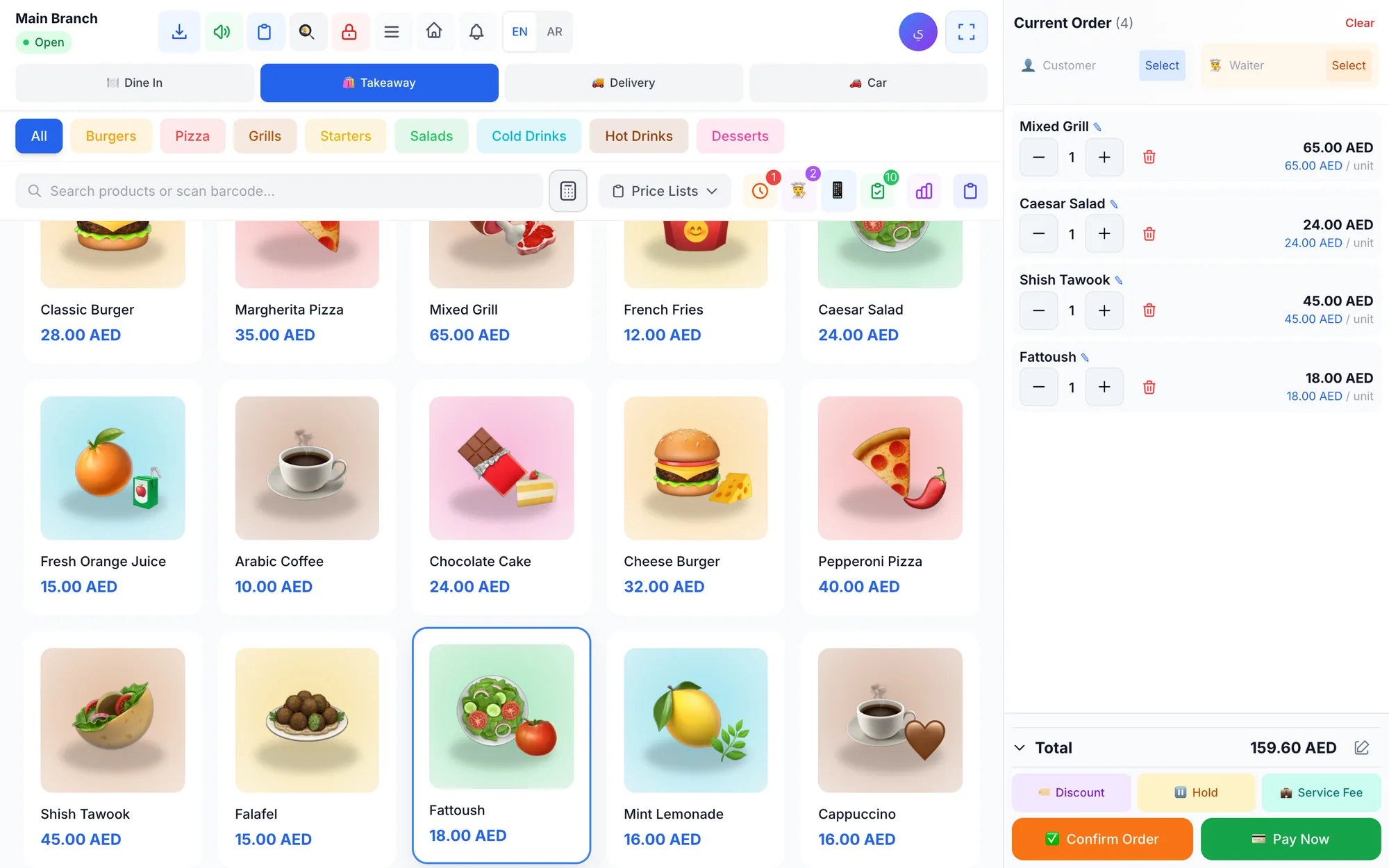
Ideal for small counters, salons, cafés and pop-up stands. iPads and Android tablets take little space, run on battery and can be carried to a customer. Use a sturdy stand so the screen does not slide during a rush.
Phone
Perfect for waiters taking orders at tables, managers checking a branch, and owners watching today’s sales from anywhere. Phones are rarely the main till, but they remove a lot of walking.
Most businesses mix them: a computer at the main till, a tablet at a second counter and phones for the floor team. Because the data lives in the cloud, every device sees the same orders, stock and prices.
Receipt printers: thermal, network or USB?
Use a thermal printer that supports the ESC/POS standard. Thermal printers need no ink, print quickly and are widely available from many brands. The main decisions are paper width and connection.
- Paper width: 80 mm is standard for receipts and kitchen tickets; 58 mm suits very small counters and portable printers but fits less text per line.
- USB: simple and reliable for one printer next to one computer. The printer is tied to that computer.
- Network (Ethernet or Wi-Fi): the printer has its own address on your network, so it can sit in the kitchen or bar, away from the till. Wired Ethernet is more reliable than Wi-Fi in busy kitchens.
- Logo and languages: print a test receipt with your logo and in every language you use, especially Arabic, before buying several units.
For step-by-step setup, routing and troubleshooting, read our guide to thermal receipt and kitchen printers.
Kitchen printer or kitchen display screen?
Restaurants need a way to get orders from the till to the people cooking. There are two good options, and many kitchens use both.
Kitchen printers are familiar, affordable and cope well with hot, greasy environments. Items can be routed to the right station, so drinks print at the bar and grills print at the grill. The downside: paper tickets get lost, and nobody at the till knows when an order is ready.
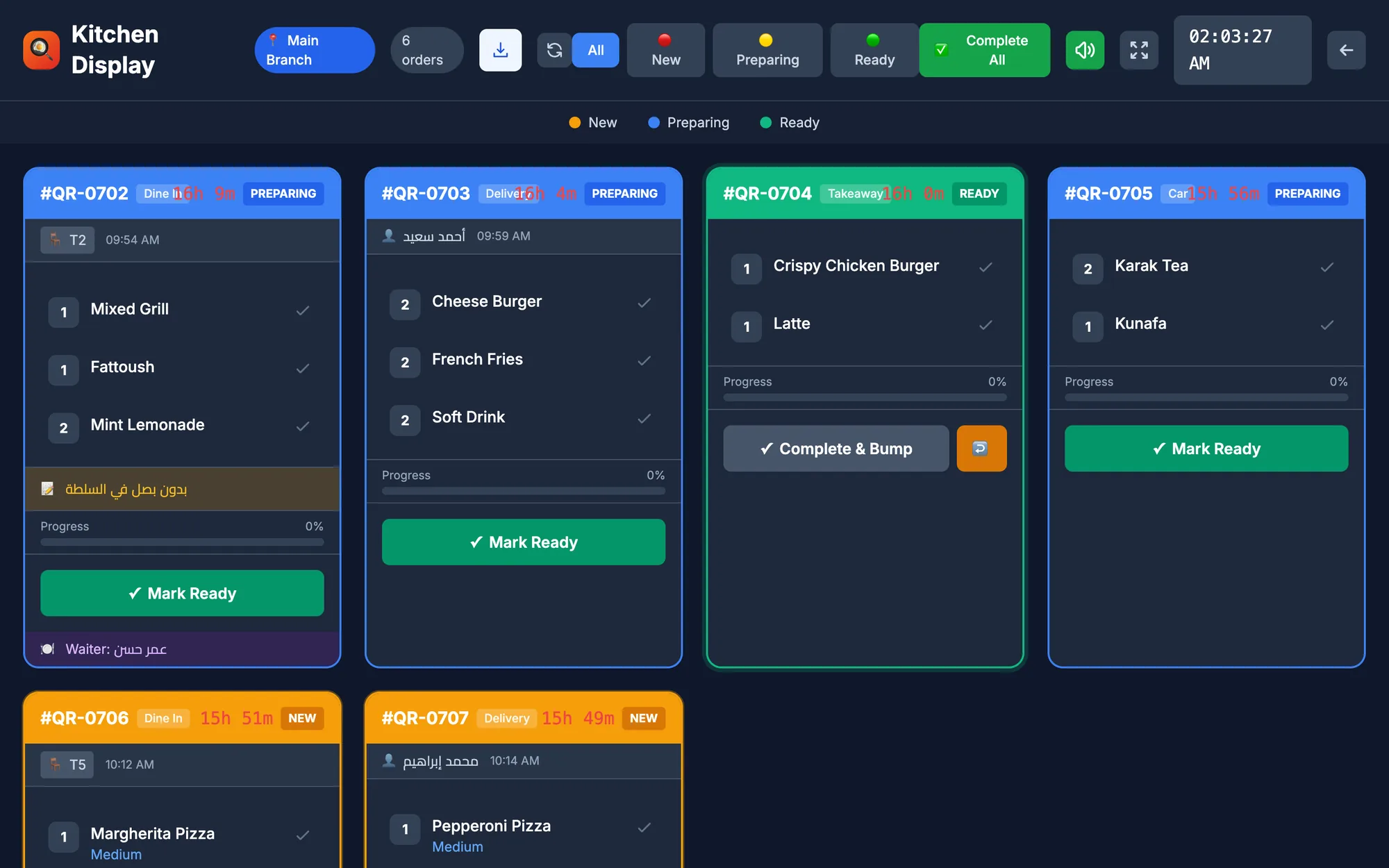
Kitchen display screens (KDS) show orders as new, preparing and ready, with timers and sound alerts. Any screen or tablet with a browser can become a kitchen display, so a wall-mounted tablet is often enough to start. Learn more in our guide to the kitchen display system.
A practical rule: a café with one barista can live with a printer; a restaurant with several stations and delivery orders usually gains from a screen.
Barcode scanners: USB or Bluetooth?
For retail, a scanner is the biggest speed gain at the till. Most scanners behave like a keyboard: they type the barcode into the POS search field and the item appears. That is why almost any USB or Bluetooth scanner works.
- USB corded scanners suit fixed tills and never need charging.
- Bluetooth scanners let staff scan bulky items in the trolley or count stock on the shelves.
- 1D scanners read standard product barcodes; 2D scanners also read QR codes and codes shown on phone screens.
- Hands-free presentation scanners help supermarkets where cashiers pass many items quickly.
Products without a manufacturer barcode, such as items you repack or bundle, need barcodes of their own; a good POS can generate them for new items.
Which hardware setup fits your type of business?
Use these setups as a starting point. Begin with the left column and grow into the right one as volume increases.
| Business | Starter setup | As you grow |
|---|---|---|
| Café or coffee shop | Tablet or touch computer, receipt printer | Bar or kitchen printer, kitchen screen |
| Restaurant | Touch computer, receipt printer, kitchen printer | Kitchen screens per station, waiter phones |
| Retail shop | Computer, receipt printer, USB scanner | Bluetooth scanner for stock counts, second till |
| Supermarket | Touch computer and scanner per till | Hands-free scanners, more tills |
| Salon or barbershop | Tablet at reception, receipt printer | Staff view appointments in the staff portal |
| Laundry | Computer or tablet, receipt printer | Second counter with a tablet |
| Repair centre | Computer, receipt printer, scanner for parts | Tablet for technicians |
How to buy POS hardware without overspending
Hardware is a one-off cost, but bad choices hurt every day. Go through this checklist before you pay.
- List what each station must do before choosing devices.
- Reuse what you have: a recent laptop, a tablet or staff phones often work.
- Avoid hardware locked to one software vendor; standard ESC/POS printers and keyboard-style scanners keep your options open.
- Prefer wired network printers in kitchens and give each one a fixed IP address.
- Keep paper rolls and a spare cable in stock; a missing roll can stop a till.
- Check power: a small backup power unit for the router and the main till keeps you selling through short cuts.
- Test every device with your real menu or products during the trial.
- Count the full cost: devices, paper, card terminal fees and the software subscription.
For the full picture of subscriptions, setup and hidden costs, see how much a POS system costs.
What hardware works with Quip POS?
Quip POS is built to run on standard, widely available hardware, so you are not tied to a single supplier.
- Selling devices: any web browser with no install; a desktop app for Windows and Mac that keeps selling and printing offline and syncs orders when the connection returns; apps for iPhone and iPad and for Android phones and tablets. Get them from the download page.
- Printers: ESC/POS thermal printers over the network or USB, with automatic printer discovery in the desktop app, receipts with your logo and routing of items to the right kitchen printer.
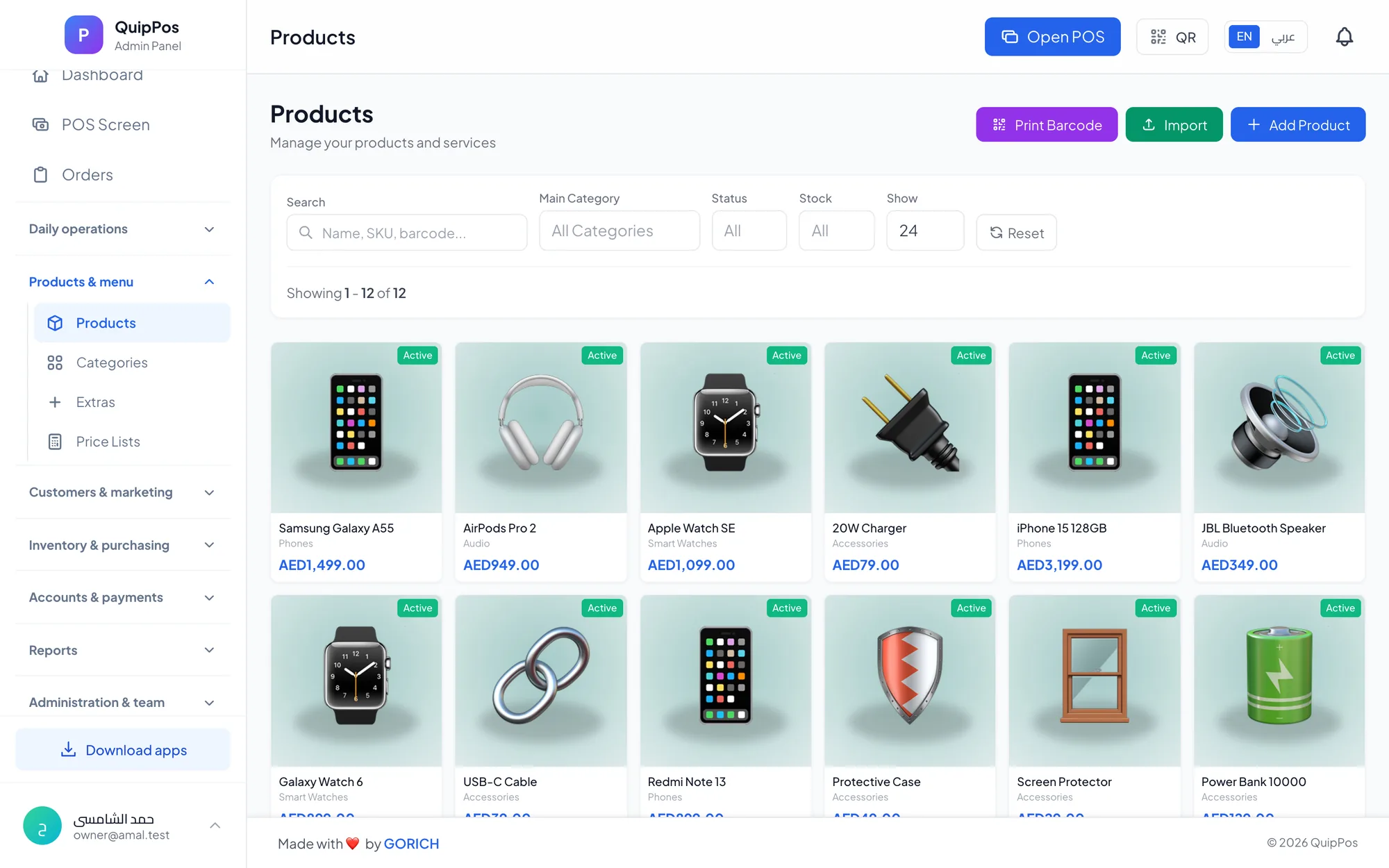
- Scanners: any USB or Bluetooth barcode scanner, plus barcode generation for new items.
- Kitchen displays: any screen or tablet with a browser becomes a kitchen display.
- Waiters: the waiter app on phones, with push notifications when food is ready.
The full list of connections is on the integrations page. The team can also help you connect printers and train staff over WhatsApp or phone, and plans start from AED 29 per month.
Next step: test your hardware before you buy more
Before ordering anything, try the software on the devices you already own. Open the live demo in a browser on your laptop or tablet, then start a 14-day free trial with no card, connect one printer and one scanner, and run a test shift. You will know exactly what to buy, and what you can skip.
Frequently asked questions
What hardware do I need for a POS system?
Can I use an iPad or Android tablet as a POS?
Is a USB or a network receipt printer better?
Do I need a special barcode scanner for my POS?
Can I use a TV or tablet as a kitchen display?
How much does POS hardware cost?
Talk to the Quip POS team
Tell us about your business and we will show you the right setup, help you add your products and connect your printers.
Related articles
 Hardware & technology
Thermal Printer Setup: Receipt and Kitchen Printers, Step by Step
A practical setup guide for thermal receipt and kitchen printers: choosing ESC/POS models, network or USB, routing items to the right station and fixing common problems.
 Retail stores
Flower Shop POS for Gift, Chocolate and Bouquet Orders
A flower shop POS should handle bouquets, chocolates, gift bundles, delivery, and deposits without slowing checkout. This guide shows what to set up before busy seasons.
 Restaurants & cafés
Opening a Restaurant: Technology and Operations Checklist
Before you open a restaurant, make sure your menu, printers, kitchen screens, staff roles and payment methods are ready. This checklist helps you test service before day one.