




















Kitchen Display System (KDS): Replace Paper Tickets for Good
How a kitchen display system replaces paper tickets, which features matter, what hardware you need and how to set one up without disrupting service.
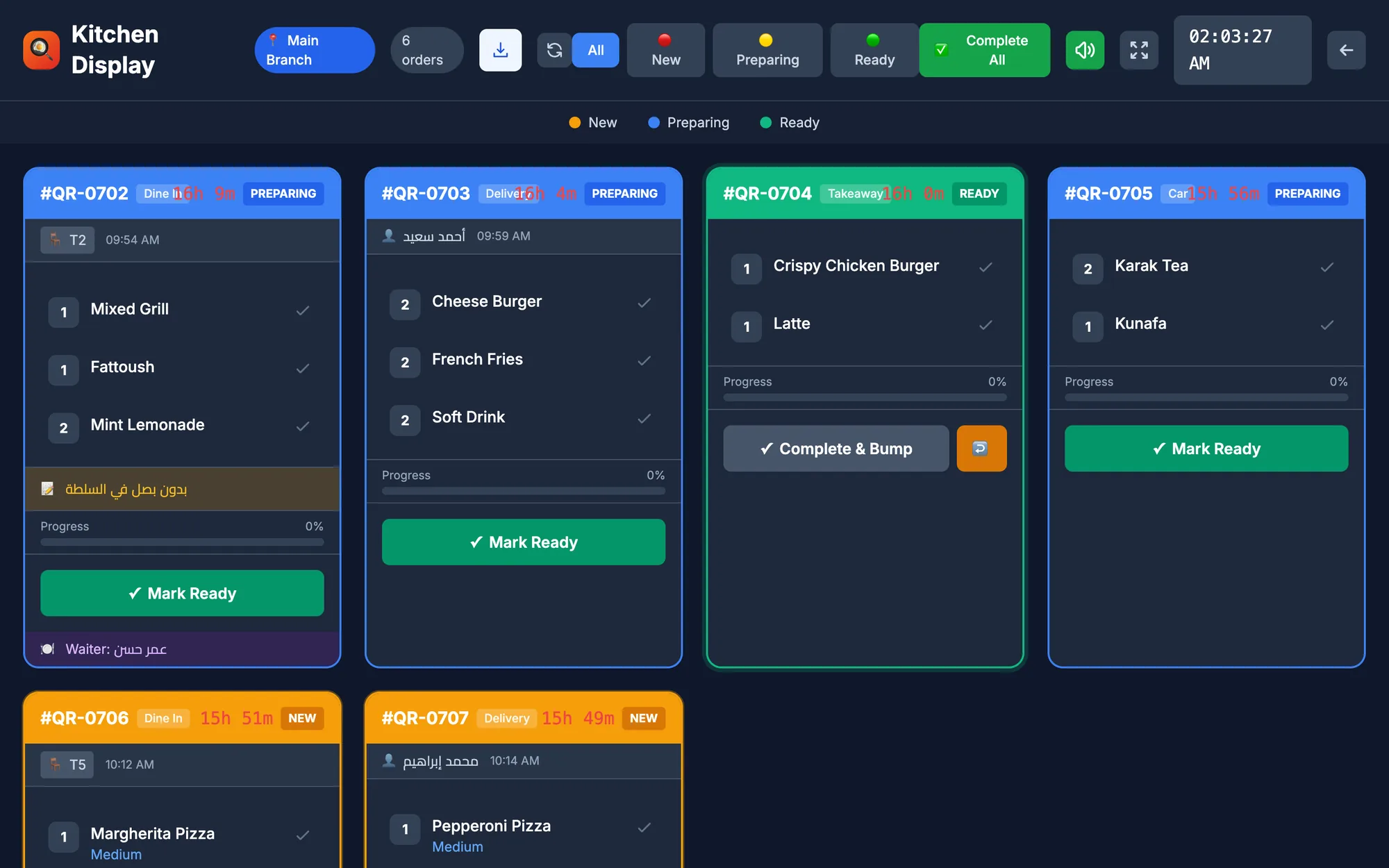
A kitchen display system (KDS) is a screen in the kitchen that replaces paper order tickets. Orders from the cashier and waiters appear instantly, cooks move them from new to preparing to ready, and timers and sound alerts show which orders are running late, so food goes out faster and nothing gets lost.
Paper tickets have served kitchens for decades, but they were designed for a world with one dining room and one way to order. Today a single kitchen may cook for dine-in tables, takeaway, delivery drivers and cars waiting outside, all at once. Tickets pile up, fall off the rail and get splashed with sauce.
This guide explains how a KDS works, which features make a real difference, what hardware you need and how to set one up over a weekend, plus the stations where a kitchen printer is still the better choice.
- A KDS shows every order on a screen with clear statuses: new, preparing and ready.
- Timers per order and sound alerts make late orders impossible to miss.
- Any screen or tablet with a web browser can become a kitchen display.
- Printer routing is a good alternative, or backup, for stations that prefer paper.
How does a kitchen display system work?
A KDS connects the kitchen directly to the POS. Instead of printing a ticket, each order is sent to a screen that the whole line can see. A typical flow looks like this:
- A cashier or waiter enters the order, whether it is for a table, a takeaway customer, a delivery or a car at the window.
- The order appears on the kitchen screen as new, with a sound alert and any guest notes.
- A cook taps it to mark it preparing, and its timer keeps running.
- As dishes are finished, the cook marks single items ready, which helps when a starter is done long before the main course.
- When everything is plated, the order is marked ready, and front-of-house staff know it can go out.
Because the screen is fed by the POS, the cashier and the manager can see the same status without walking into the kitchen to ask “is table 12 ready yet?”
Why paper tickets fail in a busy kitchen
Paper is cheap, which is exactly why its hidden costs are easy to overlook. During a lunch rush at a busy shawarma restaurant in Abu Dhabi or a brunch service in Melbourne, the same problems appear again and again:
- Tickets get lost, stuck together or fall behind the counter.
- Handwritten or tiny printed notes are misread, so allergies and special requests are missed.
- Nobody knows how long a ticket has been waiting until a guest complains.
- Changes and cancellations arrive as a second ticket that is easy to overlook.
- The printer runs out of paper at the worst possible moment.
- There is no record afterwards of how long each order really took.
Each of these mistakes costs a remade dish, a discount or an unhappy review. Over a month, those small losses add up to far more than the price of a screen.
KDS vs kitchen printer: which one does your kitchen need?
A KDS is not the right answer for every station. Compare the two honestly before deciding:
| Factor | Kitchen display (KDS) | Kitchen printer |
|---|---|---|
| Order status | New, preparing, ready on screen | None once printed |
| Waiting time | Timer on every order | Not visible |
| Notes and changes | Shown on the order itself | Extra ticket, easy to miss |
| Running costs | No paper | Paper rolls and upkeep |
| Best for | Busy kitchens, many channels | Small stations, bars, backup |
Many restaurants use both: a screen on the main line, and a printer at the bar or as a backup if a screen fails. The key is that the POS sends each item to the right place, so drinks never appear on the grill station's ticket. Our guide to thermal and kitchen printers covers printer routing in detail.
KDS features that make a real difference
Clear, simple statuses
New, preparing and ready are enough for most kitchens. More statuses sound clever but slow cooks down. Each change should be one tap, with large buttons that work with wet or gloved hands.
A timer on every order
A running timer turns waiting time into something the whole team can see. Many kitchens agree on a target, for example 12 minutes for a main course, and the head chef keeps an eye on orders that pass it.
Sound alerts for new orders
A short sound for each new order means cooks do not have to stare at the screen. Make sure it is loud enough to hear over the extractor fans, but not so loud that the team learns to ignore it.
Guest notes and item-level ready marks
Notes like “no nuts” or “sauce on the side” must be impossible to miss. Item-level ready marks let a cook flag that the salad is done while the steak is still on the grill, which keeps courses and multi-station orders in sync.
What hardware do you need for a KDS?
Less than most people think. A browser-based KDS runs on any screen or tablet with a web browser, so you can start with a tablet you already own before buying anything new.
- A screen or tablet large enough to read from a step away. A wall-mounted screen suits the main line; a tablet suits a small station.
- A safe mount away from heat, steam and splashes, at eye level for the cooks.
- Stable Wi-Fi or a network cable in the kitchen, since metal shelving and thick walls often weaken the signal.
- A power point nearby, so a tablet never runs out of battery in the middle of service.
For a full overview of printers, scanners and screens, see our POS hardware guide.
How to set up a kitchen display, step by step
- Map your stations: decide what each one prepares, such as grill, fryer, cold kitchen or bar.
- Choose the screen for each station and mount it where cooks can see it without turning around.
- Create a kitchen user with a kitchen role, so the screen shows orders without access to cash or reports.
- Send test orders of every type, dine-in, takeaway, delivery and drive-up, and check that notes appear correctly.
- Agree on target times and on who marks orders ready.
- Run one quiet shift with the screen and the printers side by side, then switch off paper wherever the screen works well.
- After a week, review which orders ran late and adjust the setup.
Measure the change so you know it worked. Before the switch, note roughly how many dishes are remade each week and how often guests ask where their food is. Two or three weeks later, compare the same numbers and look at the timers for the dishes that are still slow. Those dishes usually point to a recipe that needs more preparation before service, or a station that needs an extra pair of hands at peak times.
Common KDS mistakes to avoid
- Placing the screen where only one cook can see it.
- Running the kitchen display on someone's personal phone instead of a dedicated device.
- Forgetting to train the team to mark orders ready, so the screen fills with finished orders.
- Removing every printer on day one with no backup plan.
- Ignoring the timers instead of using them to fix slow dishes and stations.
How Quip POS handles the kitchen display
In Quip POS, the kitchen display is part of the restaurant system, not a separate product to buy and connect. Orders from the cashier and the waiter app reach the kitchen as soon as they are sent.
- Orders move through new, preparing and ready, with a timer on each order.
- Sound alerts announce new orders, and guest notes are shown with the order.
- Cooks can mark individual items ready before the whole order is finished.
- Waiters using the app get an instant notification when food is ready.
- Any screen or tablet with a browser can be the kitchen display, and kitchen staff sign in with their own PIN under a kitchen role.
- Stations that prefer paper can use ESC/POS thermal printers over the network or USB, with each item routed to the right printer, and the desktop app finds printers automatically.
See how the kitchen connects with tables, delivery and recipes on the restaurant solution page.
Start with one screen
You do not need to rebuild your kitchen to try a KDS. Open the live restaurant demo on a tablet and watch how orders, statuses and timers behave, then start a 14-day free trial with no card and run a real shift with your own menu and one screen on the line. To see how orders get from the table to the kitchen in the first place, read our guide to the waiter ordering app.
Frequently asked questions
What is a KDS in a restaurant?
Do I need special hardware for a kitchen display system?
Can I use a KDS and kitchen printers together?
How does a kitchen display reduce mistakes?
What happens to a kitchen display if the internet goes down?
How long does it take to set up a KDS?
Talk to the Quip POS team
Tell us about your business and we will show you the right setup, help you add your products and connect your printers.
Related articles
 Restaurants & cafés
Opening a Restaurant: Technology and Operations Checklist
Before you open a restaurant, make sure your menu, printers, kitchen screens, staff roles and payment methods are ready. This checklist helps you test service before day one.
 Restaurants & cafés
POS for Bakeries and Sweet Shops: A Practical Guide
A bakery POS should speed up the counter, manage variants, track recipe cost, hold pre-orders until pickup and record wastage. Here’s what to look for.
Restaurants & cafés
Table Management for Restaurants: Map, Move, Merge and Split Bills
Learn how to organise restaurant tables with zones, move and merge parties smoothly, and split the bill without slowing service. Practical tips for faster turnover and fewer mistakes.