




















Waiter Ordering App: Faster Table Service With Fewer Mistakes
How a waiter app speeds up table service: orders sent from the table to the kitchen and cashier, ready alerts, the devices you need and how to train your team.
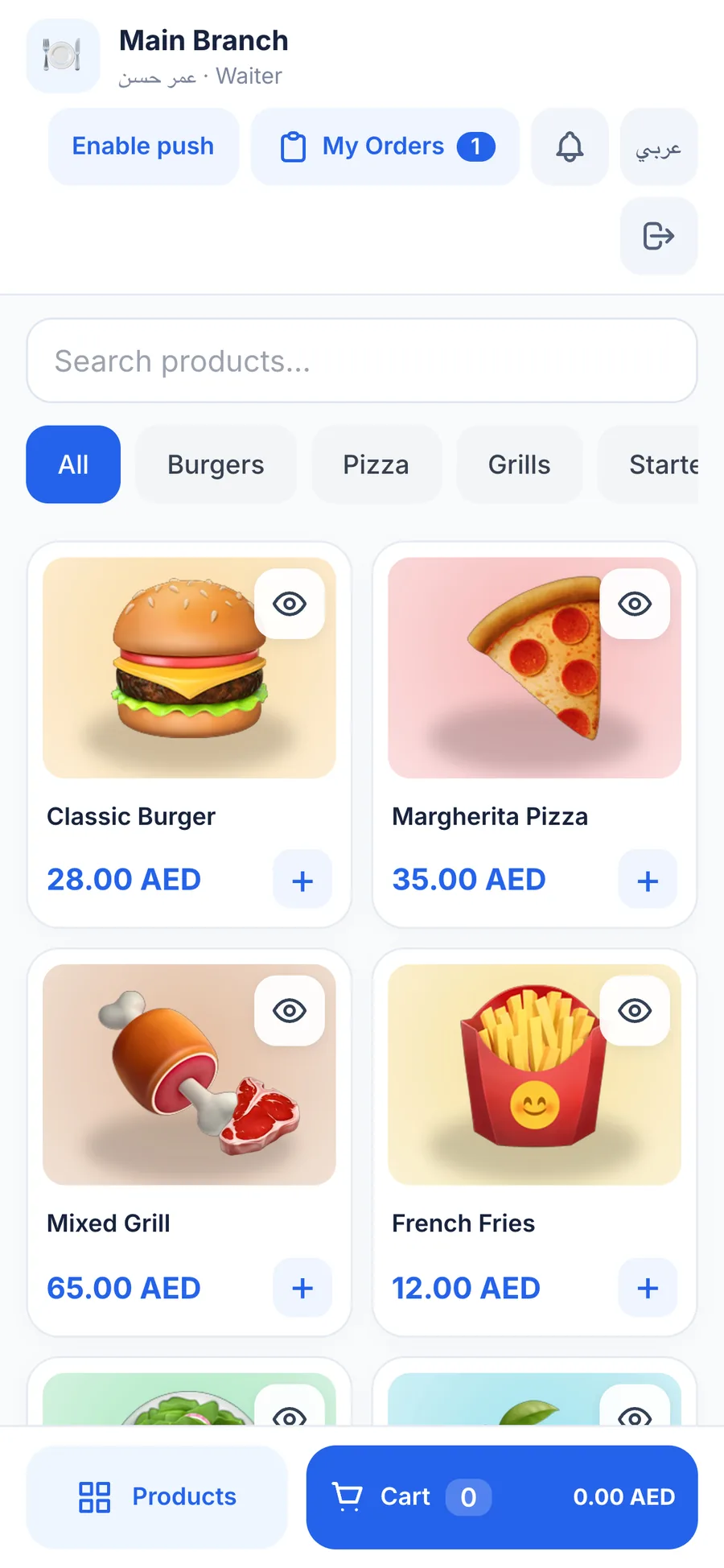
A waiter ordering app lets servers take orders on a phone or tablet at the table and send them instantly to the kitchen and the cashier. Instead of writing on a notepad and walking to the POS, waiters stay on the floor, handwriting mistakes disappear, and they are notified the moment food is ready.
In the industry this is often called a handheld POS. The idea is simple, but the effect on service is large: fewer trips, faster first orders and a kitchen that starts cooking while the waiter is still standing at the table.
This guide explains what a waiter app should do, which devices you need, how to roll it out without disrupting service and how to train your team so they actually use it.
- Waiters take orders at the table and send them to the kitchen and cashier in one tap.
- Ready notifications stop waiters from waiting around at the kitchen pass.
- Ordinary Android phones and iPhones are usually enough; special handhelds are optional.
- Roll it out zone by zone, and train with your real menu.
How does a waiter ordering app work?
A waiter app is a small, focused version of your POS that lives in the waiter's pocket. A typical order looks like this:
- The waiter signs in on the phone with a personal PIN at the start of the shift.
- At the table, they open the order for that table and add items, with notes such as allergies or cooking preferences.
- One tap sends the order to the kitchen and the cashier at the same time.
- The kitchen prepares the dishes and marks the order ready.
- The waiter receives a notification on the phone and collects the food.
- When the guest asks for the bill, the cashier already has the full order.
Every step that used to involve walking, waiting or rewriting is replaced by a tap, and the order is written only once, by the person who heard it from the guest.
Why notepads slow down table service
Picture a Thursday night in a busy grill restaurant in Kuwait City. A waiter takes an order for a table of eight, walks to the POS, waits behind a colleague, types it in, then walks to the kitchen to explain a special request. By the time the food is cooking, the table has waited ten minutes and two other tables are trying to catch someone's eye.
- Every order is entered twice: once on paper, once in the POS.
- Handwriting and abbreviations are misread by the cashier or the kitchen.
- Waiters queue at a single terminal during the rush.
- Waiters stand at the pass waiting for food instead of serving guests.
- Changes get lost when the paper is crumpled or the order is updated verbally.
None of these problems is dramatic on its own. Together, they are the reason a full dining room can feel slow even when the kitchen is cooking at full speed.
Waiter app vs QR ordering vs counter ordering
A waiter app is one of three common ways to take orders. Each suits a different style of service:
| Question | Waiter app | QR table ordering | Counter ordering |
|---|---|---|---|
| Who enters the order | Waiter at the table | Guest on their phone | Cashier at the counter |
| Service style | Personal, full service | Self-service at the table | Quick service |
| Upselling | Strong, staff suggest | Photos and menu layout | At the counter |
| Best for | Restaurants, lounges, hotels | Cafés, food courts, busy venues | Coffee shops, fast food |
These are not either-or choices. Many restaurants let guests order drinks by QR while waiters take the main order, and keep a counter for takeaway. What matters is that all three feed the same POS and the same kitchen. Our guide to QR menus and table ordering covers the guest-led option in detail.
Features a good waiter app needs
Orders tied to tables
The waiter should always see which table they are ordering for, and the order should stay attached to the guests if the party moves or two tables are merged.
One tap to the kitchen and the cashier
The order should reach the kitchen display or kitchen printer and the cashier at the same moment, so cooking starts immediately and the bill is ready when the guest asks for it.
Ready notifications
An instant push notification when food is ready keeps waiters on the floor and gets hot food to the table faster. Without it, waiters either hover at the pass or the food sits under the heat lamp.
Notes that travel with the item
Allergies, “well done”, “no ice”: notes must travel with the item to the kitchen, written once by the waiter and read clearly by the cook.
Roles and permissions
Waiters need to take orders, not issue refunds. A waiter role with limited permissions keeps cash and sensitive actions with the cashier and the manager, and makes each person responsible for their own orders.
What devices do waiters need?
You probably own most of what you need already.
- Phones: ordinary Android phones or iPhones work well; tablets suit hosts or managers who want a bigger view of the floor.
- Wi-Fi coverage: walk the dining room, terrace and garden with a phone and check the signal everywhere waiters go.
- Charging: a charging spot near the pass, and a rule that phones start every shift fully charged.
- Cases and straps: drops happen, and a sturdy case costs far less than a new phone.
Decide early whether staff use restaurant-owned devices or their own phones. Owned devices are easier to control and keep work separate. Personal phones cost nothing, but you need clear rules about signing out at the end of each shift. Our mobile POS guide covers phones and tablets in more depth.
How to roll out a waiter app, step by step
- Make sure the menu in the POS is complete, with clear names, categories and prices.
- Set up the table map so table numbers and zones match your real floor.
- Create a user for each waiter with the waiter role and a personal PIN.
- Install the app on the phones and test notifications in every zone of the restaurant.
- Train the team with practice orders before the first live shift.
- Start with one zone or a quiet lunch, while the old method stays available as a backup.
- After a week, review order times and staff feedback, then roll out to the whole floor.
Measure two simple numbers before and after the switch: how long a table waits from sitting down to its first order reaching the kitchen, and how many dishes are sent back or remade because of a wrong order. If both drop after the first fortnight, the app is doing its job. If they do not, the problem is usually Wi-Fi coverage, an untidy menu or a step in the process nobody has explained to the team.
Training tips for waiters
- Train on your real menu, not a demo menu, so muscle memory builds on the items they sell every day.
- Teach the most common orders first, then notes, then changes, table moves and merges.
- Pair less confident staff with a colleague who picks it up quickly.
- If your team speaks different languages, choose a system that works in the languages they read best.
- Keep the old notepad as a backup for the first week, then retire it.
- Review mistakes together, without blame; most errors point to a menu item that needs a clearer name.
How Quip POS handles waiter ordering
Quip POS includes a waiter app as part of its restaurant system. Waiters take orders on their phones, send them to the cashier and the kitchen, and receive an instant notification when food is ready.
- Apps for Android phones and tablets and for iPhone and iPad, and the system also runs in any web browser.
- Dine-in orders tied to the table map, with zones, moving and merging tables, and splitting the bill between guests.
- Orders reach the kitchen display, with statuses, timers and guest notes, or the right kitchen printer.
- A waiter role with its own permissions and PIN sign-in, and an audit log for sensitive actions.
- The whole system works in 20 languages, including Arabic, English, Hindi, Urdu, Malayalam and Filipino, with full right-to-left support.
Get the apps from the download page, and see how waiters, the kitchen and the cashier connect on the restaurant solution page.
Try it at one table first
The best way to judge a waiter app is to carry it through a real service. Open the live restaurant demo to see how tables, orders and the kitchen connect, then start a 14-day free trial with no card and test it with your own menu, phones and team. To complete the picture, read how the kitchen display receives those orders and turns them into ready alerts.
Frequently asked questions
What is a waiter ordering app?
Can waiters use their own phones to take orders?
Does a waiter app work with a kitchen display?
Is a waiter app better than QR ordering?
How long does it take to train waiters on an ordering app?
What is a handheld POS?
Talk to the Quip POS team
Tell us about your business and we will show you the right setup, help you add your products and connect your printers.
Related articles
 Restaurants & cafés
Opening a Restaurant: Technology and Operations Checklist
Before you open a restaurant, make sure your menu, printers, kitchen screens, staff roles and payment methods are ready. This checklist helps you test service before day one.
 Restaurants & cafés
POS for Bakeries and Sweet Shops: A Practical Guide
A bakery POS should speed up the counter, manage variants, track recipe cost, hold pre-orders until pickup and record wastage. Here’s what to look for.
Restaurants & cafés
Table Management for Restaurants: Map, Move, Merge and Split Bills
Learn how to organise restaurant tables with zones, move and merge parties smoothly, and split the bill without slowing service. Practical tips for faster turnover and fewer mistakes.