




















QR Code Menu and Table Ordering: A Practical Guide for Restaurants
How QR menus and table ordering work, what guests expect, design tips that increase orders, common mistakes and a simple one-week plan to launch.
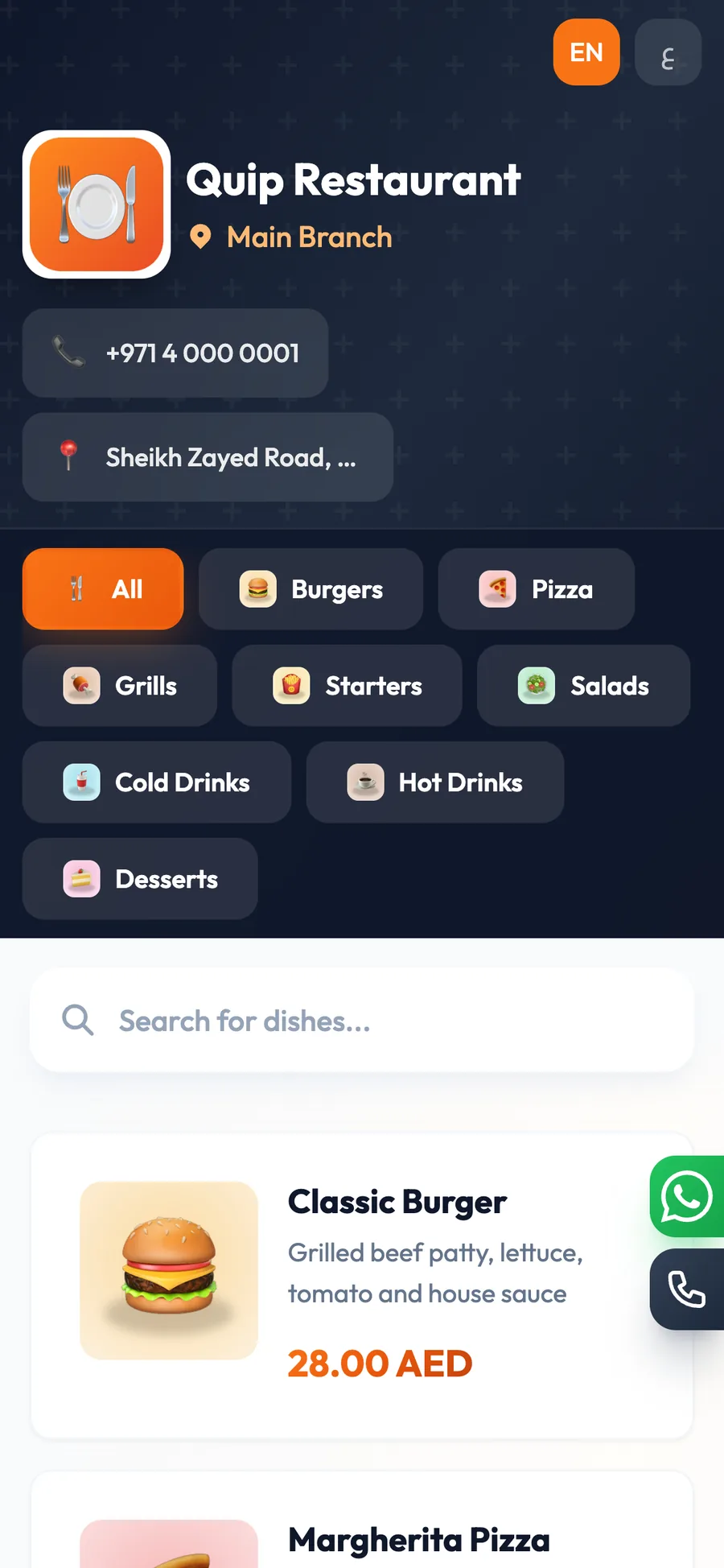
A QR code menu lets guests scan a code on the table and open your menu on their phone. With table ordering, they can also order and call the waiter from that menu, and the order lands directly on your POS. Restaurants and cafés use it to serve faster, cut order errors and update menus without reprinting.
QR menus became common almost overnight, and many were rushed: a blurry PDF behind a sticker that guests had to pinch and zoom. Done well, a QR menu is very different. It shows photos, reads in a language the guest understands, and turns a ten-minute wait for a waiter into a two-minute order.
This guide covers how QR table ordering works, its benefits and limits, design tips that increase orders, mistakes to avoid and a one-week plan to launch it in your restaurant or café.
- A view-only QR menu replaces printed menus; QR table ordering also takes the order.
- Orders should land directly on the POS, not on a separate tablet or in an inbox.
- Photos, clear categories and two languages sell far more than a scanned PDF.
- Keep people in the loop: guests still want a waiter when they need one.
How does QR code table ordering work?
The idea is simple: each table gets its own code, and the code knows which table it belongs to. Here is what happens from the guest's side:
- The guest sits down and sees a QR code on a stand, sticker or table card.
- They scan it with the phone camera, and the menu opens in the browser.
- The menu shows that branch's items for that table, with categories, photos and prices.
- The guest adds items and sends the order, or taps to call the waiter.
- The order lands on the POS already linked to the right table, ready for the team to prepare.
- Staff follow the table as usual until the bill is settled.
Because each code is tied to a table, nobody has to type a table number or explain where they are sitting, which removes one of the most common sources of mixed-up orders.
View-only QR menu vs QR table ordering
Not every restaurant needs guests to order by themselves. Decide which model fits your service style:
| Question | View-only QR menu | QR table ordering |
|---|---|---|
| What guests can do | Read the menu | Read, order and call the waiter |
| Who enters the order | The waiter | The guest |
| Effect on staff | Saves printing only | Saves trips and order taking |
| Best for | Fine dining, small cafés | Busy cafés, food courts, hotels, beach venues |
| Needs | An up-to-date menu | A clear menu and a ready kitchen flow |
If your service is personal and unhurried, a view-only menu may be all you need. If guests regularly wait to place their first order, table ordering removes that bottleneck.
Benefits of a QR menu for restaurants and cafés
Faster ordering at peak times
At 1 pm in a business-district café in Dubai, every table wants to order at once. With table ordering, ten tables can order in parallel instead of waiting for two waiters to reach them one by one.
Fewer order mistakes
Guests choose exactly what they want, and the order reaches the POS as they entered it. There is no handwriting to misread and no dish misheard over loud music.
Menu changes in minutes
Prices rise, a dish sells out, a seasonal drink launches. A digital menu changes the moment you update the item, without reprinting a single page or covering prices with stickers.
A menu in the guest's language
Tourists and residents from abroad order more confidently when they can read the menu. In the Gulf, a menu in Arabic and English serves most guests; a hotel restaurant in Istanbul or a café in Kuala Lumpur may choose a different pair of languages.
Photos that sell
A good photo does more for an add-on dessert than any description. Guests who can see a dish are more willing to try something new, and fewer of them ask the waiter to describe every item.
The guest experience: getting it right at the table
Technology should feel invisible. A guest who struggles to scan, waits for a slow page or cannot find anyone to help will remember the frustration, not the innovation. Check these points from a guest's seat:
- Place the code where it can be scanned without moving plates, large enough to scan from a seated position.
- Add one short line of instruction, such as “Scan to see the menu and order”.
- Make the call-the-waiter option obvious, for questions, allergies and the bill.
- Keep staff visible; QR ordering frees them for hospitality, not for disappearing.
- Offer a printed menu or a staff device for guests who prefer not to use their phone.
QR menu design tips that increase orders
A QR menu is a sales tool as much as a list of prices. Use this checklist before you go live:
- Put best sellers and high-margin dishes first in each category.
- Use real photos of your own dishes, taken in good light, instead of stock images.
- Keep names short, and descriptions to one line about taste or key ingredients.
- Make spicy, vegetarian and signature items easy to spot in the name or description.
- Split long categories so guests can scan each one quickly on a small screen.
- Choose a design that matches your brand colours and atmosphere.
- Test the menu on an older phone with a weak connection before launch.
Common QR menu mistakes to avoid
- Uploading a PDF of the printed menu instead of a real digital menu.
- Orders that arrive on a separate tablet that someone has to retype into the POS.
- One QR code for the whole restaurant, so staff must ask every guest for a table number.
- Showing dishes that are sold out, then apologising after the guest orders them.
- Forgetting the second language, or relying on clumsy translations of dish names.
- Removing waiters entirely and leaving guests with nobody to ask.
The fix for most of these is the same: treat the QR menu as part of your POS, not as a separate project. When the menu and prices live in one place, a price change is made once and appears everywhere, and staff never have to choose between the screen in front of them and a forgotten tablet in the corner.
How to launch a QR menu in one week
- Day 1: clean up the menu in your POS, with categories, prices and names in both of your languages.
- Day 2: photograph your top 20 dishes and add the photos.
- Day 3: choose a menu design and check it on several phones.
- Day 4: print a QR code for each table and place them in stands.
- Day 5: brief the team on how orders and waiter calls arrive, and who responds to each.
- Day 6: soft launch in one zone or during a quiet shift.
- Day 7: review orders and guest feedback, fix anything confusing, then roll out to every table.
Keep the printed codes simple and durable. Laminated cards or acrylic stands survive spills and cleaning, and a table number printed next to each code helps staff confirm orders at a glance. Check the codes every week and replace any damaged one immediately, because a code that will not scan is worse than no code at all.
How Quip POS handles QR menus and table orders
In Quip POS, the QR menu uses the same products and prices as your POS, so there is one menu to maintain instead of two. Change a price on the POS and you are not left updating a separate menu website.
- More than 20 menu designs to match your restaurant's style.
- A menu per branch and per table on quip.menu, so every order arrives already linked to its table.
- Guests order from the table and call the waiter from their own phone.
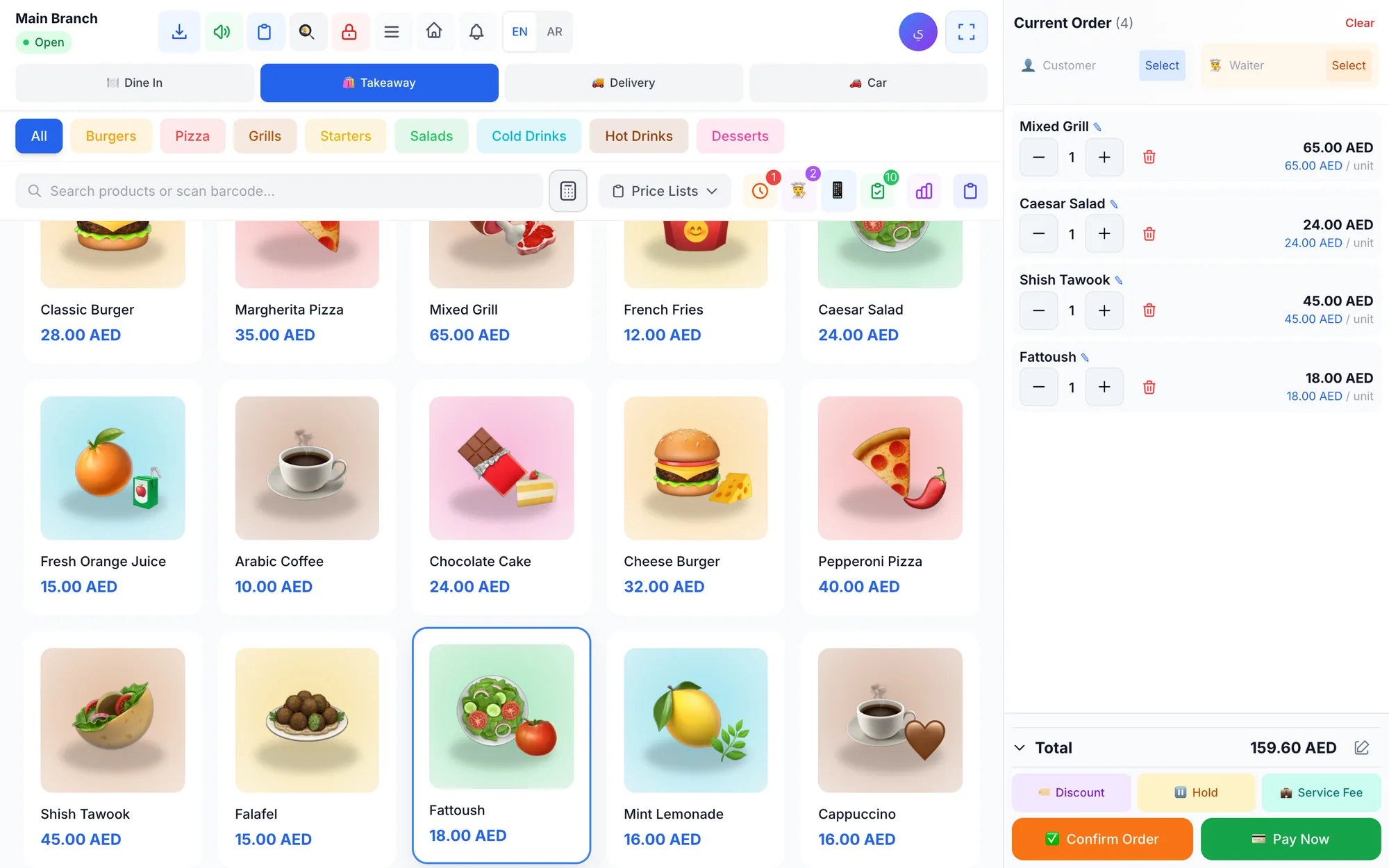
- Orders land on the POS alongside orders from the cashier and the waiters.
- Item names use the two content languages you choose, such as Arabic and English, with automatic translation of names.
Because the menu, the tables and the kitchen share one system, the QR menu and the waiter app work side by side: guests order simple items themselves, and waiters look after larger tables and questions. See the details on the restaurant POS page, the full feature list, or our complete restaurant POS guide.
See it before you print a single code
The easiest way to judge QR ordering is to see how orders, tables and the kitchen connect in one system. Open the live restaurant demo, then start a 14-day free trial with no card and build your own menu with your photos and prices. If your restaurant relies on table service, our guide to the waiter ordering app shows how both tools work together, and the multilingual POS guide explains menus and receipts in two languages.
Frequently asked questions
How does a QR code menu work in a restaurant?
Do guests need to download an app to use a QR menu?
Is a QR menu better than a printed menu?
How do I create a QR code menu for my restaurant?
Will a QR menu replace my waiters?
Can a QR menu be in Arabic and English?
Talk to the Quip POS team
Tell us about your business and we will show you the right setup, help you add your products and connect your printers.
Related articles
 Restaurants & cafés
Opening a Restaurant: Technology and Operations Checklist
Before you open a restaurant, make sure your menu, printers, kitchen screens, staff roles and payment methods are ready. This checklist helps you test service before day one.
Restaurants & cafés
POS for Bakeries and Sweet Shops: A Practical Guide
A bakery POS should speed up the counter, manage variants, track recipe cost, hold pre-orders until pickup and record wastage. Here’s what to look for.
Restaurants & cafés
Table Management for Restaurants: Map, Move, Merge and Split Bills
Learn how to organise restaurant tables with zones, move and merge parties smoothly, and split the bill without slowing service. Practical tips for faster turnover and fewer mistakes.