




















Mobile POS: Run Your Business from iPhone, Android and Tablets
What a mobile POS app can do for owners, cashiers and waiters, how phones, tablets, web and desktop work together, and how to set up a mobile POS step by step.
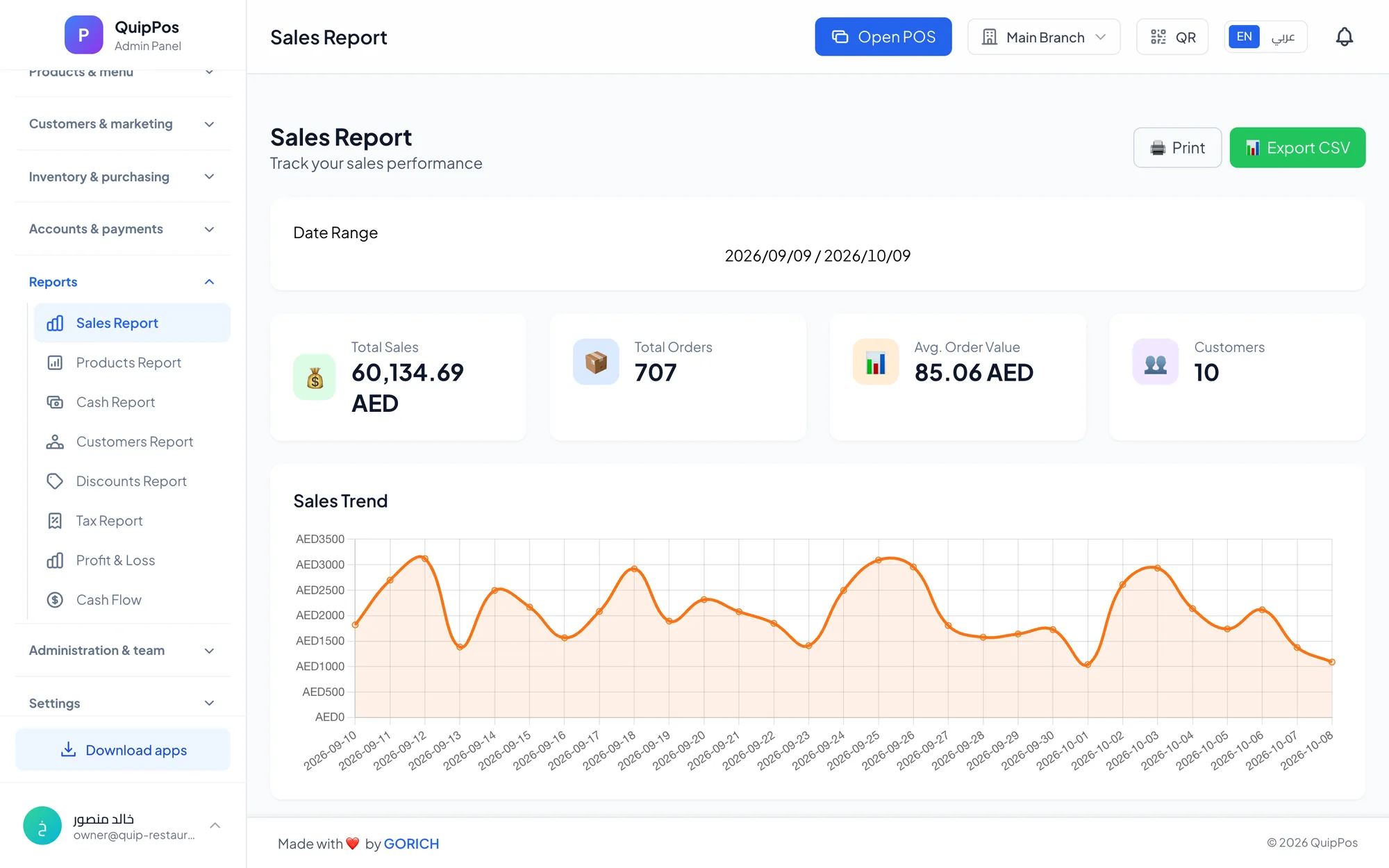
A mobile POS is point of sale software on phones and tablets that lets you sell, take table orders and check reports away from the counter. The best setups combine a mobile POS app with web and desktop versions that share the same cloud data: the owner on an iPhone, waiters on Android phones, the cashier on a tablet.
The counter is no longer the only place where business happens. Waiters take orders at the table, a boutique owner in Jeddah checks today's sales from home, a stall at a weekend market sells from a tablet on mobile data, and a salon manager looks up tomorrow's appointments on a phone.
This guide explains what a mobile POS can and cannot do, how phones, tablets, web and desktop devices work together, how to choose between them, and how to set up a mobile POS in your business.
- A mobile POS puts selling, ordering and reports on the phones and tablets your team already carries.
- The strongest setup mixes devices: desktop at the main counter, tablets and phones for service, the owner's phone for reports.
- All devices should share one cloud account, so a sale on a phone appears on the dashboard within seconds.
- Roles and PIN sign-in keep shared phones and tablets secure.
- Plan the main counter for outages: mobile devices usually need a connection, so keep an offline-capable desktop till.
What is a mobile POS and how does it work?
A mobile POS is a POS app installed on a smartphone or tablet, or a POS that runs in the device's browser. It connects to the same cloud account as your other devices, so products, prices, stock, customers and staff are the same everywhere.
When a waiter adds an order on a phone, it goes to the cloud and on to the kitchen and the cashier. When the owner opens the dashboard on their phone, the sale is already there. Card payments usually still go through a separate card terminal, and receipts and kitchen tickets are printed on the shop's printers or shown on a kitchen screen.
Mobile POS, tablet POS and handheld POS: what is the difference?
The terms overlap. A tablet POS usually means a tablet used as the till at a counter or on a stand. A handheld or mobile POS usually means a phone carried by waiters or floor staff. In both cases the software is the same; only the screen size and the job change.
What can a mobile POS app do for owners, cashiers and waiters?
For owners and managers
- Check today's sales, paid and unpaid orders and best sellers from anywhere.
- Compare branches and read combined reports without driving between them.
- Review discounts, refunds and the audit log after a busy shift.
- Follow open orders and unpaid balances until they are collected.
For cashiers
- Sell from a tablet at a small counter, a kiosk or a pop-up stand where a full computer does not fit.
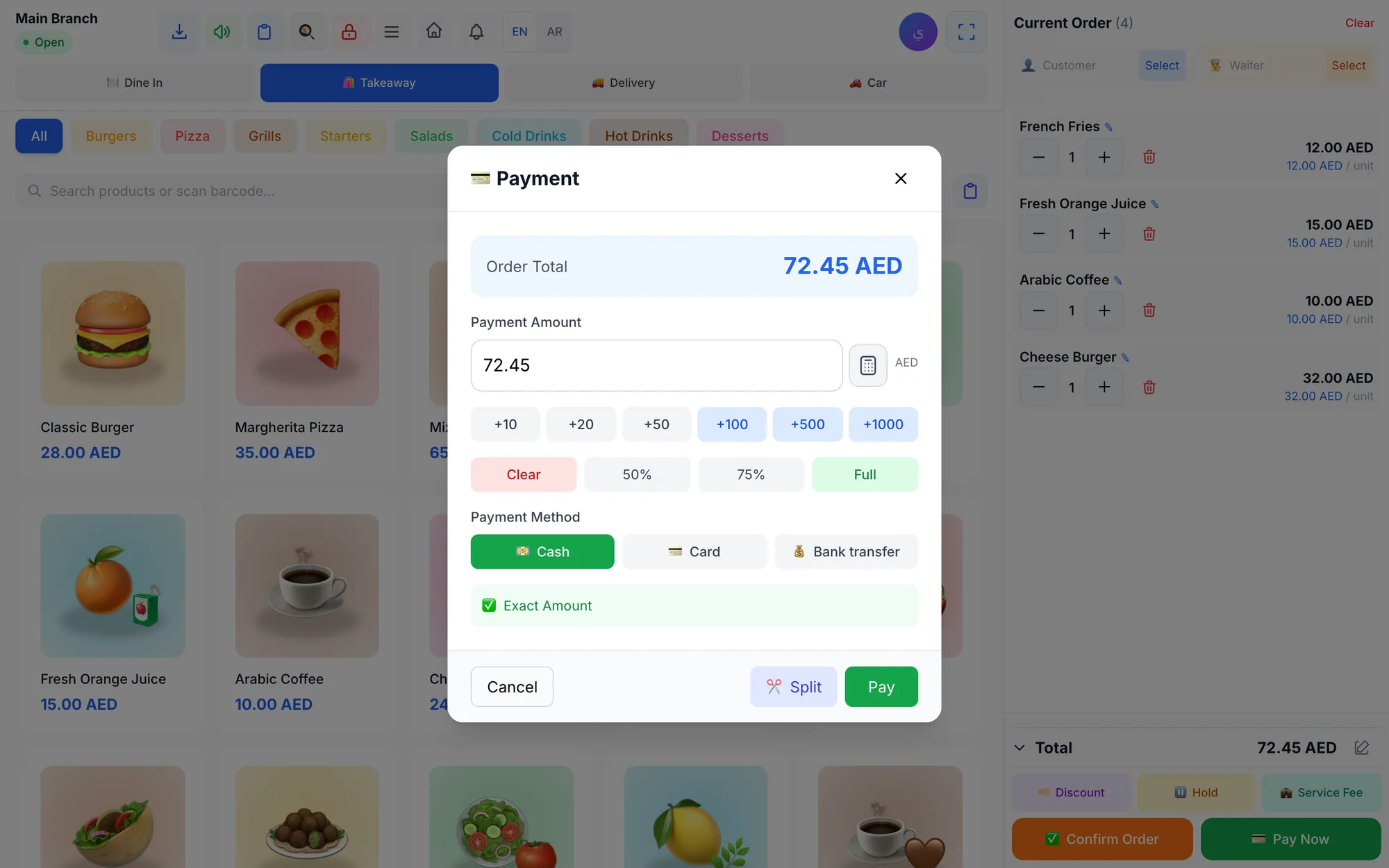
- Scan barcodes with a Bluetooth scanner and take split or mixed payments.
- Look up customers, loyalty points and order history at the counter.
- Shorten queues at peak time by taking orders from customers waiting in line.
For waiters
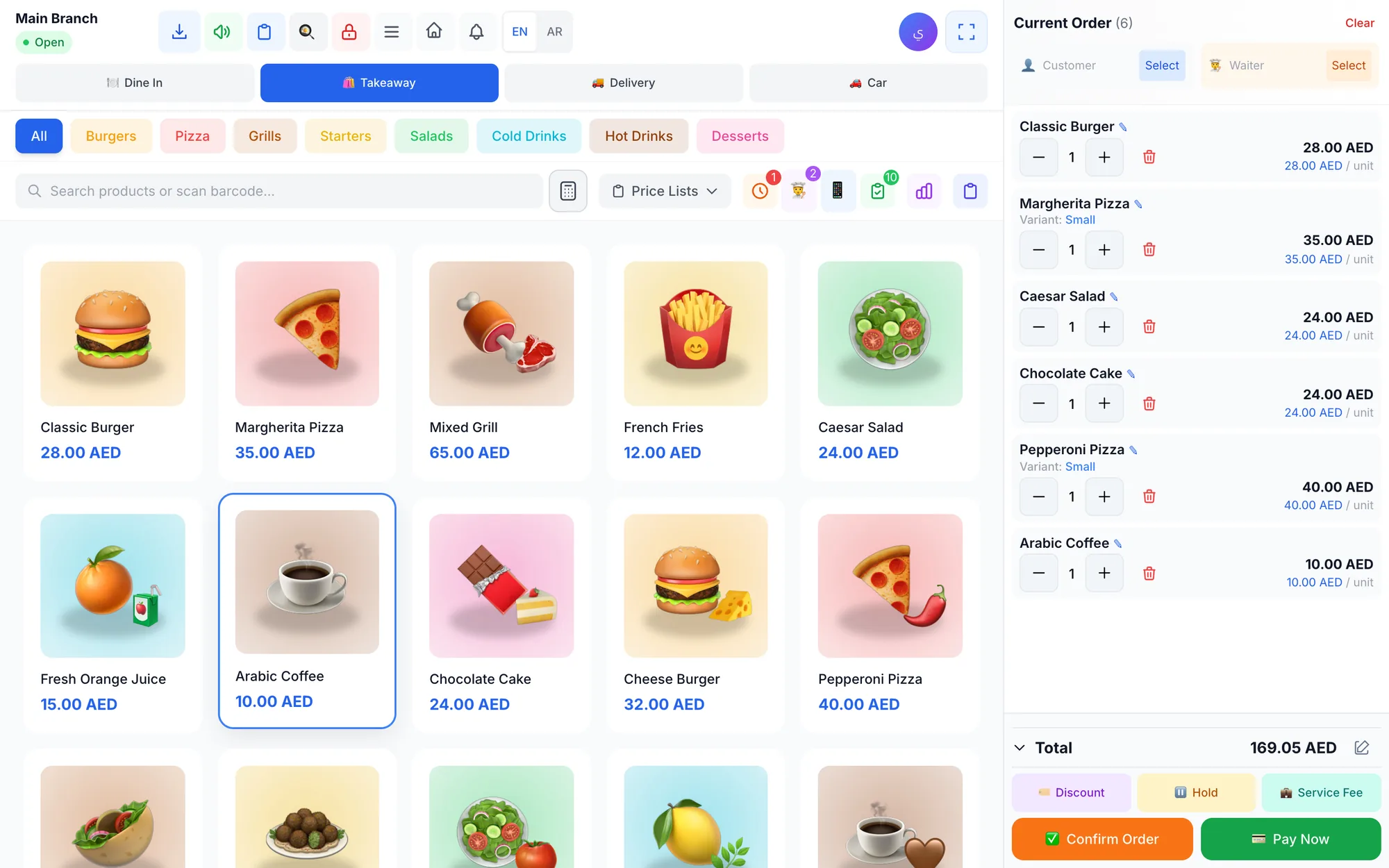
- Take orders at the table on a phone and send them straight to the kitchen and the cashier.
- Get a notification when food is ready, instead of checking the pass every few minutes.
- Move between tables and add items without walking back to the counter.
- Make fewer mistakes, because orders are not copied over from a notepad.
A café in Doha with six tables and one counter, for example, can let its two waiters take orders on their phones during the morning rush while the cashier focuses only on payments.
How different businesses use a mobile POS
Restaurants are the obvious case, but mobile devices help almost every type of business:
- Retail stores: staff check stock and prices on the shop floor with a tablet and a Bluetooth scanner, instead of walking back to the counter.
- Salons and beauty centres: the reception tablet shows the day's appointments per staff member, and checkout records who performed each service.
- Laundries: the counter tablet finds an open order by number, customer name or phone in seconds when a customer arrives for pickup.
- Repair centres: a technician checks the status of a repair order without leaving the workbench.
- Owners of several branches: one phone shows every location's sales, so a branch visit becomes a choice rather than a necessity.
The common thread is simple: the information moves to where the person is standing, instead of the person walking to the information.
Which device should you use for each job?
Each device type has a natural role. Match the device to the job rather than forcing one device to do everything.
| Device | Best for | Strengths | Watch out for |
|---|---|---|---|
| Desktop app (Windows or Mac) | Main counter | Large screen, offline selling, printer discovery | Fixed in one place |
| Web browser | Back office, extra counters, kitchen screen | Nothing to install, any computer | Needs a connection |
| iPad or Android tablet | Small counters, kiosks, kitchen screen | Touch-friendly, portable, affordable | Needs a stand, charger and Wi-Fi |
| iPhone or Android phone | Waiters, owners, managers | Always in the pocket, push notifications | Small screen for long orders |
Most businesses end up with a mix. A typical restaurant runs the desktop app at the counter, a tablet or screen as the kitchen display, and phones for the waiters and the owner.
Is a tablet POS enough for the counter?
For many small businesses, yes. A tablet on a stand works well for a coffee kiosk, a small salon reception, a laundry counter or a boutique with modest daily volume. It is touch-first, takes little space and costs less than a full computer.
Choose a desktop app for the main counter instead when:
- The till must keep selling during internet outages.
- You run several printers (receipt, kitchen, bar) that the till must reach directly.
- The counter is very busy and staff need a large screen with many categories visible.
- You want a USB printer and barcode scanner wired to one fixed station.
Many owners do both: a desktop till at the main counter and a tablet as a second station at peak times. Our guide to offline POS explains why the main till matters most when the internet drops.
What to look for in a mobile POS app
Use this checklist when you compare mobile POS apps:
- Native apps on the App Store and Google Play, not only a website squeezed onto a phone screen.
- One account across phones, tablets, browser and desktop, with real-time sync.
- Roles and permissions, so a waiter's phone cannot issue refunds.
- PIN sign-in for quick switching on shared tablets.
- Push notifications for waiters when food is ready.
- Support for Bluetooth barcode scanners on tablets.
- The same languages, products and receipts as the main POS.
- A clear plan for the main counter during outages.
How to set up a mobile POS in your business
- Decide who needs a mobile device: waiters, floor staff, managers, the owner.
- Choose the devices: phones you already own, or dedicated tablets with stands and chargers.
- Install the POS app from the App Store or Google Play and sign in to the same company account.
- Create staff accounts with the right role and a PIN, and keep refund and discount permissions for managers.
- Check Wi-Fi coverage everywhere staff will take orders, including the terrace and the back room.
- Test the full flow: an order from a waiter's phone, a ticket in the kitchen, a ready notification, payment at the counter.
- Set rules for shared devices: charge them at closing, no personal apps, and sign out at the end of each shift.
How Quip POS works on phones, tablets and computers
Quip POS runs on every device your team uses, all connected to the same cloud data, so every device and branch stays in sync. It works in any web browser with nothing to install, as a desktop app for Windows and Mac that keeps selling and printing offline, as an iPhone and iPad app on the App Store, and as an Android app for phones and tablets used by waiters, cashiers and managers. Get the apps from the download page.
Waiters use the waiter app to take orders on their phones and send them to the cashier and kitchen, with push notifications the moment food is ready. Any screen or tablet with a browser can become a kitchen display showing new, preparing and ready orders, with timers and sound alerts. Our guide to the waiter ordering app covers table service in detail, and the kitchen display system article explains the kitchen side.
Owners follow the live dashboard with today's sales, paid and unpaid orders and best sellers, and read combined reports across branches. Roles, permissions and PIN sign-in keep shared devices safe, and in salons the staff portal lets each staff member sign in with a PIN to see their own appointments and commissions. See how it all fits together for food businesses on the restaurant solution page.
Next step: try it on the phone in your pocket
The easiest way to judge a mobile POS is to use it on your own devices. Open the live demo on your phone or tablet to explore a ready company, then start a 14-day free trial with no card, install the apps and send a test order from a phone to the kitchen.
Frequently asked questions
What is a mobile POS?
Can I use my iPhone or Android phone as a POS?
Is an iPad or Android tablet good enough as a POS?
Does a mobile POS work without internet?
How do waiters use a mobile POS app?
Is a mobile POS secure on shared devices?
Talk to the Quip POS team
Tell us about your business and we will show you the right setup, help you add your products and connect your printers.
Related articles
 POS guides
Best POS System in 2026: How to Choose the Right Point of Sale
There is no single best POS system for everyone. Use these criteria, red flags and a weighted scoring checklist to find the point of sale software that fits your business.
 POS guides
What Is a POS System? A Complete Guide for Business Owners
A plain-language guide to POS systems: the hardware and software, what happens at checkout, how stock and reports work, cloud vs local, and who needs one.
POS guides
POS System in the UAE and Gulf: How to Choose the Right One
What businesses in Dubai, Abu Dhabi, Riyadh and Doha need from a POS system: bilingual receipts, staff languages, tax reports, AED pricing, WhatsApp and local support.