



















What Is a POS System? A Complete Guide for Business Owners
A plain-language guide to POS systems: the hardware and software, what happens at checkout, how stock and reports work, cloud vs local, and who needs one.
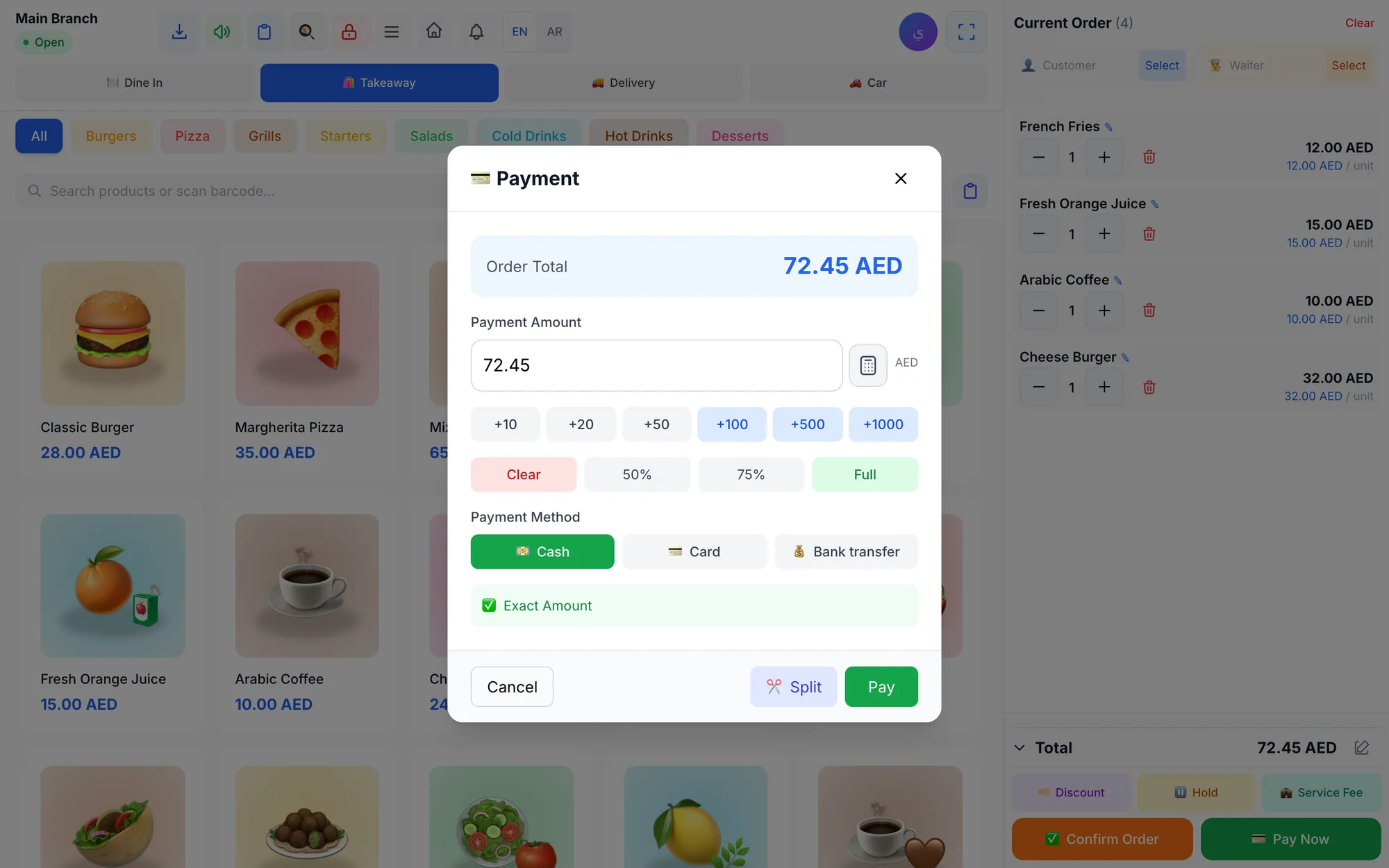
A POS system (point of sale system) is the software and hardware a business uses to record sales, take payments and issue receipts. A modern POS system also updates stock, tracks cash and staff, stores customer details and produces reports, so the owner knows exactly what was sold, by whom, when and for how much.
The point of sale is the place and moment a customer pays: a café counter, a shop till, a salon reception desk or a waiter's phone at a table. A generation ago that meant a cash register and a notebook. Today it usually means a screen or tablet, a receipt printer and software that keeps its data in the cloud.
If you are opening your first business or replacing an old cash register, this guide explains every part in plain language: what the hardware does, what happens during a sale, how stock and reports work, and how to tell whether you need one.
- POS stands for point of sale: the moment and place where a customer pays.
- A POS system combines software (the brain) with hardware such as a screen, printer and scanner.
- Beyond checkout, it manages stock, cash, staff, customers and reports.
- A cloud POS keeps data online so you can see your business from anywhere; the best ones also work offline.
- Almost any business that sells in person benefits from one, from a single kiosk to a chain.
What does a POS system do?
At its simplest, a POS system replaces the cash register. In practice it does far more, because every sale becomes data that the rest of the business can use. A typical system handles these jobs:
- Selling: adding items, applying discounts or promo codes, and calculating the total and tax.
- Payments: accepting cash, card or bank transfer, sometimes split across one bill, and calculating change.
- Receipts: printing a receipt or sending it digitally.
- Inventory: reducing stock with every sale and warning you before items run out.
- Cash control: opening and closing shifts and comparing counted cash with expected cash.
- People: giving each employee a login and limiting what they can do.
- Customers: saving purchase history, balances and loyalty points.
- Reports: showing sales, best sellers, profit and trends.
What are the parts of a POS system?
Every POS system has two halves: the software that runs the business logic and the hardware your team touches.
POS software
The software is the part to choose most carefully. It includes the selling screen your cashier uses, an admin panel where you manage products, prices, staff and settings, and the reports. Some products are installed on one computer; others run in the cloud and work in a web browser, a desktop app or a mobile app. Look for a selling screen new staff can learn in minutes, an admin panel you can use from your phone, and reports that need no spreadsheet skills.
POS hardware
Hardware needs depend on your business. Many small businesses start with a tablet and a printer, then add equipment as they grow. For a deeper look, see our POS hardware guide.
| Device | What it does | Who needs it |
|---|---|---|
| Screen, tablet or computer | Runs the selling screen | Every business |
| Receipt printer | Prints receipts and order tickets | Most counters |
| Barcode scanner | Adds items in one scan | Shops, pharmacies, supermarkets |
| Cash drawer | Stores cash securely | Businesses taking cash |
| Card terminal | Accepts card payments | Most businesses |
| Kitchen screen or printer | Shows orders to the kitchen | Restaurants and cafés |
Card terminals usually come from your bank or payment provider, which also sets the processing fees. Ask any POS vendor which printers and scanners work with their software before you buy hardware.
What happens at checkout, step by step?
Here is what a POS system does in the few seconds a customer spends at the counter of a busy café in Doha or a grocery shop in Manchester:
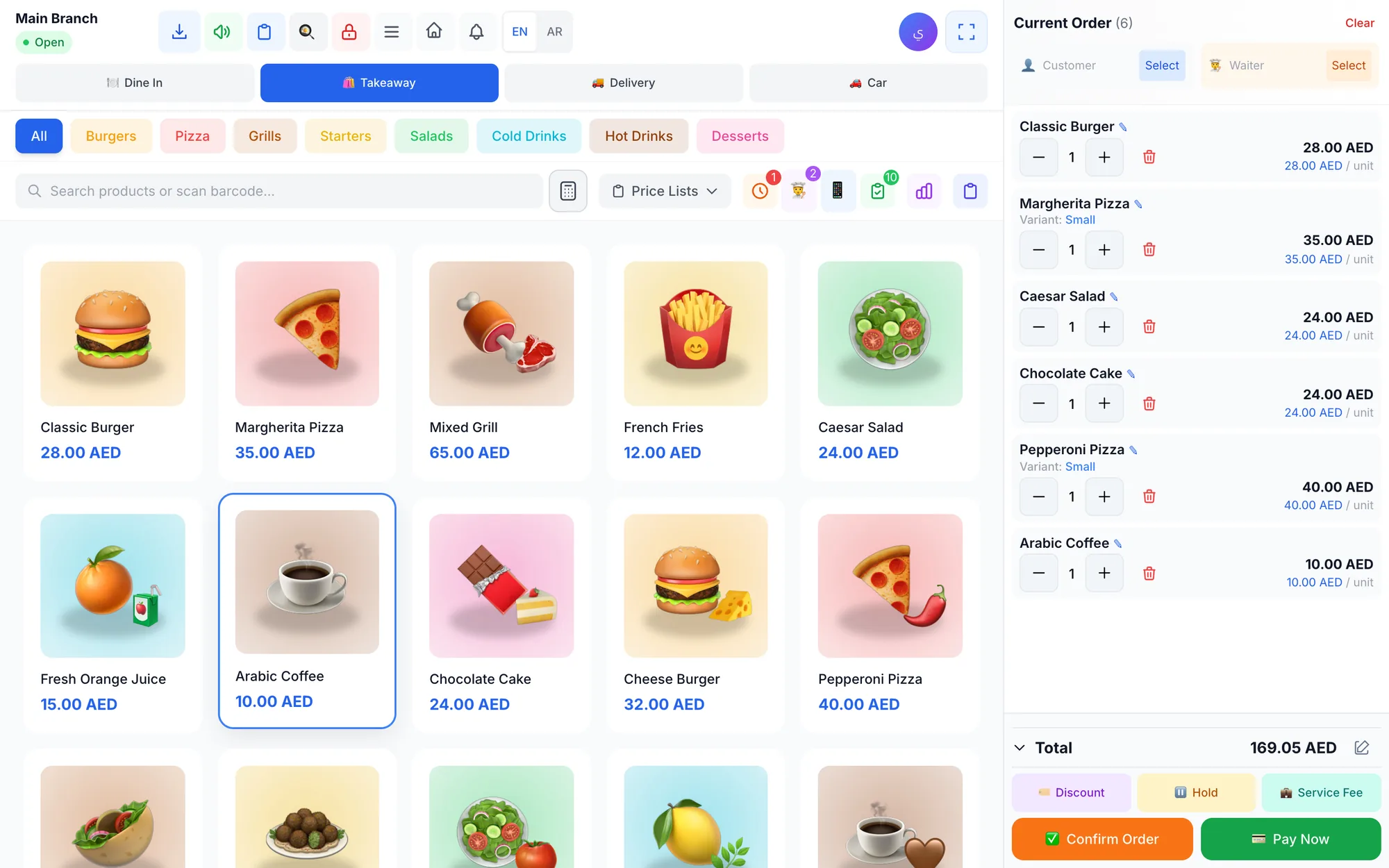
- The cashier taps items on the screen or scans their barcodes, and the system pulls the current price from the product list.
- Options are added: a size, an extra shot, a note for the kitchen or the customer's loyalty account.
- Discounts or promo codes are applied, within the limit the owner allows.
- The system calculates the total, including tax where it applies.
- The customer pays by cash, card, transfer or a mix, and the system shows the change due.
- A receipt is printed or sent, and kitchen orders go to the kitchen screen or printer.
- Stock, the cash expected in the drawer, the customer's history and the reports all update immediately.
That last step is where a POS system differs most from a cash register. Instead of disappearing into a daily total, each sale becomes information you can act on. Refunds work the same way in reverse: the refund is linked to the original sale, the item returns to stock, and the reason is recorded so the owner can review it later.
How does a POS system manage inventory?
Each product in the system has a stock quantity. When you sell it, the quantity falls; when you receive a purchase from a supplier, it rises; when you count the shelf and find a difference, you record an adjustment with a reason such as damage or expiry.
Good systems go further. A clothing shop can track each size and colour as a separate variant with its own stock. A restaurant can link each dish to its ingredients, so selling a burger reduces the bun, patty and cheese automatically and shows the true cost of the dish. Low-stock alerts warn you before a best seller runs out on a busy weekend. For a pharmacy or supermarket with thousands of items, barcode scanning and supplier purchase invoices are what keep the shelves and the books in agreement.
What reports does a POS system give you?
Reports turn daily sales into decisions. The ones owners use most are:
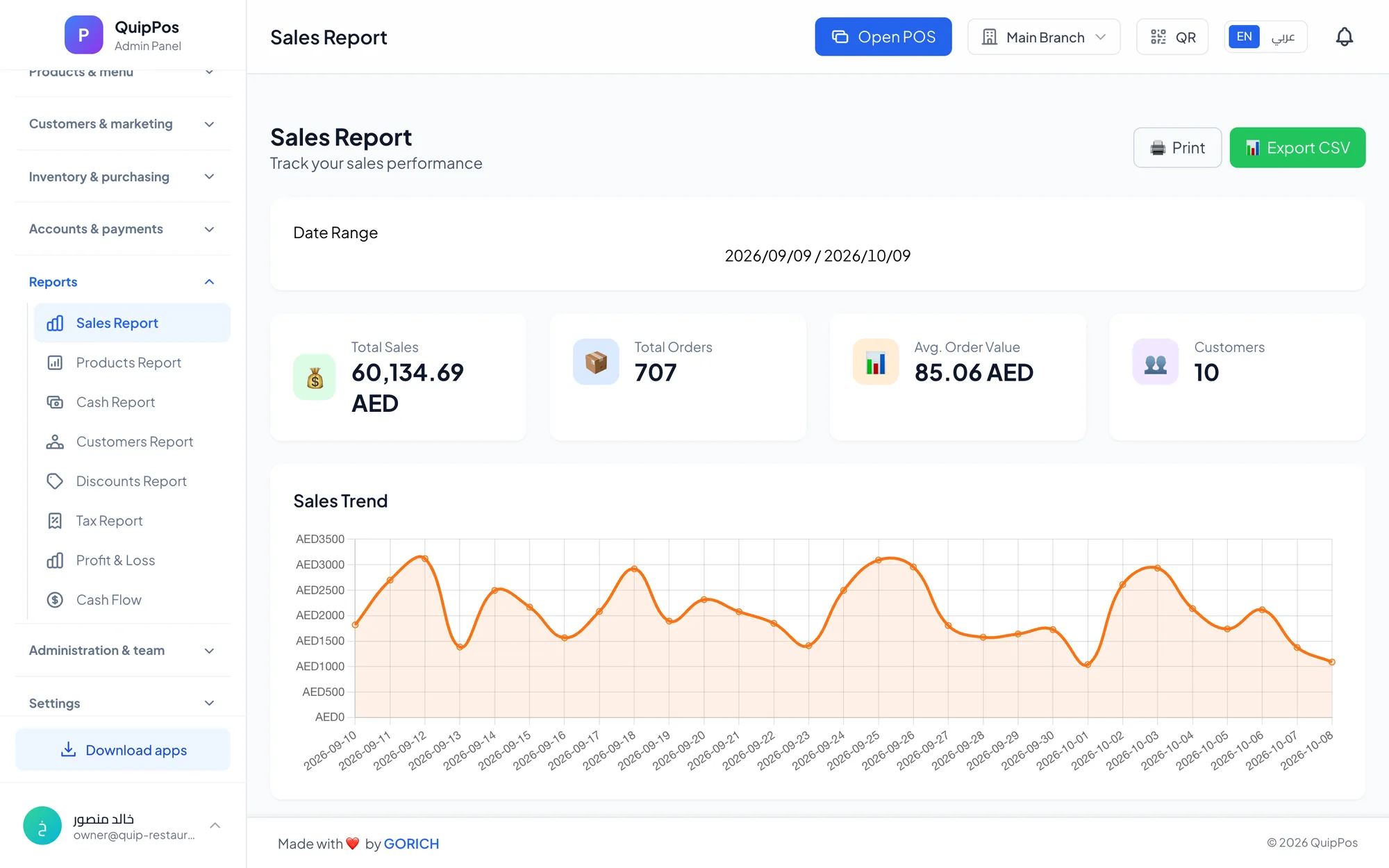
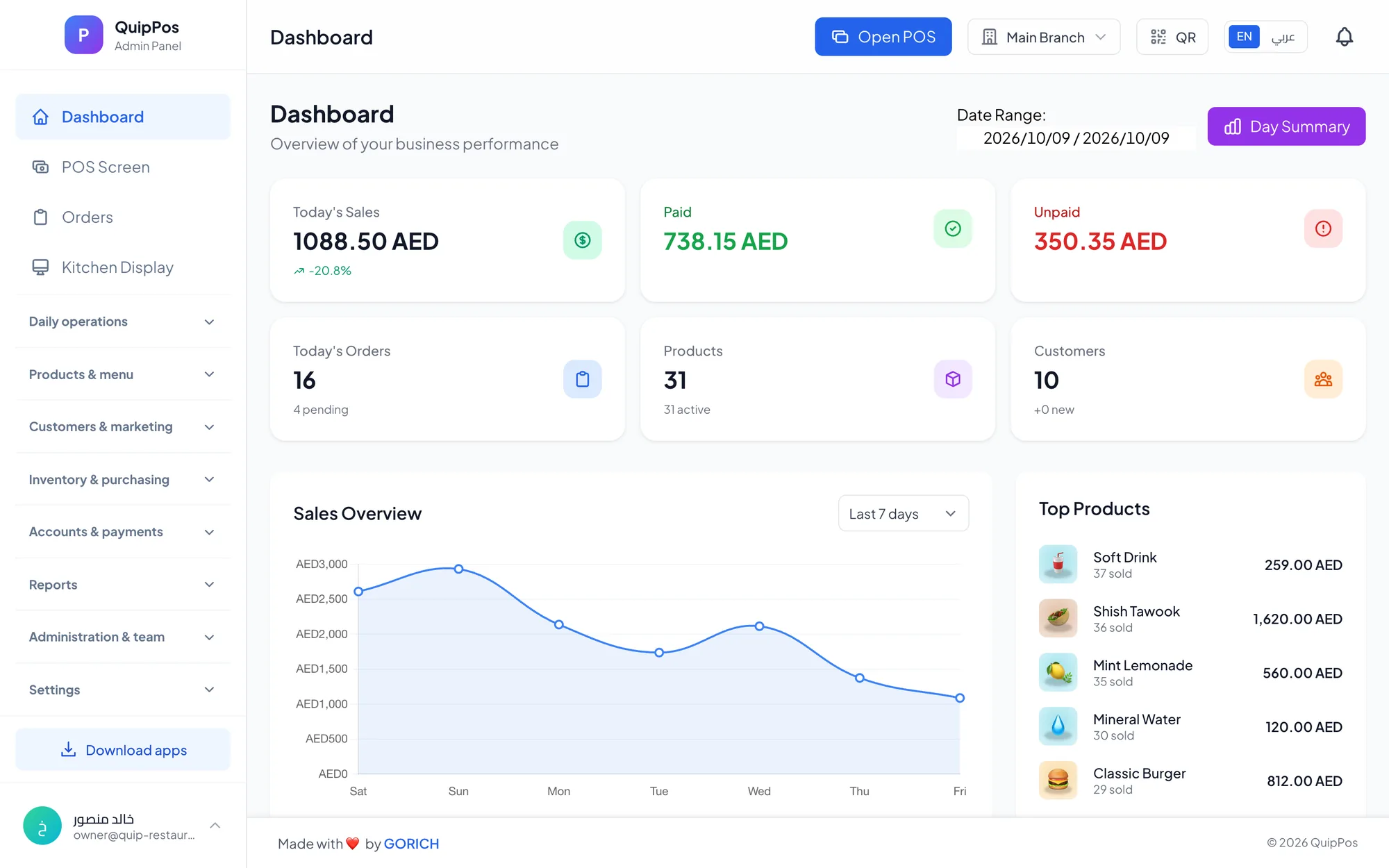
- Daily sales and a live dashboard: how much you sold today, what was paid and what is still owed.
- Best sellers: which items to promote, reorder or drop.
- Discounts and refunds: how much revenue you gave away, and by whom.
- Cash and shifts: whether each drawer balanced at closing.
- Tax: the totals your accountant needs.
- Profit and loss: revenue minus costs and expenses, so you know whether you actually made money.
A good habit is to check the dashboard every evening and the profit and loss report every month. Ten minutes of reading usually reveals at least one decision worth making, such as a price to adjust or a slow item to remove.
Cloud POS vs local POS: what is the difference?
A local POS stores its data on one computer or server in the shop. It can work well for a single till, but you must be on site to see reports, back up the data yourself and install updates manually.
A cloud POS stores data securely online. Every device and branch stays in sync, the owner can check sales from a phone while travelling, and updates arrive automatically. The usual concern is the internet: if the connection drops, can you still sell? The better cloud systems answer this with a desktop app that keeps selling and printing offline, then syncs when the connection returns. Our comparison of cloud POS and traditional cash registers goes into more detail.
Ask any cloud vendor how your data is protected. Look for data isolated per company and branch, encrypted connections, permissions for each employee and an audit log of sensitive actions. Full card details should never be stored in the POS itself.
Who needs a POS system?
If you sell in person and handle more than a few transactions a day, a POS system will save you time and protect your money. It is especially valuable for:
- Restaurants and cafés that juggle tables, takeaway, delivery and a busy kitchen.
- Retail stores with hundreds of products, sizes and suppliers.
- Salons and barbershops that book appointments and pay staff commissions.
- Laundries and dry cleaners that track every piece from drop-off to pickup.
- Repair centres that follow each device from receiving to handover.
- Any business with staff, where permissions and shift reports reduce mistakes and theft.
A very small stall with one product and no staff may manage with a simple till for now. As soon as you add employees, stock or a second location, the case for a POS system becomes clear. Common signs that it is time to switch:
- Closing the day and counting cash takes longer than serving the last customer.
- You learn an item is out of stock when a customer asks for it.
- The cash in the drawer rarely matches the total, and nobody knows why.
- You cannot see today's sales unless you are standing in the shop.
- You guess your best sellers instead of knowing them.
How Quip POS works
Quip POS is a cloud POS with an admin panel, a POS screen and apps, with every device and branch in sync. You can use it in any web browser with nothing to install, on the Windows and Mac desktop app that keeps selling and printing offline, or on the iPhone, iPad and Android apps for cashiers, waiters and managers. The interface works in 20 languages, with receipts and product names in two languages you choose.
At checkout it supports split and mixed payments, discounts with a per-branch limit, promo codes, held orders and refunds with a required reason. Products can be imported from Excel with images and prices, and video tutorials cover every screen. Behind the counter it handles stock and suppliers, shifts with cash counts, expenses, a live dashboard, profit and loss reports and an audit log. It also includes tools for each business type, from kitchen displays to salon commissions; see the full feature list and the solutions for each business.
Getting started with your first POS system
The fastest way to understand a POS system is to use one. Open the Quip POS live demo and explore a ready restaurant, shop, salon, laundry or repair centre with no setup, or start a free 14-day trial with no card and add a few of your own products to see how a real sale, receipt and report look for your business. If you are still comparing options, our guide to the best POS system for your business lists the criteria to check.
Frequently asked questions
What does POS stand for?
What is the difference between a POS system and a cash register?
Do I need special hardware to use a POS system?
Does a cloud POS system work without internet?
Can a POS system track inventory?
Is a POS system worth it for a small business?
Talk to the Quip POS team
Tell us about your business and we will show you the right setup, help you add your products and connect your printers.
Related articles
 POS guides
Best POS System in 2026: How to Choose the Right Point of Sale
There is no single best POS system for everyone. Use these criteria, red flags and a weighted scoring checklist to find the point of sale software that fits your business.
 POS guides
POS System in the UAE and Gulf: How to Choose the Right One
What businesses in Dubai, Abu Dhabi, Riyadh and Doha need from a POS system: bilingual receipts, staff languages, tax reports, AED pricing, WhatsApp and local support.
 POS guides
How Much Does a POS System Cost? Plans, Hardware and Hidden Costs
A clear breakdown of what a POS system costs: subscription or licence, hardware, setup, training and card fees, the hidden costs to avoid and how to calculate the real total.