




















Offline POS: How to Keep Selling When the Internet Goes Down
Why internet outages cost more than you think, how an offline POS keeps selling and printing and syncs later, and a checklist to prepare your counter.
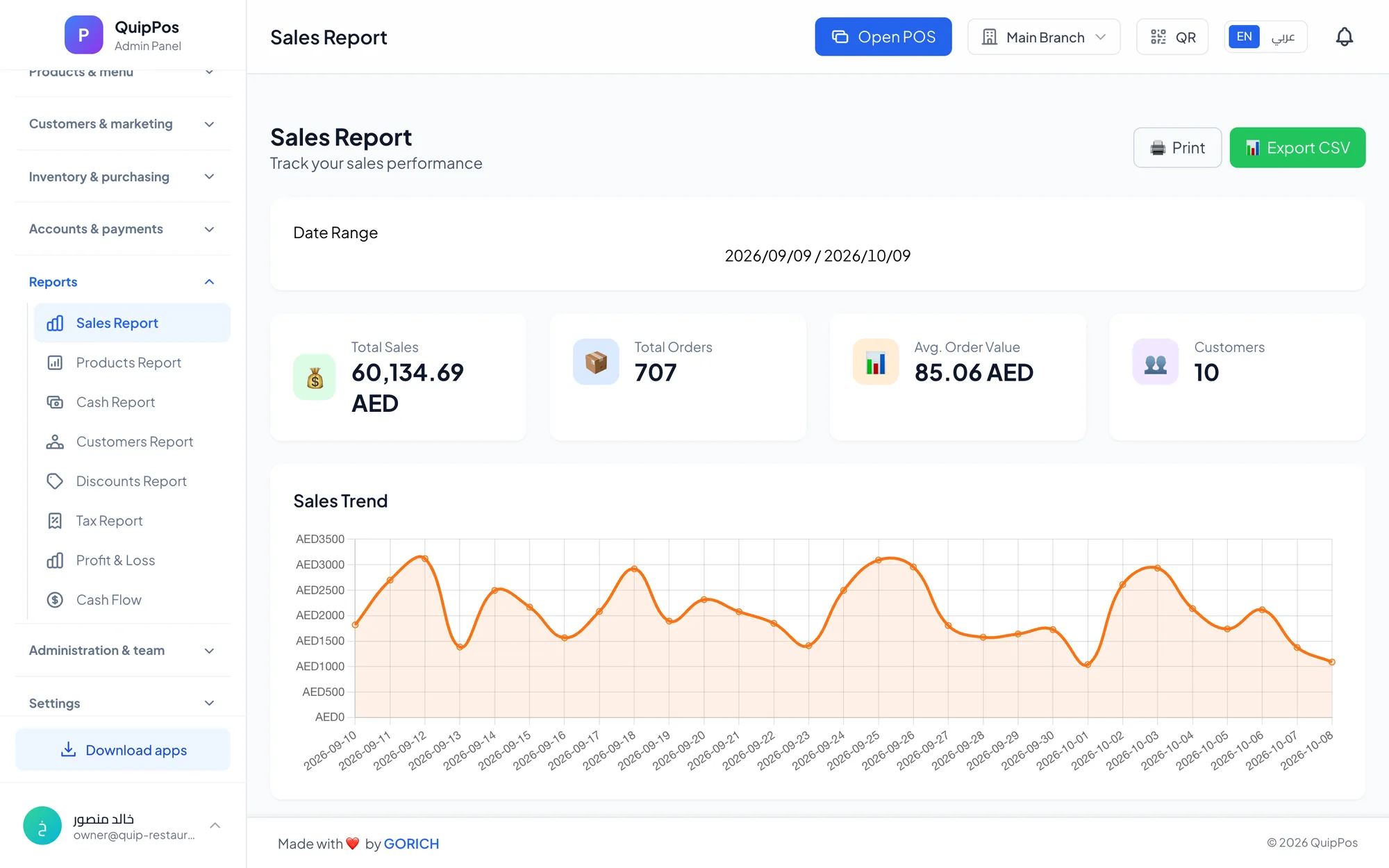
An offline POS keeps taking orders, accepting cash and printing receipts when the internet goes down, then syncs every sale to the cloud once the connection returns. In a cloud POS, offline mode usually lives in a desktop app installed on the counter computer. With one in place, an outage becomes an inconvenience instead of a lost lunch rush.
Outages are rarely dramatic. A router restarts itself, the provider runs maintenance, a cable is cut during mall works, or the shared Wi-Fi in a food court slows to a crawl at peak time. Even ten minutes without a working till at a busy shawarma counter in Sharjah means a queue, guessed prices and handwritten notes nobody can read later.
This guide explains what really happens to different kinds of POS during an outage, how offline mode works, what keeps working and what waits for the connection, and a checklist to prepare your counter before the next outage.
- A browser-only POS stops when the internet stops; a desktop app with offline mode keeps selling.
- Printers on your local network or USB keep printing without internet, as long as the POS can reach them.
- Sales made offline are stored on the device and sync to the cloud when the connection returns.
- Card terminals, online orders and remote dashboards usually depend on a connection, so plan for them.
- Test your offline setup once a month by disconnecting the internet for five minutes.
What happens to your POS when the internet goes down?
It depends on how your system is built. These are the three common setups and how each behaves:
| Setup | During an outage | After reconnection | Best for |
|---|---|---|---|
| Browser-only cloud POS | Selling stops or becomes unreliable | Resumes, nothing to sync | Quiet counters with a reliable line |
| Cloud POS with desktop offline mode | Keeps selling and printing at the counter | Offline sales sync to the cloud | Busy counters that need live data |
| Local-only legacy system | Keeps selling | No cloud; reports stay on one computer | A single till with no remote needs |
The middle option gives you the best of both: cloud features on every normal day, and a till that does not panic when the line drops.
Why internet outages cost more than you think
The sales you lose during the outage are only the visible part. The hidden costs follow you for days:
- Customers who leave the queue and may not come back.
- Handwritten orders with guessed prices and forgotten items.
- Double work entering paper notes into the system later, often with mistakes.
- Cash that does not match the system at closing, and an awkward talk with the cashier.
- Kitchen confusion when tickets stop printing and waiters shout orders instead.
- Wrong stock, because some sales were never recorded.
A café that loses twenty minutes on a Friday lunch does not just lose twenty minutes of sales. It loses some of the trust of the regulars who stood waiting.
Which businesses need an offline POS the most?
Every business benefits from a till that keeps working, but some feel an outage within seconds:
- Restaurants and cafés at peak hours: a lunch or iftar rush leaves no room for a frozen screen, and the kitchen depends on printed tickets.
- Food court and mall kiosks: shared Wi-Fi and building networks are often the first to slow down when the mall is busy.
- Supermarkets and busy shops: a long checkout queue empties quickly once customers start leaving their baskets behind.
- Drive-up and takeaway counters: cars queue behind each other, so every stalled order blocks the next one.
- Branches in new areas: new buildings and remote locations sometimes wait weeks for a stable fixed line.
Salons, laundries and repair centres usually tolerate a short outage better, because customers are not standing in a queue. Even there, being able to print a receipt and record a payment on the spot saves you from rebuilding the day from memory.
How does POS offline mode work?
Offline mode is simple in principle. The POS app on the counter computer keeps a local copy of what it needs to sell: products, prices, categories, taxes and staff. When the connection drops, it keeps recording sales in the device's local storage and marks them as waiting to sync.
When the internet returns, the app sends the waiting orders to the cloud in the background, and your reports, stock and dashboards catch up. Done well, the cashier barely notices the switch, and there is no special offline screen to learn.
Why printing can keep working
Receipt and kitchen printers usually connect over your local network or by USB. Your router keeps the local network running even when the outside internet is down, so a desktop app can keep sending tickets to a network printer in the same shop. A printer plugged in by USB does not need the network at all. Keep the router and printer powered and printing continues. Our guide to thermal printer setup covers connections in detail.
What usually needs the internet
- Card payments, unless your terminal has its own SIM or backup connection (check with your payment provider).
- The live dashboard on your phone at home, which updates once the counter syncs.
- Other branches and devices seeing this counter's sales.
- Online channels such as QR menu orders and digital receipts sent by message.
Knowing this list in advance lets you tell staff exactly what to do: take cash or use the terminal's backup, print paper receipts, and let everything else catch up later.
Offline POS vs cloud POS: do you have to choose?
No. The old choice was between a local system that never stopped but kept your data trapped on one computer, and an online system with live reports that stopped with the internet. A hybrid gives you both: data in the cloud for every device and branch, plus an offline-capable app on the counters that cannot afford to stop.
For most businesses the right setup is a desktop app with offline mode on the main till, and browser or mobile apps for owners, managers and waiters. Read our comparison of cloud POS and a traditional cash register for the wider picture.
Checklist: how to prepare your POS for an internet outage
- Install the desktop app with offline mode on every main counter computer, not just a browser tab.
- Sign in and open the POS at least once while online, so the device has the latest products and prices.
- Connect receipt and kitchen printers by USB or to the local network, with a fixed IP address for each network printer.
- Put the router, network switch and main printer on a small UPS so a power blip does not take the network down.
- Keep a mobile hotspot or a 4G/5G backup router ready for longer outages.
- Ask your payment provider whether your card terminal has a backup SIM or an offline option.
- Write a one-page outage procedure for staff: keep selling, take cash or use the backup terminal, print receipts, tell the manager.
- Test once a month: disconnect the internet for five minutes, ring up three sales and print a kitchen ticket.
- After the connection returns, check that the test sales appear in the reports and that stock moved.
Our POS hardware guide covers printers, routers and other devices in more depth.
Mistakes that make outages worse
- Running the main till in a browser tab and hoping the internet holds.
- Leaving printers on automatic IP addresses, so they seem to disappear after a restart.
- Wiping app data or reinstalling the app on the counter while sales are still waiting to sync.
- Switching to paper just for now, then forgetting to enter those sales later.
- Nobody on shift knowing where the router is or how to restart it.
- Shutting the counter computer down for the night before it has had a chance to reconnect and sync.
How Quip POS handles offline selling
Quip POS is a cloud POS, so your data lives in the cloud and every device and branch stays in sync on a normal day. For the counters that cannot stop, the desktop app for Windows and Mac keeps selling and printing offline and syncs the orders when the connection returns. Get it from the Quip POS download page and install it on each main till.
The desktop app discovers network printers automatically and works with ESC/POS thermal printers over the network or USB, including routing items to the right kitchen printer and printing receipts with your logo. Any USB or Bluetooth barcode scanner works as well. See the supported hardware and integrations for details.
Owners and managers can follow sales from a browser or the iPhone, iPad and Android apps. Once the counter reconnects, its offline orders join the rest of the day's sales in the live dashboard and reports. If you need a hand setting up printers, the team helps over WhatsApp or phone.
Next step: test an outage before it happens
The best time to find out how your POS behaves offline is a quiet afternoon, not a rush. Start a 14-day free trial with no card, install the desktop app, connect your printer and disconnect the internet for five minutes. Or explore a ready company first in the live demo.
Frequently asked questions
Can a POS system work without internet?
What happens to sales made while the POS is offline?
Can I print receipts when the internet is down?
Do card payments work in POS offline mode?
Is an offline POS better than a cloud POS?
How do I test whether my POS really works offline?
Talk to the Quip POS team
Tell us about your business and we will show you the right setup, help you add your products and connect your printers.
Related articles
 POS guides
Best POS System in 2026: How to Choose the Right Point of Sale
There is no single best POS system for everyone. Use these criteria, red flags and a weighted scoring checklist to find the point of sale software that fits your business.
 POS guides
What Is a POS System? A Complete Guide for Business Owners
A plain-language guide to POS systems: the hardware and software, what happens at checkout, how stock and reports work, cloud vs local, and who needs one.
POS guides
POS System in the UAE and Gulf: How to Choose the Right One
What businesses in Dubai, Abu Dhabi, Riyadh and Doha need from a POS system: bilingual receipts, staff languages, tax reports, AED pricing, WhatsApp and local support.