



















POS Features Checklist: What Every Business Really Needs
A practical POS features checklist grouped by selling, operations, stock, finance, customers and team, with why each feature matters and how to test it.
A complete POS features checklist covers six areas: selling and checkout, daily operations, stock, finance and reports, customers, and team permissions. The right point of sale system gives you fast checkout, accurate stock, cash that matches sales and clear reports. Tick what you need today, mark what you will need within a year, and test the essentials before you pay.
Most POS websites publish long feature lists that look almost identical. The real differences show up at 1 p.m. on a Friday, when a café in Dubai has a queue to the door, a table of four wants to split the bill and a new cashier is on shift. A feature only counts if your team can use it in seconds, under pressure.
Use the checklist below with three marks: must-have now, needed within 12 months and not relevant. Be honest about what you will actually use. A short list of features that work well beats a long list that nobody opens after the first week.
- Judge POS system features by speed under pressure, not by the length of the list.
- Fast checkout, live stock and cash control are must-haves for every business; the rest depends on your business type.
- Permissions, refund reasons and an audit log protect your margin as much as any sales feature.
- Offline selling, several devices and multi-branch support decide whether the system still fits in two years.
- Test every must-have on a real shift during a free trial before you commit.
Selling and checkout features every POS system needs
Checkout is where your customers feel the system. Every second saved per sale adds up over a day, and every mistake at the till turns into a refund, a complaint or a cash shortage later.
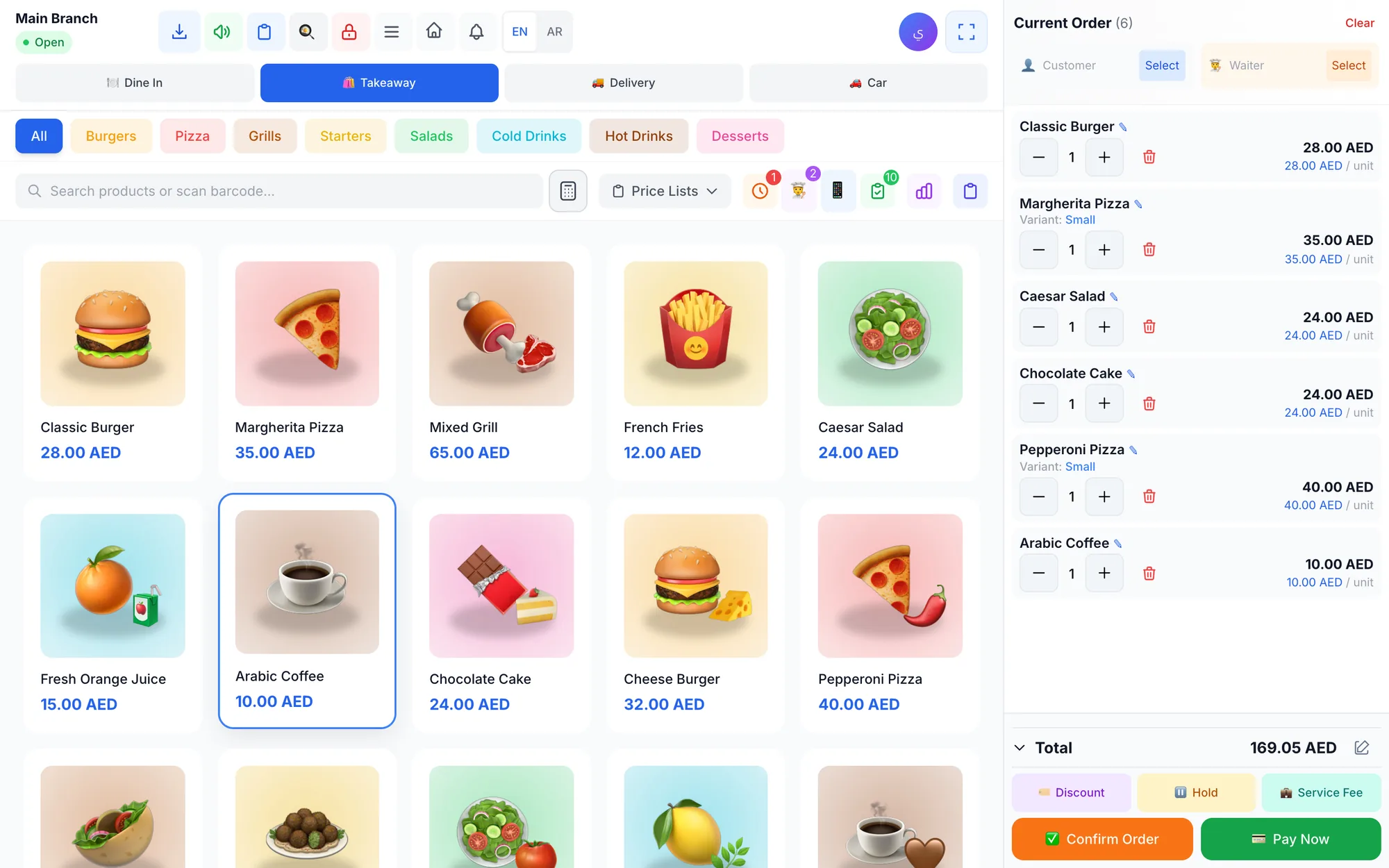
- Fast touch screen: large buttons, colour-coded categories and item photos, so new staff find products without memorising codes.
- Search and barcode scanning: type a few letters or scan; essential for shops with hundreds of products.
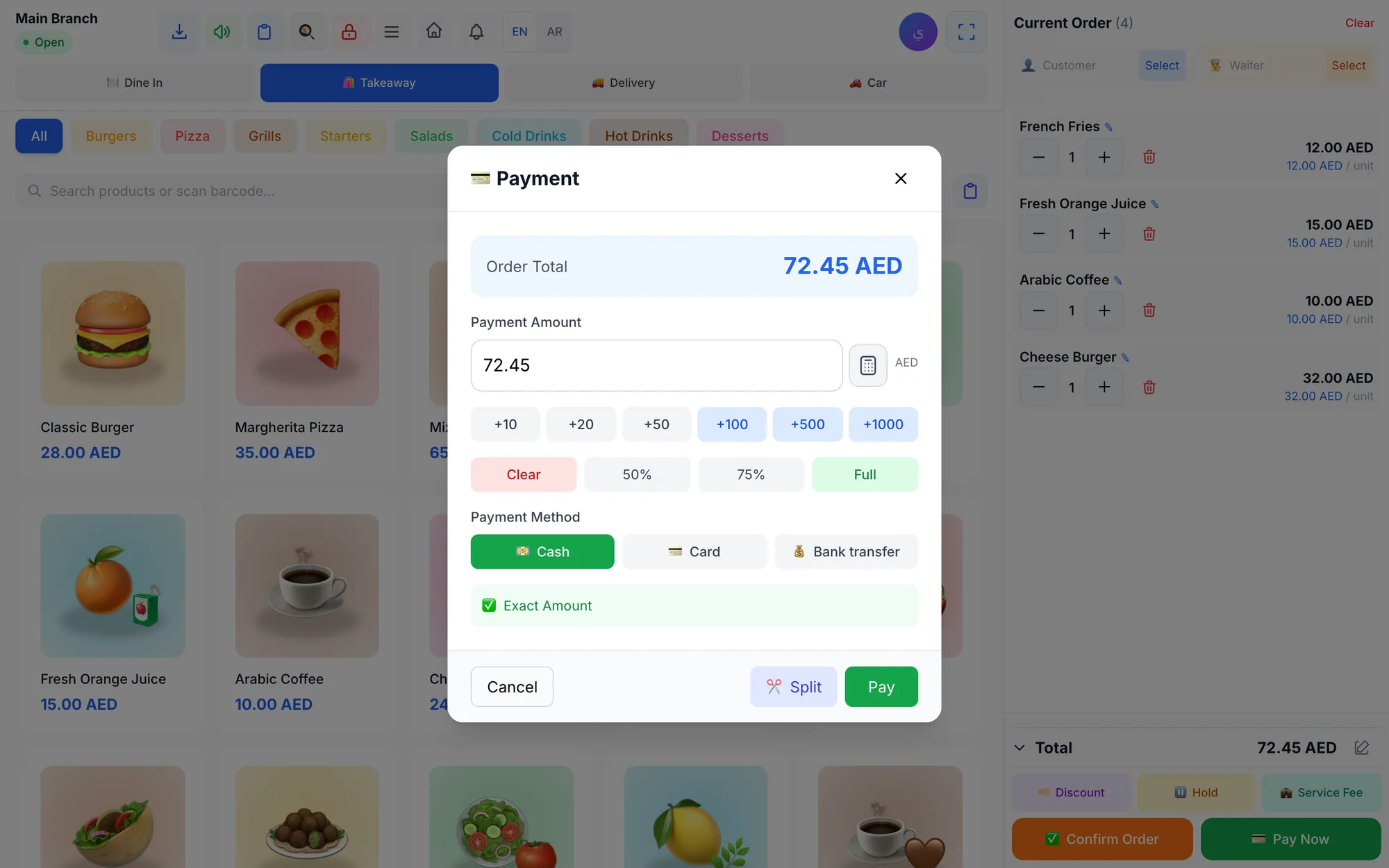
- Split and mixed payments: part cash, part card, part bank transfer on one bill, with the change due calculated for you.
- Discounts with limits: manual discounts capped per branch, so a 50% favour for a friend cannot happen silently.
- Promo codes: percentage or fixed-amount codes for campaigns, so you can see which promotion actually worked.
- Held orders: park an order while the customer fetches one more item, then resume it without re-entering anything.
- Refunds and voids with a reason: full or partial, always with a required reason recorded against the employee.
- Receipts your way: printed with your logo, in the languages your customers read, and ideally sent digitally too.
Why it matters: a slow or confusing checkout costs you twice. Customers leave the queue, and staff invent workarounds that quietly break your reports.
Operations features: shifts, order types and devices
Operations features keep the day running from opening to closing. They are easy to overlook in a sales demo because they only matter once you have staff, shifts and more than one device.
- Shift opening and closing: every shift starts with an opening float and ends with a cash count and an over/short report.
- Unpaid balances: orders that are delivered or collected later stay on a list until the money is in.
- Order types: for food businesses, dine-in with tables, takeaway, delivery and drive-up.
- Kitchen routing: each item goes to the right kitchen printer or kitchen screen automatically.
- Several devices: a counter screen, a tablet and the owner's phone, all showing the same live data.
- Offline selling: the till keeps selling and printing when the internet drops, then syncs.
- Standard hardware: common thermal printers over the network or USB and any USB or Bluetooth barcode scanner, so you are not locked into one supplier.
Ask every vendor what happens during an internet outage. If the answer is that you wait, treat it as a red flag for any busy counter. Our guide to offline POS and selling without internet explains what to check.
Stock and inventory features
Stock features turn your POS from a cash register into a management tool. Every sale should reduce stock automatically, so you know what is on the shelf without counting by hand every evening.
- Live stock per branch: each location has its own warehouse and quantities.
- Variants: sizes, colours and pack sizes, each with its own price and stock.
- Stock adjustments with reasons: damage, expiry and counting differences are recorded, not hidden.
- Low-stock alerts: a warning before your best seller runs out, not after.
- Suppliers and purchase invoices: what you bought, from whom, and what you still owe.
- Recipes for food businesses: link a dish to its ingredients so selling one burger deducts the bun, patty and sauce, and shows the dish's cost and margin.
- Excel import: load hundreds of products with prices and images at once instead of typing them one by one.
- Barcode generation: create your own codes for items that arrive without one.
A phone accessories shop in Riyadh with 1,500 items cannot run on memory. Without variants and low-stock alerts, the popular black case sells out while twenty pink ones sit in the back room.
Finance and reporting features
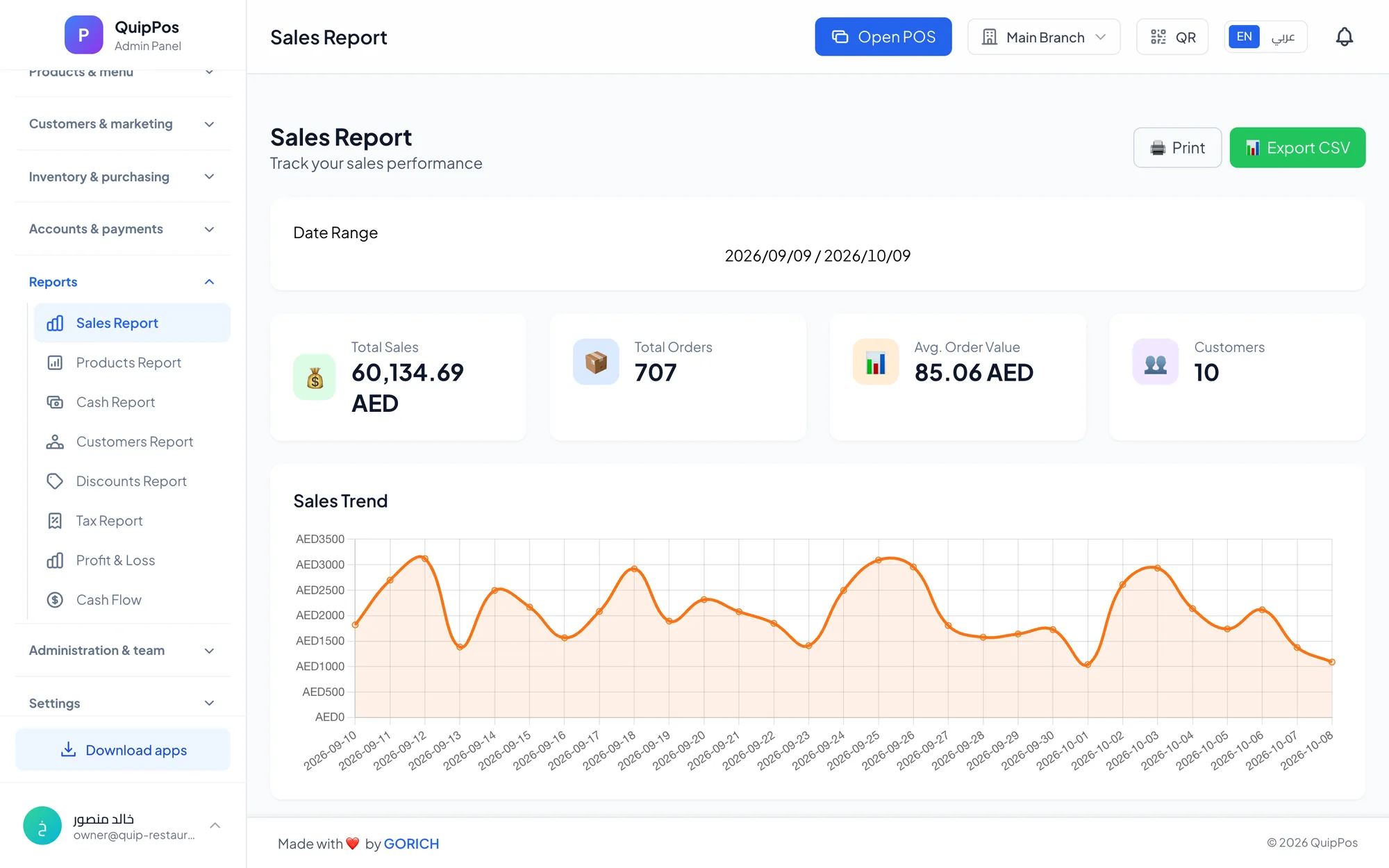
Reports are the reason you pay for a POS system instead of a cash drawer. The test is simple: can you answer how today went, and why, in under a minute from your phone?
- Live dashboard: today's sales, paid versus unpaid, and best sellers at a glance.
- Sales and product reports: by day, item, category, branch and employee.
- Discount and tax reports: how much you gave away and the tax collected (check your local rules on what you must report).
- Cash and cash flow: what came in by payment method and what went out.
- Expenses by category: rent, salaries, supplies and utilities recorded in the same system.
- Profit and loss: sales minus costs and expenses, so you see real profit and not just turnover.
- Export: reports sent to Excel for your accountant.
For the numbers worth checking every day and every week, read the POS reports every owner should check.
Customer and loyalty features
Keeping a regular customer costs far less than finding a new one. Customer features help you recognise people, reward them and stay in touch without a separate marketing tool.
- Customer database: name, phone, addresses, purchase history and any balance owed.
- Loyalty points: earned on every purchase and redeemed as a discount, with tiers for your best customers.
- WhatsApp receipts and messages: sent from your own business number, a channel many customers check more often than email.
- Table ordering: for restaurants, a QR menu where guests order from the table and the order lands on the POS.
- Appointments: for salons and service businesses, bookings per staff member and service.
A salon in Doha that knows a client's last visit, favourite stylist and points balance can offer a reason to come back. Without a customer record, every visit starts from zero.
Team, permissions and security features
Most losses at the till are not dramatic theft. They are small, repeated mistakes and unchecked discounts. Team features let you trust your staff and verify at the same time.
- Roles: owner, manager, cashier, waiter, kitchen and driver, each seeing only what they need.
- Granular permissions: decide who can refund, void or give discounts.
- PIN sign-in: fast switching between staff on a shared device, so every action has a name on it.
- Audit log: who did what and when, for every sensitive action.
- Commissions: for salons and service teams, a percentage or fixed amount per service with a report per person.
- Data security: encrypted connections, data separated per company and branch, and no card details stored.
If loss prevention is a priority, our article on reducing employee theft and mistakes shows how to set these controls up.
How to use this checklist to compare POS systems
A checklist is only useful if you score every system against it in the same way. Start with the features that matter for your type of business, then run each candidate through the same tasks.
Which POS features matter most for your business type?
| Business type | Must-have features | Often forgotten |
|---|---|---|
| Restaurant or café | Order types, tables, kitchen display, split bill | Recipes and dish margins |
| Retail store | Barcodes, variants, returns to stock | Supplier balances, price lists |
| Salon or beauty centre | Appointments, staff on each sale | Commission reports |
| Laundry | Per-piece prices, order status, pickup date | Notes per piece, unpaid filter |
| Repair centre | Numbered repair orders, technicians | Warranty per unit sold |
Steps to score a POS system
- Mark each checklist item as must-have, within 12 months, or not relevant.
- Drop any system that misses a must-have. No workaround is worth it at rush hour.
- Open a demo or trial and ring up ten real sales, including a split payment and a refund.
- Connect your actual printer and scanner, not borrowed test hardware.
- Ask a cashier, not a manager, to try it for five minutes without training.
- Close a test shift and read the over/short report and the daily sales report.
- Compare the price of the plan that includes your must-haves, not the cheapest plan.
How Quip POS covers this checklist
Quip POS is a cloud POS system for restaurants and cafés, retail stores, salons and beauty centres, laundries and repair centres, with an admin panel, a POS screen and apps that share the same data. Selling happens on a touch screen with colour-coded categories, search, barcodes and photos. Payments can be split across cash, card and bank transfer, discounts have a per-branch limit, and refunds and voids need a reason.
Shifts open and close with a cash count and an over/short report, and the desktop app for Windows and Mac keeps selling and printing offline. Stock is tracked per branch with variants, adjustments with reasons, low-stock alerts, suppliers and Excel import. Restaurants also get recipes with dish margins, a kitchen display, a waiter app and a QR menu.
Finance covers expenses, bank accounts, receivables and reports up to profit and loss, with a live dashboard. Customers get loyalty points and WhatsApp receipts, and owners get roles, PIN sign-in and an audit log. See every item on the full features list, or choose your industry on the business solutions page to see what applies to you.
Next step: test the checklist on a real shift
Mark your must-haves on this checklist and test them yourself rather than relying on a feature list. Open the live demo to explore a ready restaurant, shop, salon, laundry or repair company in seconds, or start a 14-day free trial with no card to load your own products, connect your printer and run a real shift before you decide.
Frequently asked questions
What features should a POS system have?
What is the most important POS feature for a small business?
Do I need inventory management in my POS system?
Should a POS system work without internet?
Which POS features help prevent employee theft?
How do I compare POS features between vendors?
Talk to the Quip POS team
Tell us about your business and we will show you the right setup, help you add your products and connect your printers.
Related articles
 POS guides
Best POS System in 2026: How to Choose the Right Point of Sale
There is no single best POS system for everyone. Use these criteria, red flags and a weighted scoring checklist to find the point of sale software that fits your business.
POS guides
What Is a POS System? A Complete Guide for Business Owners
A plain-language guide to POS systems: the hardware and software, what happens at checkout, how stock and reports work, cloud vs local, and who needs one.
 POS guides
POS System in the UAE and Gulf: How to Choose the Right One
What businesses in Dubai, Abu Dhabi, Riyadh and Doha need from a POS system: bilingual receipts, staff languages, tax reports, AED pricing, WhatsApp and local support.