




















POS Security: Roles, Permissions and Audit Logs That Protect You
How to secure your POS system with roles, PIN sign-in, refund and discount permissions, required reasons, an audit log and sensible data protection.
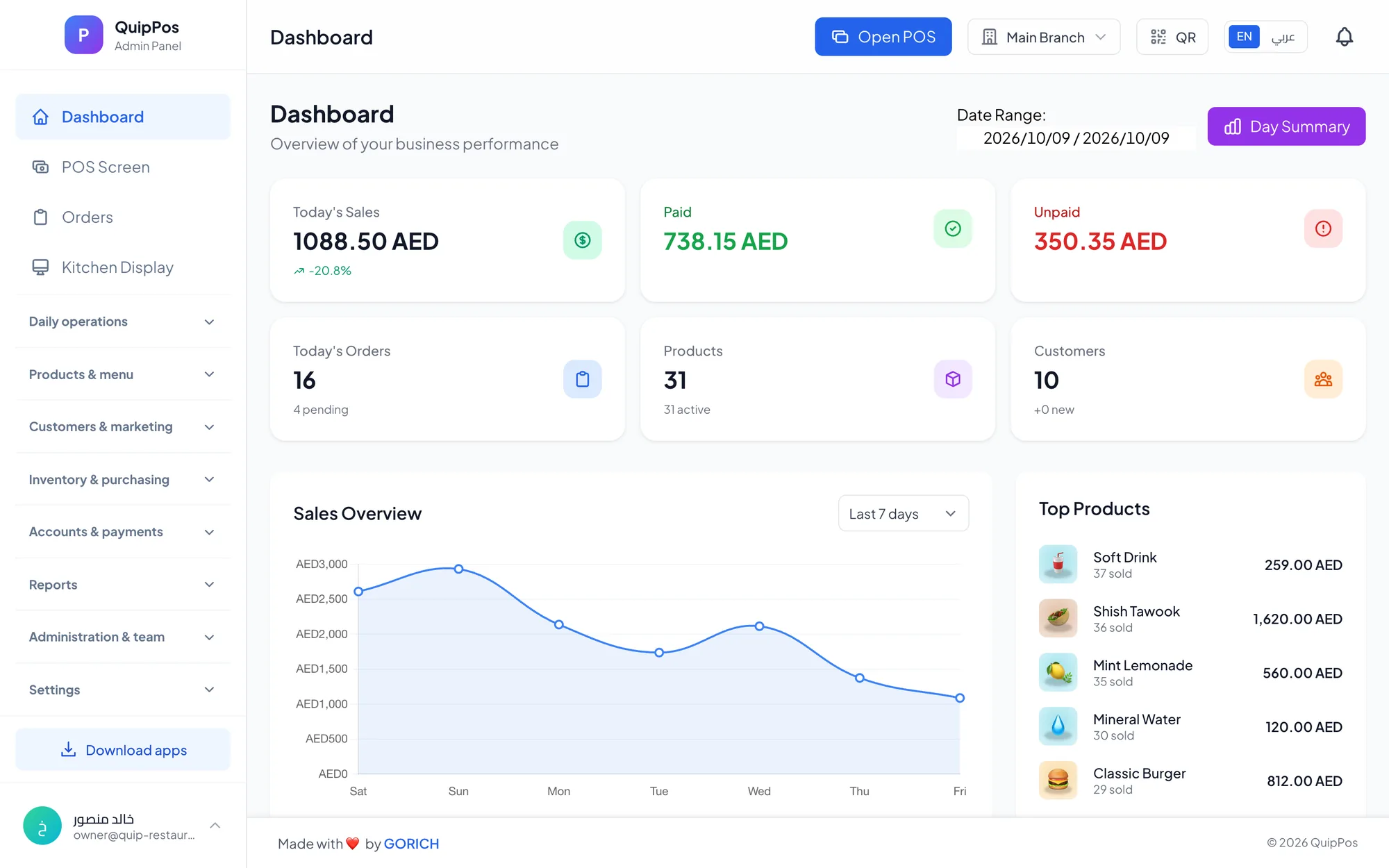
POS security means controlling who can do what in your point of sale software, and being able to prove who did it. In practice it comes down to four controls: a role for every employee, a personal PIN, permissions that limit refunds, voids and discounts, and an audit log that records every sensitive action with a name and a time.
Most losses at the till are not dramatic hacks. They are a cashier using the manager's login, a refund nobody can explain, a discount that crept from 10% to 40%, or a former employee whose account still works. Each of these is preventable with settings that take an afternoon to configure.
This guide covers the three layers of POS security, how to design roles and permissions, how to read an audit log, and a checklist you can apply this week.
- Give every employee their own account and PIN; never share logins.
- Match permissions to the job: cashiers sell, managers approve exceptions.
- Cap manual discounts and require a reason for every refund and void.
- Review the audit log weekly, not only when something goes wrong.
- Remove access on the day someone leaves.
What does POS security cover?
Think of POS security in three layers. Each protects against a different kind of risk, and a gap in one layer weakens the other two.
| Layer | What can go wrong | Controls that help | Who owns it |
|---|---|---|---|
| Data | Leaks, unauthorised access | Encryption, data isolation, no stored card numbers | Vendor and owner |
| Access | Shared logins, ex-staff still active | Personal accounts, PINs, roles | Owner |
| Actions | Fake refunds, voids, excessive discounts | Permissions, limits, reasons, audit log | Owner and managers |
The vendor is responsible for the platform. You are responsible for how it is set up and used, and that is where most problems start.
How should you set up POS user roles?
A role is a bundle of permissions that matches a job. Start from the jobs in your business, not from the list of features. Most businesses need no more than five or six roles.
| Role | Typical access | Should not be able to |
|---|---|---|
| Owner | Everything, all branches, settings | Share their PIN with staff |
| Manager | Approve refunds, voids, larger discounts | Change permissions without the owner |
| Cashier | Sell, take payments, run their shift | Refund or void without approval |
| Waiter | Take orders, send them to the kitchen | Give discounts or refunds |
| Kitchen | See and update order status | See sales or customer data |
| Driver | See assigned deliveries | See other orders or reports |
The principle of least privilege
Security professionals call it least privilege: each person gets exactly the access their job needs and nothing more. A cashier in a Sharjah supermarket does not need to see profit and loss. A waiter in a London restaurant does not need refund rights.
Fewer rights is not a sign of distrust. It protects honest staff from suspicion when something goes wrong, because the record shows clearly who could and could not have done it.
Which POS permissions matter most?
Not every permission carries the same risk. Focus first on the actions that move money out of the business or change what a sale is worth.
- Refunds: full and partial refunds return money to a customer. Limit them to managers and always require a reason.
- Voids: cancelling items or orders after they are entered. A void after the customer has paid in cash is a classic theft pattern.
- Manual discounts: set a maximum per branch; anything above it needs a manager.
- Promo codes: control who creates codes, and watch how often each one is used.
- Prices and products: only managers should edit prices, because a changed price quietly undoes every other control.
- Reports and customer data: limit who can see profit, costs and customer phone numbers.
- Staff accounts and settings: only the owner or one trusted manager should add users or change permissions.
Why a required reason changes behaviour
When the system asks “why?” before every refund or void, two things happen. Honest mistakes get explained in the moment, while memory is fresh. And anyone tempted to abuse the function knows the action is recorded with their name and their own words.
Reasons such as “wrong item”, “customer changed mind” or “duplicate order” also reveal patterns. If one branch records far more “wrong item” voids than the others, you probably have a training problem, not a theft problem, and you now know where to look.
PIN sign-in and shared devices
Busy counters share devices. A café in Dubai may have one POS screen and four baristas; a salon in Doha may share a tablet at reception. Typing full passwords is impractical there, so people end up sharing one login, and the records become useless.
A personal PIN fixes this. Each person signs in within seconds, and every action is linked to them.
- Give each employee a unique PIN and make clear it must never be shared.
- Switch user between employees instead of leaving one person signed in all day.
- Change a PIN straight away if you suspect someone else knows it.
- Never write PINs on notes near the till.
When someone leaves or changes role
Access that outlives the job is one of the most common security gaps. Make it part of every exit: on an employee's last day, disable their account before they leave the building. When a cashier is promoted to supervisor, change their role rather than giving them the manager's PIN. And when a temporary worker covers Ramadan evenings or a holiday rush, give them a cashier account with an end date in your calendar to remove it.
What is a POS audit log and how do you use it?
An audit log is a record of who did what and when for sensitive actions such as refunds, voids, discounts, price changes and permission changes. It answers the question every owner asks after a problem: who did this, and when?
What a useful audit log entry shows
A good entry tells a complete story on one line: the employee, the action, the order or item affected, the amount, the time, the branch and, for refunds and voids, the reason given. If any of these is missing, an investigation turns into guesswork. Check this during your trial, before you depend on it.
The log is most valuable when you read it routinely, not only after an incident. Book a 15-minute check every week:
- Look at refunds and voids by employee.
- Look for actions outside normal hours or just before a shift closes.
- Check discounts above your usual levels.
- Review changes to prices, products and user permissions.
- Compare branches: one with double the voids of the others deserves a conversation.
- Write down anything unusual and follow it up the same week.
Tell your team the log exists. Visible controls deter far more than hidden ones. For specific theft patterns and how to spot them, read our guide on reducing employee theft at the POS.
How do you protect business data in a cloud POS?
Access controls protect what happens at the counter. Data security protects the information behind it: sales history, customer phone numbers, costs and margins.
- Encrypted connections: data moving between your devices and the cloud should always be encrypted.
- Data isolation: your data should be separated from other companies, and branch data kept apart where needed.
- No stored card numbers: ask how the vendor handles card details; the safest answer is that they never store them.
- Device care: keep software updated, use a screen lock on tablets and phones, and keep POS devices for work only.
- Offline computers: a desktop app that sells offline keeps orders on the device until it syncs, so keep that computer physically secure.
- Customer privacy: collect only the customer data you need, and check your local rules on storing data and messaging customers.
POS security checklist for owners
Use this list to audit your own setup. Every item can be done in a single afternoon.
- Every employee has a personal account and PIN; no shared logins.
- Roles match jobs, and cashiers cannot refund or void without a manager.
- A maximum manual discount is set for each branch.
- Every refund and void requires a reason.
- Only the owner or one trusted manager can change permissions and prices.
- Each shift is opened and closed with a cash count by the person responsible.
- The audit log is reviewed every week.
- Former employees lose access on their last day.
- POS devices have screen locks and up-to-date software.
- Staff know the rules and know that sensitive actions are recorded.
Security and cash control go together. Our guide to closing shifts without shortages covers the cash side in detail.
How Quip POS handles POS security
Quip POS builds these controls into everyday use rather than leaving them as optional extras.
- Roles and granular permissions: owner, manager, cashier, waiter, kitchen and driver roles, with permissions set per employee.
- PIN sign-in: staff sign in quickly with their own PIN on shared screens and tablets.
- Controlled exceptions: full or partial refunds and voids are permission-based and require a reason; manual discounts have a per-branch limit.
- Audit log: who did what and when, for every sensitive action.
- Shifts: opened and closed with a cash count and an over/short report.
- Data protection: data isolated per company and branch, encrypted connections, and card details never stored; subscription payments go through Stripe.
- Branches: each branch has its own settings, prices and stock, while the owner sees combined reports. See our guide to managing multiple branches.
You can see the full list on the features page, or open the live demo to explore roles, permissions and the audit log in a ready company.
Next step: secure your POS this week
Set aside one hour to work through the checklist: create personal accounts, set PINs, cap discounts, require reasons and book a weekly audit log review. If you want to try these controls first, start a 14-day free trial with every feature and no card, and set up your roles before your team's first shift.
Frequently asked questions
What is POS security?
What permissions should a cashier have in a POS system?
What is an audit log in a POS system?
Should employees share a POS login?
Is a cloud POS system secure?
How often should I review my POS audit log?
Talk to the Quip POS team
Tell us about your business and we will show you the right setup, help you add your products and connect your printers.
Related articles
 POS guides
Best POS System in 2026: How to Choose the Right Point of Sale
There is no single best POS system for everyone. Use these criteria, red flags and a weighted scoring checklist to find the point of sale software that fits your business.
 POS guides
What Is a POS System? A Complete Guide for Business Owners
A plain-language guide to POS systems: the hardware and software, what happens at checkout, how stock and reports work, cloud vs local, and who needs one.
 POS guides
POS System in the UAE and Gulf: How to Choose the Right One
What businesses in Dubai, Abu Dhabi, Riyadh and Doha need from a POS system: bilingual receipts, staff languages, tax reports, AED pricing, WhatsApp and local support.