



















Restaurant Delivery System: Managing Delivery and Takeaway Orders
How to run takeaway, delivery, drive-up and delivery-app orders from one POS, with a delivery board, drivers, addresses, kitchen timers and channel reports.
A restaurant delivery system lets you take, cook, dispatch and track delivery and takeaway orders in the same POS as your dine-in sales. The essentials are clear order types, a delivery board with drivers and customer addresses, kitchen timers, and sales tracked per channel, so you know which orders actually make money.
Off-premise orders bring problems the dining room never had: a phone order written on a notepad, a separate tablet for every delivery app, a driver who leaves without the drinks, a customer calling to ask where the food is. Each separate tool is one more place for an order to get lost.
This guide covers how to organise every order type, run a delivery board, manage drivers, keep the kitchen on time, treat delivery apps as sales channels and measure what matters each week.
- Put dine-in, takeaway, delivery and drive-up orders in one POS and one kitchen queue.
- Capture the customer's name, phone and address once, then reuse them on every repeat order.
- A delivery board with assigned drivers and timers shows which orders are late before the customer calls.
- Record each delivery app as its own sales channel so you can compare channels after commission.
Why manage delivery and takeaway in one system?
When delivery runs on its own tablets and paper, the kitchen works from several queues at once. Orders are retyped, totals don't match the cash drawer, and stock is never deducted for part of the sales. At the end of the month you can say how much delivery sold, but not how much it earned.
One system fixes the basics:
- One kitchen queue: every order reaches the same kitchen display or printer, in the order it was placed.
- One customer record: the address and phone number are saved for the next order.
- One cash count: delivery cash and card payments close in the same shift as the counter.
- One set of reports: sales, products and discounts for every channel in the same place.
What order types should a restaurant POS handle?
Each order type needs different information and follows a different path. Setting them up properly is the first step of good delivery management.
| Order type | What to capture | Where it goes | What to watch |
|---|---|---|---|
| Dine-in | Table, guests, waiter | Kitchen, then the table bill | Table turnover |
| Takeaway | Name, phone, pickup time | Kitchen, then the pickup counter | Promised time |
| Delivery | Name, phone, address, driver | Kitchen, packing, then the driver | Time to the door |
| Drive-up | Name, car plate number | Kitchen, then the car | Wait in the car park |
A drive-up order, where the guest stays in the car and gives a plate number, is common in the Gulf for coffee and quick meals. Treating it as its own order type means the runner knows exactly which car to walk to.
How to manage takeaway orders without chaos
Takeaway looks simple until twenty orders are waiting at 1 pm. A few rules keep it under control:
- Always take a name and phone number, even for walk-ins. It prevents mix-ups at the counter and lets you call when the order is ready.
- Quote a realistic pickup time based on what is already in the kitchen, not on the ideal.
- Send the order to the kitchen immediately, with notes such as "no onion" or "sauce on the side" printed or shown on screen.
- Pack and check at one station: match items to the ticket, add cutlery and sauces, then seal the bag.
- Decide when to take payment. Paying at order is safest; if guests pay on pickup, keep the order open as unpaid until it is collected.
Phone orders deserve special care. Read the order back, confirm the total and save the customer, so the next call takes half the time.
How does a delivery board work?
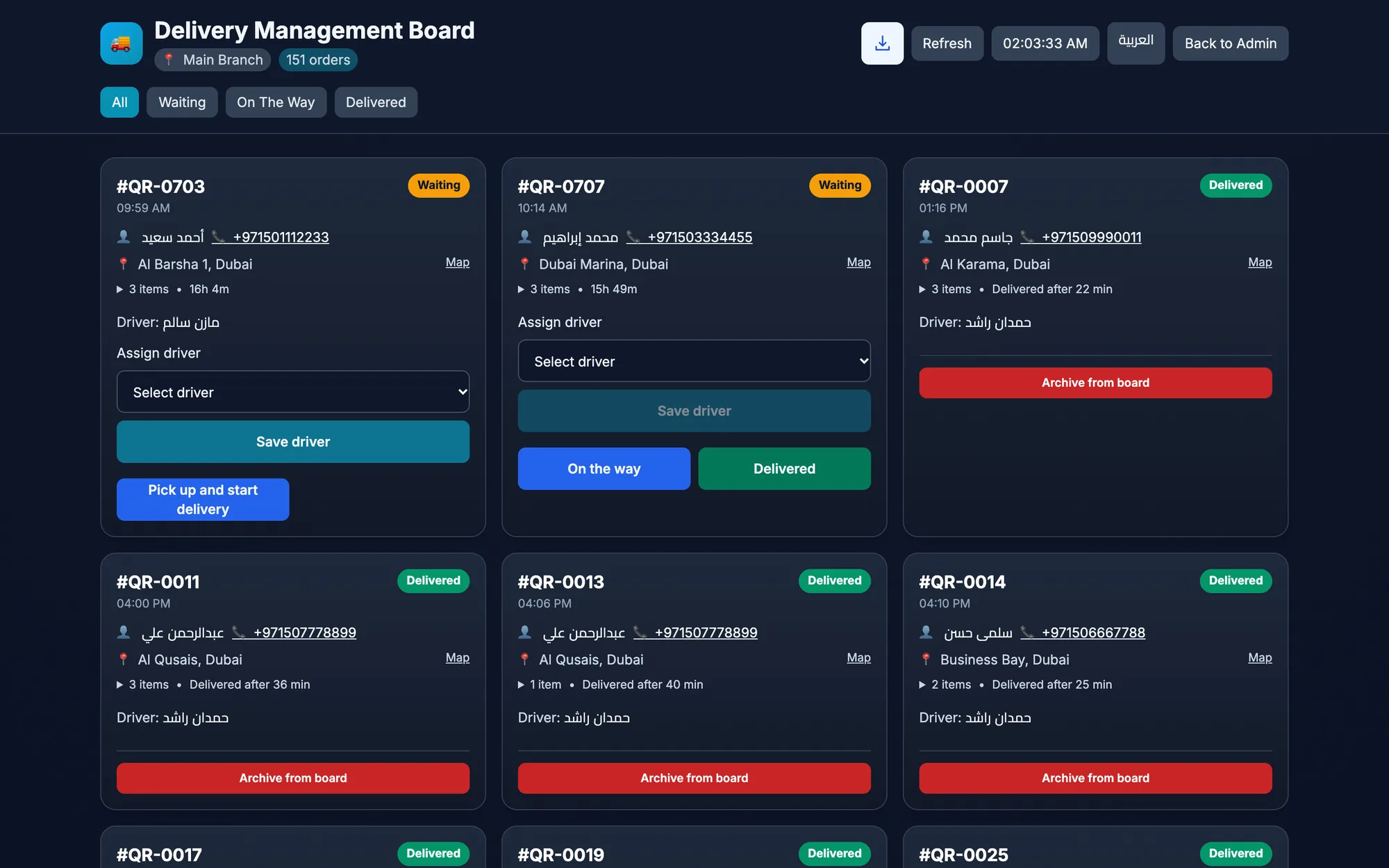
A delivery board is a live screen that shows every delivery order from the moment it is placed until it reaches the customer. It replaces the whiteboard and the shouting across the kitchen.
Assigning drivers
Each order is assigned to a driver, so everyone knows who is carrying what. Group nearby addresses on one trip when the timing allows, and give each driver their own sign-in with a driver role rather than a shared account.
Addresses and maps
Save the full address the first time: area, street, building, flat and a landmark. In cities like Dubai or Riyadh, a note such as "next to the pharmacy, blue gate" saves more time than the street name. A map on the board helps the dispatcher plan the route and helps a new driver find the door.
Timers and promised times
Every order on the board should carry a timer until delivery. When an order passes your promised time, the dispatcher sees it first and can call the customer before the customer calls you. That one habit turns many complaints into polite updates.
Cash on delivery
If drivers collect cash, the order stays unpaid until the money is handed in. Reconcile driver cash at the end of each shift, the same way you count the counter drawer, so any shortage is found the same day.
Should you track delivery apps as separate sales channels?
Yes. Delivery apps bring customers you might not reach alone, but each one charges a commission and attracts different ordering habits. If their orders are mixed with your own deliveries, you cannot tell which platform is worth what it costs.
Record every app as its own sales channel in your POS. Enter its orders in the POS so they reach the kitchen queue and deduct stock like any other sale, then follow each channel's sales week by week. Compare what you keep after commission and packaging, not just the gross total.
- Check your contract for commission and any rules about menu prices before you set the app menu.
- Many restaurants keep a shorter app menu with dishes that travel well.
- Your own delivery channel, by phone and WhatsApp, pays no commission, so make it easy for regulars to reorder directly.
How to keep the kitchen on time for delivery and takeaway
Off-premise orders fail in the kitchen more often than on the road. Food that sits waiting for one missing item arrives soggy, however fast the driver is.
- Use a kitchen display with timers so cooks see how long each order has waited and which is due next.
- Turn on sound alerts for new orders, so a delivery ticket is never missed during a loud rush.
- Mark items ready one by one, so the packer knows when the last dish is coming.
- Route items to the right station, sending grill items to the grill and drinks to the bar printer.
- Show guest notes clearly; allergies and special requests matter more when the guest cannot send a dish back.
For a detailed setup, read our guide to the kitchen display system.
Delivery and takeaway checklist: what to review each week
Use this list in your weekly review. Most lines take a minute once every order goes through the POS:
- Sales by channel: dine-in, takeaway, your own delivery and each app.
- Average order value per channel: delivery baskets are often larger; check whether yours are.
- Late orders: note how many passed the promised time, and at which hours.
- Unpaid orders: any delivery or takeaway still open from previous days.
- Refunds and voids by reason: missing items, cold food or a wrong address each point to a different fix.
- Repeat customers: how many delivery customers ordered again within a month.
- Discounts and promo codes: what each campaign cost against the sales it brought.
The reports behind each line are explained in our article on POS reports and KPIs.
How Quip POS handles delivery and takeaway orders
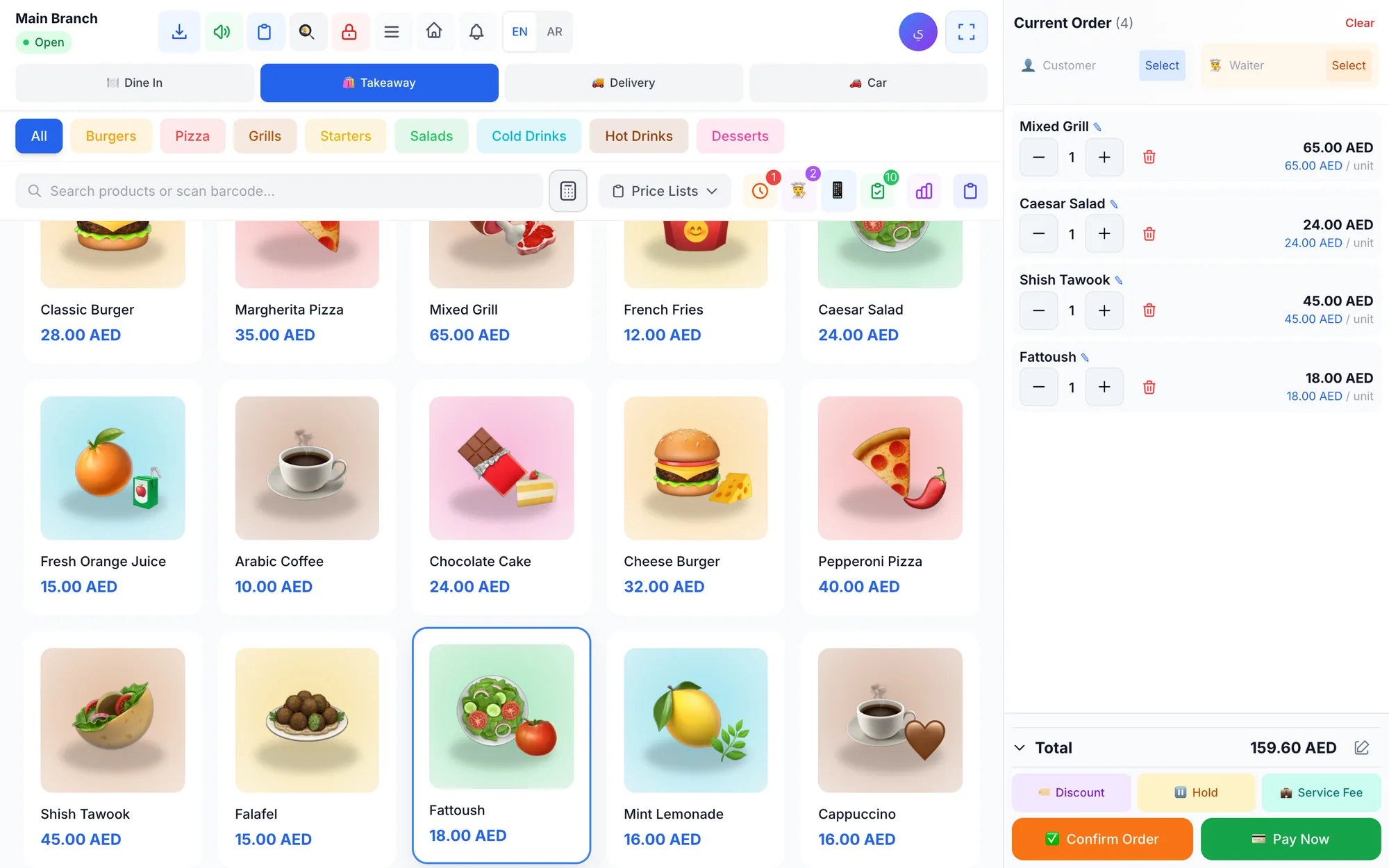
Quip POS supports four order types on the same screen: dine-in with tables, takeaway, delivery and drive-up with the car's plate number. All of them reach the same kitchen display or kitchen printer and close in the same shift.
- Delivery board: assign drivers, see the customer's address on a map through Google Maps, and follow a timer on each order until it is delivered.
- Customer database: addresses, purchase history and balances are saved, so repeat orders are quick to enter.
- Kitchen display: new, preparing and ready stages, timers per order, sound alerts, guest notes and item-level ready marks.
- Printer routing: each item goes to the right kitchen printer, over the network or USB.
- Delivery apps as sales channels: app orders are entered in the POS and recorded under their own channel, so you can follow each channel's sales.
- Payments and balances: split and mixed payments, with unpaid balances followed up until they are collected.
- WhatsApp receipts and messages to customers from your own number through QuipWhats.
- A driver role with its own permissions, and PIN sign-in for every employee.
See how the pieces fit together on the restaurant solution page, and check printers, maps and sales channels on the integrations page. Delivery app orders are entered in the POS rather than imported automatically, which keeps the kitchen and your reports complete. Sending receipts on WhatsApp is covered in our WhatsApp receipts guide.
Bring every order into one place
Start with one change this week: put every takeaway, phone and delivery order through the POS with a name, phone number and promised time. Once that habit is in place, the delivery board and channel reports become easy to use. To see the delivery board, the kitchen display and all four order types working together, open the live restaurant demo or start your 14-day free trial with no card required.
Frequently asked questions
What is a restaurant delivery system?
How do I manage delivery drivers in a restaurant?
Can I track delivery app orders in my POS?
How can I reduce late deliveries?
What is the difference between takeaway and delivery orders?
What is a drive-up order?
Talk to the Quip POS team
Tell us about your business and we will show you the right setup, help you add your products and connect your printers.
Related articles
 Restaurants & cafés
Opening a Restaurant: Technology and Operations Checklist
Before you open a restaurant, make sure your menu, printers, kitchen screens, staff roles and payment methods are ready. This checklist helps you test service before day one.
 Restaurants & cafés
POS for Bakeries and Sweet Shops: A Practical Guide
A bakery POS should speed up the counter, manage variants, track recipe cost, hold pre-orders until pickup and record wastage. Here’s what to look for.
Restaurants & cafés
Table Management for Restaurants: Map, Move, Merge and Split Bills
Learn how to organise restaurant tables with zones, move and merge parties smoothly, and split the bill without slowing service. Practical tips for faster turnover and fewer mistakes.