















Delivery-Only Kitchen POS: How to Set Up a Dark Kitchen
A delivery-only kitchen POS keeps orders, prep, drivers, and channel reports in one flow. Learn how to set up a cloud kitchen or dark kitchen for speed and control.
A delivery-only kitchen POS should keep incoming orders organised, route them to the kitchen display, assign drivers, and show which delivery channel makes money. For a cloud kitchen, dark kitchen, or delivery kitchen, the goal is simple: move food faster, reduce mistakes, and know what is happening from the first ticket to the final drop-off.
That is harder than it sounds when orders come from multiple app channels, phone calls, and late-night rushes. Without a clear POS workflow, staff waste time rewriting tickets, drivers wait around, and owners see sales without knowing which channel actually pays.
If you are planning a new kitchen or tightening an existing one, start with the order flow, then the prep flow, then the reporting. The right setup is less about having more screens and more about making every step visible.
• Treat every delivery source as a separate channel.
• Send tickets to a kitchen display instead of paper where possible.
• Link menu items to recipes and ingredients so stock moves automatically.
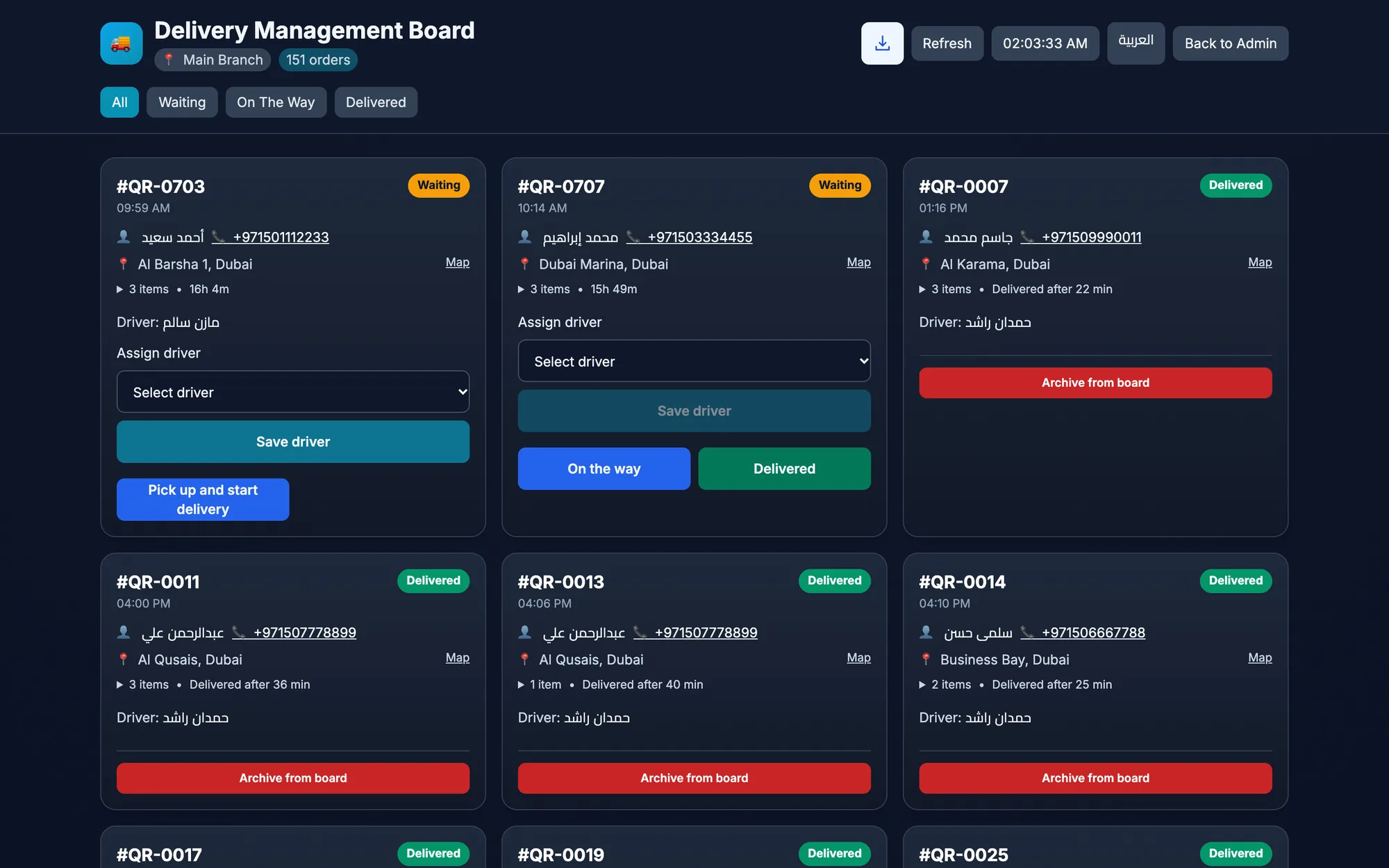
• Assign drivers from one board and track delivery timing.
• Review channel, product, and profit reports daily.
What a delivery-only kitchen POS must do
A delivery-only kitchen does not need the same front-of-house tools as a dine-in restaurant, but it does need very tight order control. The POS should receive orders quickly, keep them readable, and show the kitchen exactly what to prepare next. It should also make it easy for the owner to compare channels and understand where time and money are going.
At a minimum, the system should help you do five things well:
- Record every order clearly, with the right channel attached.
- Send tickets to the kitchen in a format staff can follow fast.
- Track prep status so the team knows what is new, in progress, and ready.
- Match each delivery to a driver and a delivery address.
- Show reports by channel, item, and shift so you can improve the menu and the workflow.
In a busy lunch or dinner rush, the difference between a useful POS and a basic cash register is not fancy screens. It is whether your staff can see the full picture without asking three people for the next step.
How to organise delivery channels without mixing orders
In a cloud kitchen, each app or sales source should be tracked as its own channel. That way, you can compare one channel against another instead of guessing which one is driving real demand. You can also see whether a channel creates more cancellations, more refunds, or simply more operational stress.
For example, a burger kitchen may get strong volume from one app during the evening and better basket size from another channel at lunch. If both are mixed together in one bucket, the owner only sees total sales. If they are separated in the POS, the team can make smarter decisions about menu bundles, hours, and staffing.
Good channel setup is also useful when you need to review performance by daypart. A breakfast menu, a late-night snack menu, and a lunch menu can behave very differently even in the same kitchen. When the POS keeps them separate, it becomes easier to see which items deserve more attention.
Kitchen display and prep workflow for a dark kitchen
A kitchen display system, or KDS, turns a delivery kitchen from a pile of paper tickets into a visible workflow. Orders move through clear stages such as new, preparing, and ready, so the team can work in sequence instead of shouting across the line. Timers help you see what is taking too long before the delay becomes a complaint.
That matters because delivery kitchens live or die on speed and accuracy. A missing sauce, a missed note, or a late ticket can hurt the whole delivery experience. With a KDS, the station can see guest notes, item-level ready marks, and sound alerts when new orders arrive or when something needs attention.
For a small setup, one screen may be enough. For a busier kitchen, placing the display where the team naturally looks during prep keeps the line moving better than paper tickets taped to a wall. A browser-based display also makes it easier to use an extra screen or tablet you already have.
What the kitchen needs to see instantly
- Order number and channel
- Items and modifiers
- Guest notes and special instructions
- Prep timers and status updates
- Which items are ready to send out
When the display is clear, the team does not have to decode handwriting or ask the cashier to repeat the order. That saves time, especially when multiple tickets hit at once.
Recipes, ingredients, and margin control
A delivery-first kitchen needs more than menu names and selling prices. It also needs recipes that link each item to ingredients so stock is deducted automatically. That gives you a real view of usage and helps you understand what each dish costs before delivery fees, promotions, and labour are even considered.
This is where many cloud kitchen operators lose control. A popular item may look profitable on sales alone, but once you account for ingredients, the picture can change quickly. If the POS shows cost and margin for each dish, you can keep the winners, rework the weak items, and protect the menu from silent losses.
Start with the dishes that sell most often. Then make sure the recipe matches the real kitchen portion, not an ideal version that staff never follow. If you use a sauce, topping, or side that changes the cost, include it in the recipe logic so the numbers stay realistic.
Useful menu checks for a delivery kitchen include:
- Are the ingredients linked to the right item?
- Does the recipe reflect the portion actually sent to the customer?
- Do add-ons and extras change the cost correctly?
- Can you see which items have a strong margin and which do not?
Once that structure is in place, food cost control becomes part of the system instead of a monthly guessing exercise.
Driver assignment and delivery handoff
A delivery-only kitchen needs a simple way to move an order from prep to handoff. The POS should show the customer address, the driver, and the current delivery status so nothing gets lost between the kitchen and the road. If the same team handles multiple orders at once, a delivery board prevents confusion about who picked up what.
Driver assignment matters even if the kitchen uses a small fleet. The moment an order is ready, someone should be able to see it, assign it, and confirm that it left the kitchen. If the delivery timing slips, the team should be able to spot the delay and act before the customer calls.
On the operational side, a clear handoff also helps with accountability. If a driver picks up the wrong order or a meal sits too long before pickup, the team can review the timing later and fix the process. In a fast-moving dark kitchen, that kind of visibility is worth a lot more than a stack of printed tickets.
Reports every cloud kitchen should review daily
Delivery kitchens should not wait until the end of the month to see what is happening. Daily reports help you understand channel performance, busy times, and whether the menu is working as planned. A good reporting routine turns raw sales into decisions about staffing, menu changes, and channel focus.
| Report | What to check | Why it matters | Action |
|---|---|---|---|
| Sales by channel | Which source brought the most orders | Shows where demand is coming from | Focus on the strongest channels |
| Top items | Best-selling dishes and add-ons | Shows what the kitchen must prep well | Protect stock and prep time |
| Refunds and voids | Cancelled orders and reason codes | Reveals mistakes and process gaps | Train staff or fix the workflow |
| Cash and shift close | Paid, unpaid, and shift differences | Helps keep the day closed properly | Review shortages or overages |
If you run more than one location, compare the numbers between branches as well. A menu item that works in one area may perform very differently in another, even if the kitchen process is identical. The reports should help you see those differences early.
How Quip POS fits a delivery-first kitchen
Quip POS is built as a cloud POS for restaurants and cafés, so a delivery-only kitchen can use the same system for ordering, prep, and reporting. Delivery channels are recorded as separate sales channels, which makes it easier to measure each source instead of blending everything into one total. You can also use the kitchen display workflow, delivery board, and recipe control together in one setup.
If you want the broader restaurant foundation first, read our restaurant POS guide, then see how a kitchen display system works and how delivery and takeaway orders are managed. Those articles help you build the full order flow before you fine-tune the delivery-only setup.
Quip also supports recipes that deduct ingredients automatically, which is useful when you need margin visibility on every dish. For a delivery kitchen with more than one branch, each branch can keep its own settings, prices, and stock while the owner still sees combined reports. If your team works across different devices, Quip runs in any web browser, on the desktop app for Windows and Mac, and on iPhone, iPad, and Android.
That flexibility matters in a dark kitchen because the workflow is usually lean. You may have a cashier screen, a prep display, and a driver phone or tablet, but you do not want to juggle disconnected tools. A single system is easier to train, easier to audit, and easier to keep consistent.
Launch checklist for a dark kitchen
Before opening day, it helps to run a simple checklist. The aim is not to make the setup perfect; it is to make sure the kitchen can handle real orders without confusion.
- Set up each delivery source as its own channel in the POS.
- Load the menu with accurate item names, prices, and notes.
- Link recipes to ingredients for the items that need stock control.
- Test the kitchen display with a real order from start to finish.
- Assign drivers and confirm the delivery handoff process.
- Check that your reports show sales by channel and by item.
- Train the team on refunds, voids, and order status changes.
- Review the workflow again after the first busy shift and adjust what slows the kitchen down.
Also check your local rules for licensing, food handling, and delivery operations before you launch. A POS will not fix a missing process, but it will make a good process easier to repeat.
If you are planning a delivery-first launch, try the live demo or start the 14-day free trial and walk through the full cloud kitchen flow before service day.
Frequently asked questions
What is a delivery-only kitchen POS?
How do I track orders from different delivery channels in one system?
Do I need a kitchen display system for a cloud kitchen?
How can a dark kitchen control food cost better?
How should drivers be assigned in a delivery kitchen?
What reports should I check every day in a cloud kitchen?
Talk to the Quip POS team
Tell us about your business and we will show you the right setup, help you add your products and connect your printers.
Related articles
 Restaurants & cafés
Opening a Restaurant: Technology and Operations Checklist
Before you open a restaurant, make sure your menu, printers, kitchen screens, staff roles and payment methods are ready. This checklist helps you test service before day one.
 Restaurants & cafés
POS for Bakeries and Sweet Shops: A Practical Guide
A bakery POS should speed up the counter, manage variants, track recipe cost, hold pre-orders until pickup and record wastage. Here’s what to look for.
Restaurants & cafés
Table Management for Restaurants: Map, Move, Merge and Split Bills
Learn how to organise restaurant tables with zones, move and merge parties smoothly, and split the bill without slowing service. Practical tips for faster turnover and fewer mistakes.