




















Best Restaurant POS in 2026: 12 Things to Check Before You Buy
A practical checklist for restaurant and café owners: 12 things to test in any POS, the questions to ask vendors and the red flags that cost you later.
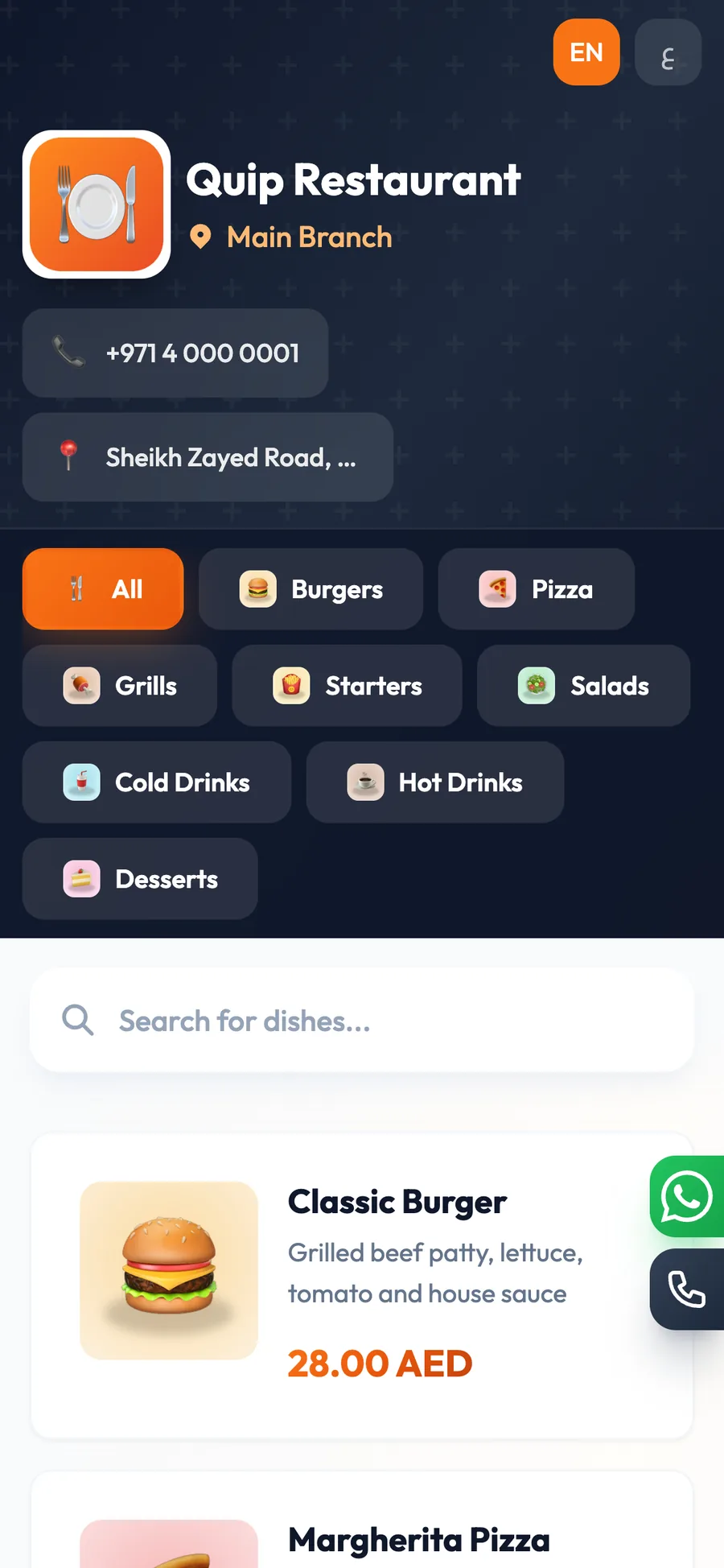
The best restaurant POS is the one that keeps orders moving during your busiest hour and shows you where the money went afterwards. For restaurants and cafés, that means fast order entry, every order type, a kitchen display, waiter and QR ordering, recipe costing, offline mode, clear reports and honest pricing.
Demos are designed to impress. Every system looks fast with three items on the screen and nobody waiting. The real test is a Friday night with a full dining room, a queue of delivery drivers at the door and a cook who cannot read handwriting.
Use the 12 checks below to compare any POS for restaurants and cafés. Score each one, ask vendors the questions near the end, and watch for the red flags that usually mean extra costs or a painful switch later.
- Judge a restaurant POS during a rush, not in a quiet demo.
- Kitchen flow, offline mode and food cost tracking separate good systems from basic tills.
- Insist on a free trial with every feature, not a cut-down version.
- Clear monthly pricing beats a cheap licence with paid add-ons.
What makes a POS the best for restaurants and cafés?
A retail POS sells items. A restaurant POS manages time: the time between ordering and cooking, between cooking and serving, and between the last bite and the bill. The best systems remove waiting at each step without adding work for your staff.
The right choice also depends on your format. A café in Dubai Marina needs a lightning-fast counter and drive-up orders. A full-service restaurant in Riyadh needs table management and a smooth kitchen flow. A delivery-only kitchen in Cairo or Manchester needs driver tracking and channel reports. Keep your format in mind as you score each check.
Checks 1–3: speed at the counter and order types
1. A fast touch screen that holds up at rush hour
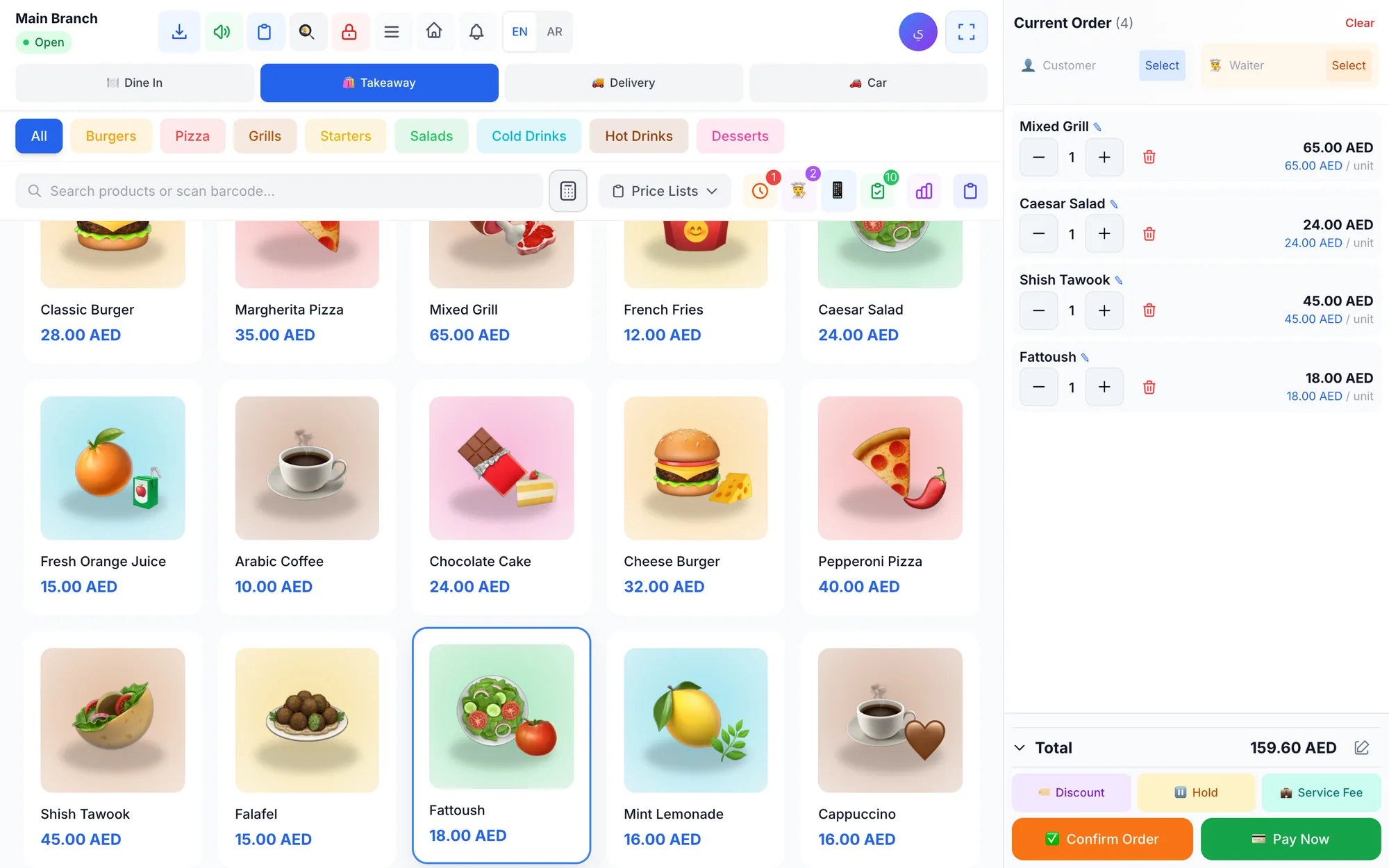
Count the taps it takes to ring up your three best sellers. Look for colour-coded categories, search, item photos and a layout built for touch screens and tablets. If a latte takes more than a couple of taps, your morning queue will feel it.
2. Every order type you actually serve
Dine-in, takeaway, delivery and drive-up each need different details: a table, a pickup name, an address, a car plate number. A system that forces every order into one shape leads to sticky notes and shouted instructions.
3. Tables, merges and split bills
Ask the vendor to merge two tables, move a party to another table and split one bill three ways, with one guest paying cash and two paying by card. If any of this needs a workaround, service will slow down every single night.
Checks 4–6: kitchen and table service
4. Kitchen display and printer routing
Orders should reach the kitchen the moment they are placed. A kitchen display with new, preparing and ready statuses, timers and sound alerts keeps the line organised. If you use printers, each item must go to the right station, such as the bar or the grill.
5. A waiter app on ordinary phones
Waiters should take orders at the table, send them to the kitchen and cashier instantly and get notified when food is ready. Check that the app runs on the phones your staff already carry, on both Android and iPhone.
6. QR menu and table ordering
A QR menu lets guests browse, order and call the waiter from their phones. Check that those orders land directly on the POS, not in a separate inbox someone has to retype, and that you can choose a design that fits your brand.
Checks 7–9: food cost, cash and control
7. Recipes and automatic stock deduction
Link each dish to its ingredients so every sale updates stock and shows the dish's cost and margin. Without this, food cost is a monthly guess made from supplier invoices, and you discover a loss-making dish months too late.
8. Shifts, mixed payments and cash counts
Each shift should open and close with a cash count and an over/short report. The POS must accept cash, card and bank transfer on one bill and show the change due, so cashiers never do mental maths under pressure.
9. Permissions and an audit log
Refunds, voids and discounts should depend on the employee's role, require a reason and be recorded in an audit log. A discount limit per branch stops generous habits from turning into a monthly loss.
Checks 10–12: reliability, languages and growth
10. Offline mode and the devices you own
Internet outages happen, usually at the worst moment. Ask whether the system keeps selling and printing offline and syncs later; our guide to offline POS explains what to test. Also check which devices it runs on: browser, Windows, Mac, iPhone, iPad and Android.
11. Languages for staff and guests
In the Gulf, one restaurant team may speak Arabic, English, Hindi, Urdu, Malayalam and Filipino. Staff work faster in a language they read well, and guests expect receipts and menus they understand. Right-to-left support for Arabic should be complete, not an afterthought.
12. Reports, branches, support and pricing
You need sales, best sellers, discounts, tax, cash and profit and loss reports without exporting everything to a spreadsheet. If a second branch is in your plans, check per-branch prices and stock with combined reports. Finally, look for published prices, real help with setup and a free trial with every feature.
Scoring sheet: compare restaurant POS systems side by side
Run each test below in every system you are considering, ideally with your own menu. Give each check a score from 0 (missing) to 2 (works well in your test), and double the weight of the three checks that matter most for your format.
| Check | How to test it | Most important for |
|---|---|---|
| 1. Fast screen | Ring up your 3 best sellers | Cafés, quick service |
| 2. Order types | Enter a delivery and a drive-up order | Every restaurant |
| 3. Tables and bills | Merge, move, split 3 ways | Full service |
| 4. Kitchen flow | Send an order, mark it ready | Every kitchen |
| 5. Waiter app | Order from a phone at a table | Full service |
| 6. QR menu | Scan, order, call the waiter | Cafés, busy venues |
| 7. Recipes | Sell a dish, check the stock | Margin-focused owners |
| 8. Shifts and payments | Pay cash plus card, close a shift | Every cashier |
| 9. Permissions | Try a refund as a cashier | Larger teams |
| 10. Offline mode | Disconnect the internet, keep selling | Everyone |
| 11. Languages | Switch language, print a receipt | Diverse teams |
| 12. Reports and price | Open today's sales, read the price page | Owners |
Questions to ask a restaurant POS vendor, and the red flags
Questions to ask before you sign
- Can I try every feature free, with my own menu, before paying anything?
- What happens to sales and printing when the internet goes down?
- Which printers, screens and phones work with the system?
- Will you help me add my menu, connect printers and train my staff?
- Can I export my sales and product data if I decide to leave?
- What does each plan include, and can I change plans or cancel renewal at any time?
Red flags to watch for
- Prices only “on request”, with no published plans.
- Long contracts with penalties for leaving early.
- Software that only works with the vendor's own hardware.
- Kitchen features, recipes or reports sold as expensive add-ons.
- No offline mode, or an offline mode nobody can demonstrate.
- Support only by email, slowly, in a different time zone.
How Quip POS covers the 12 checks
Quip POS was built for restaurants and cafés alongside retail, salons, laundries and repair centres, so the restaurant tools sit in the same cloud system as stock, finance and reports. Here is how it maps to the checklist:
- Checks 1–3: a touch POS screen with colour-coded categories, search and item photos; dine-in, takeaway, delivery and drive-up with the plate number; a table map with zones, moving, merging and split bills.
- Checks 4–6: a kitchen display with statuses, timers, sound alerts, guest notes and item-level ready marks; routing to kitchen printers; a waiter app with ready notifications; a QR menu with more than 20 designs whose orders land on the POS.
- Checks 7–9: recipes with automatic stock deduction and dish margins; split and mixed payments; shifts with cash counts and over/short reports; role-based permissions, required reasons for refunds and voids, and an audit log.
- Checks 10–12: a Windows and Mac desktop app that sells and prints offline, plus iPhone, iPad, Android and any browser; 20 languages with full right-to-left support; complete reports and multi-branch management; published plans from AED 29 per month; and a team that helps with setup and training over WhatsApp or phone.
Plan details are on the pricing page, and the restaurant solution page shows each feature in more depth.
Try it in a real shift before you decide
No checklist replaces a real service. Open the live demo to score Quip POS against the 12 checks in a few minutes, then start a 14-day free trial with no card and run one lunch or dinner shift with your own menu and printers. Our day-by-day trial plan shows what to test each day, and the complete restaurant POS guide explains every feature in detail.
Frequently asked questions
What is the best POS system for a small restaurant?
What is the best POS for a café or coffee shop?
Can I run a restaurant POS on an iPad or Android tablet?
What questions should I ask a restaurant POS vendor?
How long should I test a restaurant POS before buying?
Is a cloud POS safe for restaurants?
Talk to the Quip POS team
Tell us about your business and we will show you the right setup, help you add your products and connect your printers.
Related articles
 Restaurants & cafés
Opening a Restaurant: Technology and Operations Checklist
Before you open a restaurant, make sure your menu, printers, kitchen screens, staff roles and payment methods are ready. This checklist helps you test service before day one.
Restaurants & cafés
POS for Bakeries and Sweet Shops: A Practical Guide
A bakery POS should speed up the counter, manage variants, track recipe cost, hold pre-orders until pickup and record wastage. Here’s what to look for.
Restaurants & cafés
Table Management for Restaurants: Map, Move, Merge and Split Bills
Learn how to organise restaurant tables with zones, move and merge parties smoothly, and split the bill without slowing service. Practical tips for faster turnover and fewer mistakes.