




















Supermarket and Grocery POS: Fast Checkout and Stock Control
Checkout speed, barcode scanners, thousands of products from Excel, suppliers, price lists and cashier shifts: how to choose and run a POS for a supermarket or minimarket.
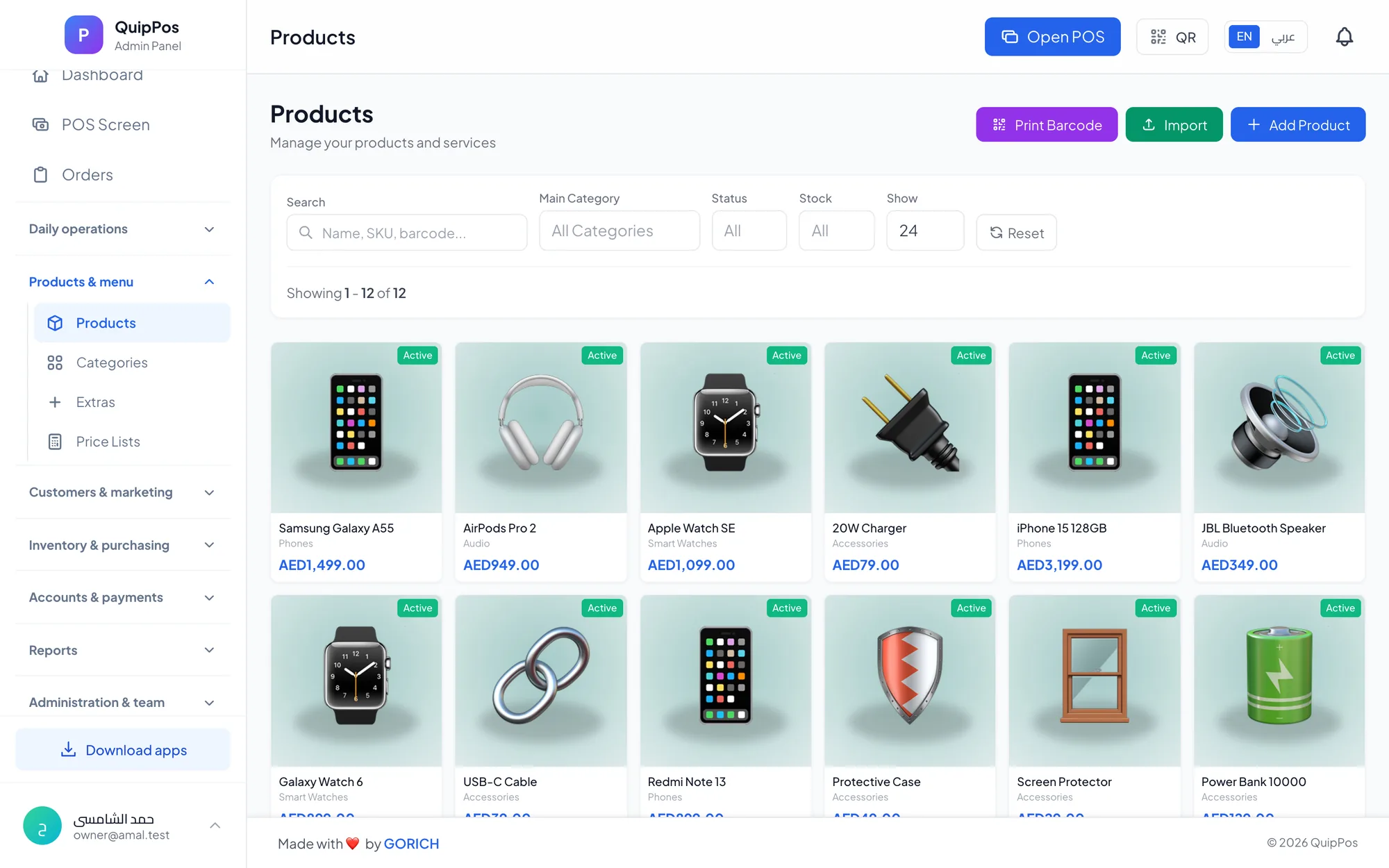
A supermarket POS system is built for speed and volume: it scans barcodes instantly, handles thousands of products imported from Excel, takes mixed payments and keeps stock, suppliers and cash shifts under control. For grocery stores and minimarkets, the goal is simple to state and hard to deliver: short queues at the till and accurate stock on the shelves.
Grocery is a high-volume, low-margin trade. A neighbourhood baqala in Sharjah or a minimarket in a Riyadh residential tower may serve hundreds of baskets a day, many of them small and in a hurry. A few seconds saved on each item add up to minutes per customer during the evening rush, and every unrecorded expired item eats into margins that were thin to begin with.
This guide covers what a grocery POS must do, how to speed up checkout, how to load and manage a large catalogue, suppliers and price lists, stock control for perishables, cash shifts, and what to do when the internet goes down.
- Checkout speed comes from scanning, not typing: every item needs a working barcode.
- Import your product list from Excel instead of creating thousands of items by hand.
- Record every delivery as a purchase invoice so cost prices and supplier balances stay right.
- Open and close every cashier shift with a cash count.
- Plan for internet outages: the till must keep selling.
What does a supermarket POS system need to do?
A grocery till does the same job as any retail POS, but under more pressure: more items per basket, more products in the catalogue, more cash and less patience in the queue. Use this table as a checklist when you compare systems, and run the tests in the last column yourself.
| Need | What to look for | Test during the trial |
|---|---|---|
| Fast checkout | Instant barcode scanning, quick search, touch screen | Ring up a 20-item basket and time it |
| Large catalogue | Excel import with prices and images, clear categories | Import your full list and search for ten items |
| Pack sizes | Variants with their own price and stock | Sell a single can and a carton of the same drink |
| Suppliers | Purchase invoices, supplier payments and balances | Enter one real delivery and pay part of it |
| Cash control | Shifts with a cash count and over/short report | Close a test shift and compare the drawer |
| Outages | Offline selling and printing, sync later | Unplug the router in the middle of a sale |
How to speed up checkout at a grocery store
Queues are where minimarkets lose customers to the shop next door. Most of the speed comes from setup, not from the cashier's hands.
Use the right scanner
A good scanner reads a crumpled crisp packet or a curved bottle on the first pass. A wired USB scanner is fine for one counter; a Bluetooth scanner lets the cashier scan a water carton or a rice bag without lifting it onto the counter. Keep a spare, because one broken scanner turns a fast till into a slow one.
Set up the screen for items without barcodes
Bread from the local bakery, single eggs or fresh herbs often have no barcode. Put them in a colour-coded category with photos so the cashier taps them in a second. If you sell loose produce by weight, decide before go-live how you will price it, for example as pre-packed portions with their own barcode, and test that method during the trial.
Keep the queue moving
When a customer forgets an item or their wallet, hold the order and serve the next person instead of cancelling the sale. Accept mixed payments on one bill, part cash and part card, and let the screen show the change due so nobody calculates it in their head.
Train for the rush
Before the first busy evening, run a practice session: twenty baskets, mixed payments, one refund and one held order. Ten minutes of practice prevents the hesitations that build a queue.
Arrange the counter itself
Place the scanner where the cashier reaches it without twisting, keep bags ready and store spare printer rolls under the counter. If you deliver to nearby flats after a phone call or a WhatsApp message, enter each order in the POS as a normal sale as soon as it is packed, not on a slip waiting for the driver to return, so stock is deducted on time and any unpaid amount is followed up until collected.
How to manage thousands of products: Excel import and categories
A minimarket can easily carry several thousand items. Creating them one by one is not realistic, and a messy start damages stock and reports for months. Follow this order:
- Export your product list from your current system, or collect supplier price lists, into Excel.
- Keep one row per sellable item, with name, barcode, category, cost and selling price; treat a single can and a carton as separate pack-size variants.
- Use a short, logical category list, such as dairy, beverages, snacks, cleaning and personal care, that cashiers can read at a glance.
- Add images for items without barcodes, since those are the ones cashiers tap on screen.
- Import the file, then spot-check thirty items across categories on the selling screen.
- Count opening stock aisle by aisle, starting with high-value items such as baby formula, coffee and cooking oil.
Suppliers, purchase invoices and price lists
Grocers deal with many suppliers: a dairy company delivering daily, a beverage distributor weekly, a wholesaler for dry goods. Record each delivery as a purchase invoice against its supplier. Cost prices stay current, the shelf quantity goes up, and the supplier balance shows exactly what you owe and what you have paid.
Price lists matter more than many grocers think. Nearby restaurants, offices and cafés often buy in bulk and expect a wholesale price, while walk-in customers pay retail. With price lists you keep one product record and sell it at the right price to each type of customer, or at different prices in different branches.
Once a month, compare the cost prices of your best sellers against what you charge. Supplier price increases that never reach the shelf price are a quiet way to lose margin.
Stock control for groceries: expiry, damage and low stock
Perishables make grocery stock harder than most retail. A few habits keep it under control:
- Adjust out expired and damaged goods with a reason every time, so the monthly review shows what you throw away and from which supplier.
- Set low-stock alerts on fast movers such as water, milk, bread and eggs, based on daily sales and each supplier's delivery days.
- Rotate stock first in, first out on the shelf, and check dates on slow movers every week.
- Count high-risk items often, such as expensive or easily pocketed products, with a short weekly cycle count.
For a deeper look at scanning routines and reorder levels, read the barcode inventory guide.
Cashier shifts and cash control
A busy supermarket handles a lot of cash across several tills. Each cashier should open a shift with a counted float and close it with a cash count. The over/short report then shows any difference immediately, while the cashier still remembers the day.
Protect the till with permissions. Cashiers sell; supervisors approve refunds and voids, each with a required reason. Set a manual discount limit so a “small favour” for a regular cannot turn into a habit. An audit log that records who did what and when keeps reviews factual rather than personal. When the morning cashier hands the till to the evening cashier, close the first shift with a full count and open a new one with a fresh float, rather than letting two people share one shift; that alone makes it clear who is responsible for any shortage. The cash and shift management guide covers end-of-day routines step by step.
What happens when the internet goes down?
A grocery cannot ask a queue to wait for the router. Choose a POS that keeps selling and printing receipts offline and syncs the orders once the connection returns. Test it during your trial by disconnecting the network in the middle of a sale. Keep a mobile hotspot as a backup for syncing and for your card machine, and pin a short outage checklist next to the till. The offline POS guide walks through the full preparation list.
How Quip POS works for supermarkets and minimarkets
Quip POS gives grocers a fast touch selling screen with colour-coded categories, item photos, search and barcode scanning through any USB or Bluetooth scanner. Products can be imported from Excel with images and prices, barcodes can be generated for new items, and pack sizes can be set up as variants with their own price and stock. Payments can be split or mixed across cash, card and bank transfer on one bill with the change due shown, orders can be held, and unpaid balances are followed up until collected.
Behind the counter, suppliers and purchase invoices track supplier payments and balances, and price lists cover wholesale, retail and per-branch prices. Each branch has its own warehouse, with stock adjustments recorded by reason and low-stock alerts. Shifts open and close with a cash count and an over/short report; refunds and voids require a reason and follow each employee's permissions, and the audit log records every sensitive action. The Windows and Mac desktop app keeps selling and printing offline and syncs when the connection returns. See how it all fits together on the retail solution page.
Next step: time your checkout with your own products
Open the live demo, choose the retail company and ring up a basket to feel the speed. Then start the 14-day free trial with no card: import your product list from Excel, connect a scanner and a receipt printer, and run one real evening shift with a cash count at the end. The team can help you load products and connect printers over WhatsApp or phone, so the trial measures the system rather than your setup time.
Frequently asked questions
What is the best POS system for a supermarket?
How do I add thousands of grocery products to a POS?
Can a grocery POS handle wholesale and retail prices?
How do I stop cash shortages at supermarket tills?
Does a supermarket POS work without internet?
What hardware does a minimarket need for its POS?
Talk to the Quip POS team
Tell us about your business and we will show you the right setup, help you add your products and connect your printers.
Related articles
Retail stores
Flower Shop POS for Gift, Chocolate and Bouquet Orders
A flower shop POS should handle bouquets, chocolates, gift bundles, delivery, and deposits without slowing checkout. This guide shows what to set up before busy seasons.
Retail stores
Retail POS System: The Complete Guide for Stores and Shops
Barcodes, variants, returns, warehouses, suppliers and price lists: what a retail POS system should do, which features matter for your store and how to choose one.
Retail stores
Barcode Inventory Management for Small Shops: A Practical Guide
How small shops use barcodes to keep stock accurate: setup steps, daily scanning routines, adjustments with reasons, low-stock alerts and the errors to avoid.