




















Retail POS System: The Complete Guide for Stores and Shops
Barcodes, variants, returns, warehouses, suppliers and price lists: what a retail POS system should do, which features matter for your store and how to choose one.
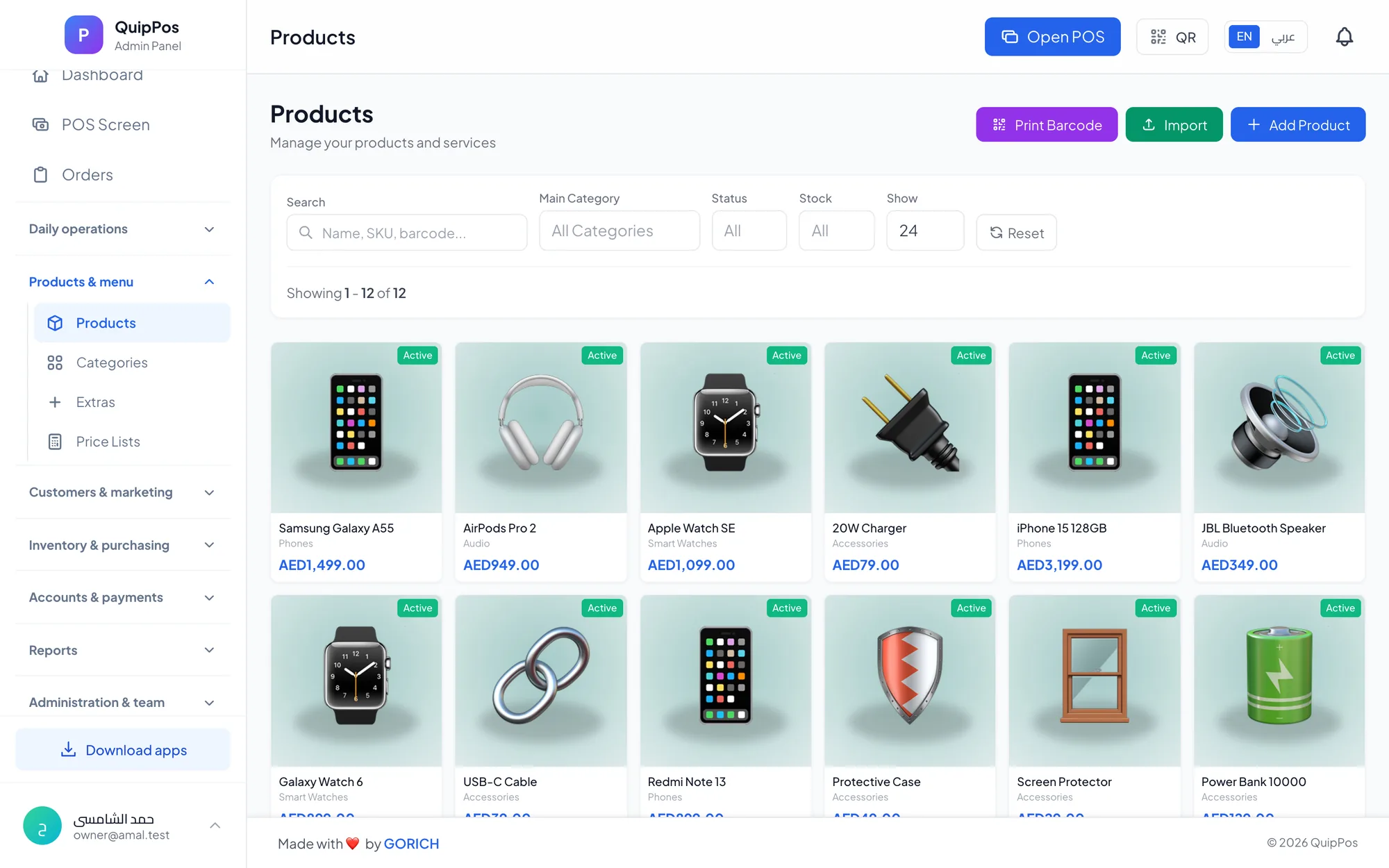
A retail POS system is the software and hardware a shop uses to scan products, take payment, issue receipts and update stock in the same moment. A good one also manages variants, returns, suppliers, price lists and reports across branches, so the owner sees what sells, what is running out and where the money goes.
The choice matters more in retail than most owners expect. A shop with 3,000 items, a shirt in three sizes or a back room full of accessories cannot run on memory and a notebook. Every unscanned sale, unrecorded delivery or return put back on the shelf “for later” makes the stock figures less true, until nobody trusts them.
This guide walks through what a retail POS should do from the first scan to the end-of-day report, which features matter for each type of store, the questions to ask before you choose, and the mistakes that cost shops money after go-live.
- Stock is only accurate when every sale, return and delivery goes through the system.
- Variants such as size, colour and pack size need their own price and stock.
- Refunds should put quantity back in stock, require a reason and depend on permissions.
- Suppliers, purchase invoices and price lists belong in the same system as the till.
- Test any POS with your own products and a real shift before you commit.
What does a retail POS system do?
At the counter, a retail POS replaces the price-tag check, the calculator and the receipt book. The cashier scans a barcode or searches by name, the system applies the right price for that branch, adds any discount or promo code, takes payment and issues the receipt. In the same second, the quantity sold leaves stock.
Behind the counter, it becomes the shop's operating record. It knows what came in from which supplier and at what cost, what went out, what came back and why. That record is what turns a till into a management tool.
A typical sale in a well-run store follows five steps:
- Scan the item, or search for it by name, code or category.
- Pick the variant if needed: size M, colour black, pack of six.
- Apply a promo code or an allowed manual discount.
- Take payment in cash, card, bank transfer or a mix on the same bill, with the change due shown on screen.
- Print or send the receipt while stock updates automatically.
What features does a retail POS need?
Feature lists run to hundreds of lines, but a handful of capabilities decide whether a retail system works day to day. Check these first.
Barcode scanning and fast search
Scanning should be instant and work with any standard USB or Bluetooth scanner. For items that arrive without a barcode, such as handmade goods or loose accessories, the system should generate one so they can be scanned like everything else. Search by name or code is the fallback when a label is torn.
Variants with their own price and stock
A T-shirt in four sizes and three colours is twelve stock items, not one. Each variant needs its own quantity and, where it differs, its own price: a carton of twelve should not cost the same as twelve singles. Without real variants you will know you sold “a shirt” but not which one to reorder.
Returns and refunds that update stock
Full and partial refunds should put the quantity back in stock and record why the item came back. Refunds are also where cash quietly disappears, so the right to issue one should depend on the employee's role rather than on whoever happens to be at the till.
Warehouses, adjustments and low-stock alerts
Each branch needs its own stock. When quantities change outside a sale, through breakage, expiry or a count correction, the adjustment should carry a reason so patterns become visible. Low-stock alerts tell you to reorder before the shelf is empty, not after a customer has walked out empty-handed.
Suppliers, purchase invoices and price lists
Recording purchase invoices against suppliers keeps cost prices and supplier balances accurate, and profit reports depend on both. Price lists let the same item sell at a wholesale price to trade customers and a retail price to walk-ins, or at different prices in different branches.
Reports, customers and loyalty
At minimum you want sales by day and by product, best sellers, discounts given, tax collected, cash by shift and a profit and loss view. A customer database with purchase history, plus a points-based loyalty program, helps turn one-off buyers into regulars.
Which retail POS features matter for your type of store?
Every shop needs fast checkout and accurate stock. Beyond that, priorities shift with what you sell and who buys it.
| Store type | Top priorities | Why it matters |
|---|---|---|
| Minimarket and grocery | Fast scanning, Excel import, suppliers, shifts | Thousands of items and long queues at peak hours |
| Clothing and shoes | Size and colour variants, returns, promo codes | Stock is spread across many variants of one style |
| Phones and electronics | Barcodes, warranties, repair orders | High-value units and after-sales service |
| Perfume and cosmetics | Pack sizes, loyalty, customer history | Repeat buyers and gift purchases |
| Hardware and building supplies | Wholesale price lists, unpaid balances | Trade customers buy on account at different prices |
If you run a grocery, the supermarket and grocery POS guide goes deeper into checkout speed. Fashion retailers will find size-and-colour workflows in the clothing store POS guide.
How to choose a retail POS system: 8 questions to ask
Every demo looks smooth. These questions reveal how a system behaves on a busy Saturday and at the end of the month.
- Can I import products from Excel with prices and images, or must I type them one by one?
- How are variants handled? Ask to see one style in several sizes, each with separate stock.
- What happens when the internet drops? Sales and printing should continue offline and sync later.
- Who can refund, void or discount? Look for role permissions, a discount limit and a required reason.
- Does it run on the devices I already own? Browser, Windows, Mac, iPhone, Android and tablets.
- Can it handle a second branch with its own stock and prices, plus combined reports?
- Which languages does it support? Cashiers work faster in their own language, and receipts may need two.
- What will it really cost? Monthly against yearly pricing, upgrade terms, and whether you can switch off renewal yourself.
Answer each question with a test, not a promise. A free trial with your own products is the only reliable way to check.
What hardware does a retail store need?
Less than many vendors suggest. Most shops run well on a simple setup:
- A screen to sell on: a touch-screen PC, a laptop, a tablet or, for a small kiosk, a phone.
- A barcode scanner: any USB or Bluetooth model; a wireless one helps with bulky items.
- A thermal receipt printer: ESC/POS printers connected over the network or USB are the standard.
- A stable connection and an outage plan: a desktop app that keeps selling offline protects your takings when the line goes down.
Choose the software first, then buy hardware it supports, and test everything during the trial. A printer that refuses to connect is a small problem in the first week of a trial and a big one on opening day.
Common retail POS mistakes and how to avoid them
- Skipping purchase invoices. When deliveries go on the shelf unrecorded, cost prices and stock drift apart. Record every invoice against its supplier.
- One product for every variant. Create proper variants from day one; fixing it later means a full recount.
- Adjusting stock without reasons. Damaged, expired and count correction tell different stories. Make the reason mandatory.
- Shared logins. When five cashiers use one account, nobody knows who refunded what. Give each person a PIN.
- Ignoring the reports. Spend ten minutes each week on best sellers, slow movers and discounts given.
Most of these come down to stock discipline. The barcode inventory guide covers scanning routines, adjustments and low-stock alerts in detail.
How Quip POS works for retail stores
Quip POS is a multilingual cloud POS with a setup built for retail. The selling screen is designed for touch screens and tablets, with colour-coded categories, item photos, quick search and barcode scanning through any USB or Bluetooth scanner. You can generate barcodes for new items, split or mix payments on one bill, apply percentage or fixed promo codes, and keep manual discounts within a limit set per branch.
On the stock side, variants for sizes, colours and pack sizes each carry their own price and stock. Full or partial refunds put quantity back in stock, require a reason and follow each employee's permissions. Every branch has its own warehouse, stock adjustments are recorded with reasons, and low-stock alerts flag what to reorder. Suppliers, purchase invoices, supplier payments and balances live in the same system, alongside wholesale, retail and per-branch price lists. Products can be imported from Excel with their images and prices.
For the owner, there are reports on sales, products, customers, discounts, tax, cash, cash flow and profit and loss, a live dashboard, an audit log of sensitive actions, shift closing with a cash count, loyalty points with tiers, and WhatsApp receipts sent from your own number through QuipWhats. It runs in any browser, as a Windows and Mac desktop app that keeps selling and printing offline, and on iPhone, iPad and Android, in 20 languages with receipts in two content languages such as Arabic and English. See the full retail POS solution and the plans, from AED 29 a month.
Next step: test a retail POS with your own products
Open the live retail demo to explore a ready store in a minute. When you want to go further, start the 14-day free trial with no card and every feature, import a few hundred products from Excel, connect your scanner and printer, and run a real shift. The team can help you add products, connect printers and train staff over WhatsApp or phone, so after two weeks your decision rests on your own numbers.
Frequently asked questions
What is the best POS system for a retail store?
How much does a retail POS system cost?
Can a retail POS keep working without internet?
Do I need special hardware for a retail POS?
How do I move my products into a new retail POS?
Can one POS system manage several shop branches?
Talk to the Quip POS team
Tell us about your business and we will show you the right setup, help you add your products and connect your printers.
Related articles
Retail stores
Flower Shop POS for Gift, Chocolate and Bouquet Orders
A flower shop POS should handle bouquets, chocolates, gift bundles, delivery, and deposits without slowing checkout. This guide shows what to set up before busy seasons.
Retail stores
Barcode Inventory Management for Small Shops: A Practical Guide
How small shops use barcodes to keep stock accurate: setup steps, daily scanning routines, adjustments with reasons, low-stock alerts and the errors to avoid.
Retail stores
Supermarket and Grocery POS: Fast Checkout and Stock Control
Checkout speed, barcode scanners, thousands of products from Excel, suppliers, price lists and cashier shifts: how to choose and run a POS for a supermarket or minimarket.