




















Barcode Inventory Management for Small Shops: A Practical Guide
How small shops use barcodes to keep stock accurate: setup steps, daily scanning routines, adjustments with reasons, low-stock alerts and the errors to avoid.
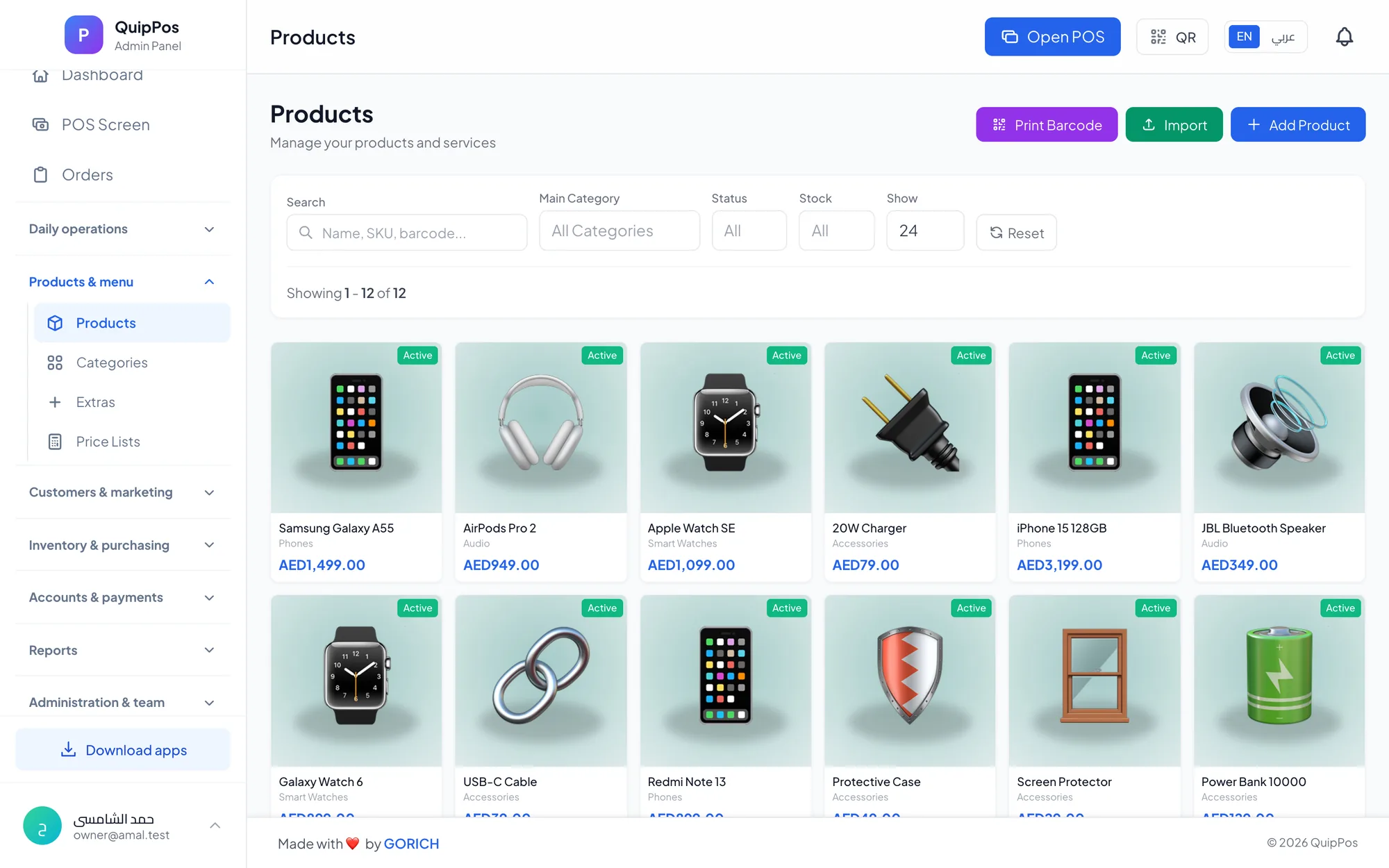
Barcode inventory management means every item in your shop carries a scannable code, and every sale, delivery, return and correction is recorded by scanning it into your POS. Stock levels then update on their own, so you know exactly what is on the shelf, what is running low and where losses happen, instead of guessing from a notebook.
For a small shop, stock is usually the largest amount of money tied up in the business. A phone accessories store in Riyadh with 800 items or a minimarket in Sharjah with 2,500 cannot afford to sell what it does not have, reorder what is already in the back room, or miss slow, steady losses. Barcodes do not remove those risks on their own; the habits built around them do.
This guide explains how barcode stock control works, which barcodes to use, how to set it up step by step, the routines that keep numbers accurate, and how to set low-stock alerts that actually help. If you are still choosing a system, start with the complete retail POS guide.
- Stock is only as accurate as the habit of scanning every movement in and out.
- Use the manufacturer's barcode when an item has one; generate your own only for items without.
- Every manual stock change should carry a reason so losses become visible.
- Low-stock alerts work when minimum levels reflect real sales and supplier lead times.
- Count one section a week instead of the whole shop once a year.
How does barcode inventory management work?
A barcode is simply a fast, error-free way to tell the system which item you are holding. The inventory logic sits behind it. Each item has a stock quantity per branch, and four kinds of movement change it:
- Purchases add stock when a supplier delivery is recorded as a purchase invoice.
- Sales remove stock the moment an item is scanned and paid.
- Returns put stock back when a customer brings an item back and it is refunded.
- Adjustments correct stock for breakage, expiry, theft or a count difference, each with a reason.
Put together, the stock on hand for any item is: opening quantity + purchases − sales + returns ± adjustments. When the figure in the system differs from the shelf, one of those four movements was not recorded, and the reasons on your adjustments show you which one tends to go wrong.
What types of barcodes do shops use?
Most products already arrive with a printed barcode from the manufacturer. You only need your own codes for items that do not have one.
| Barcode type | Where you see it | Best used for |
|---|---|---|
| EAN-13 | Most packaged retail goods worldwide | Branded products, groceries, cosmetics |
| UPC-A | Products made for the North American market | Imported electronics and branded goods |
| Code 128 | Shipping labels and in-store labels | Your own codes for items without a barcode |
| QR code | Menus, links and payment pages | Sharing information, rarely for stock items |
The golden rule: never put your own label over a manufacturer's barcode. If you buy the same product from two suppliers, it should still be one item with one code, or your stock will split across duplicates.
How to set up barcode inventory in a small shop
A clean start saves months of confusion. Plan a quiet day, or two evenings after closing, and work through these steps:
- Build your product list in Excel. One row per item or variant, with name, category, barcode, cost price and selling price. Remove duplicates and old items you no longer sell.
- Import it into your POS rather than typing hundreds of items by hand, then spot-check twenty items on the selling screen.
- Generate barcodes for items without one, such as loose accessories or own-brand goods, and label them before they go back on the shelf.
- Count your opening stock section by section and enter the quantities. Do not sell from a section while it is being counted.
- Add your suppliers and record the next delivery as a purchase invoice, so cost prices and supplier balances start right.
- Set minimum levels for the items that matter most, so low-stock alerts work from the first week.
- Train every cashier on one rule: scan every item, every time. Typing a price or selling “one of those” under a general item breaks the count.
What equipment do you need for barcode stock control?
Very little. At the till you need a device that runs your POS and a barcode scanner. A wired USB scanner suits a fixed counter; a Bluetooth scanner lets you walk to bulky items or work in the stock room. Linear scanners read standard barcodes on paper labels, while 2D imagers also read codes on phone screens and QR codes.
A thermal receipt printer completes the counter. If you create many of your own codes, a small label printer saves time, although plenty of shops start with printed label sheets. For a full rundown of devices, see the POS hardware guide.
Daily and weekly routines that keep stock accurate
Barcode systems fail because of habits, not technology. These routines keep the numbers true.
Receiving deliveries
Check each delivery against the supplier's invoice before it reaches the shelf: right items, right quantities, nothing damaged. Then record the purchase invoice in the POS the same day. A delivery left “to enter tomorrow” is how stock and cost prices drift.
Selling and returns
Scan every item, and when a customer buys several identical units, check that the quantity and the variant are right before payment. When an item comes back, process it as a refund so the quantity returns to stock, and choose a reason. If it is damaged, adjust it out of stock straight afterwards.
Adjustments with reasons
Every change outside a sale or purchase is an adjustment: broken, expired, used in the shop, given as a sample, missing after a count. A short, fixed list of reasons makes the monthly review meaningful. Twenty “damaged” adjustments on one shelf may point to a display problem; twenty “missing” points somewhere else.
Cycle counts
Instead of closing the shop for a yearly stocktake, count one section each week: phone cases this Monday, chargers next Monday. High-value and fast-moving items deserve a weekly count. Correct each difference with an adjustment and note the reason.
Where possible, have someone other than the usual seller count a section, and count during a quiet hour before the rush. Fresh eyes notice what the regular seller has stopped seeing, and a calm moment means fewer counting errors.
How to set low-stock alerts that actually help
An alert is only useful if it fires at the right moment. Set the minimum level for each important item with a simple formula:
Reorder level = average daily sales × supplier lead time in days + safety stock
Example: a shop sells about 4 phone chargers a day, the supplier delivers in 3 days, and the owner wants 2 extra days of cover, which is 8 units. The reorder level is 4 × 3 + 8 = 20 units. When stock falls to 20, the alert tells you to order, and the delivery arrives before the shelf is empty.
Review minimum levels every season. Ramadan, Eid, back-to-school and summer change what sells, and a level that worked in March may be far too low in August.
Do not try to set a minimum for every item on day one. Start with your fifty best sellers, the items that cost you sales when they run out, and extend the list a little each week.
Common barcode inventory errors and how to fix them
- Duplicate items for one product. The same item created twice splits stock between two records. Merge them before the next count.
- Scanning one variant for another. Selling the white case by scanning the black one leaves both counts wrong. Give every variant its own barcode.
- General “miscellaneous” items. They make sales fast but take stock from nowhere. Keep them for rare cases only.
- Unrecorded deliveries. Stock looks negative or too low. Record purchase invoices the same day.
- Returns put back by hand. The shelf has the item but the system does not. Always process a refund.
- Adjustments without reasons. You see the loss but not the cause. Make the reason mandatory.
These errors multiply in large catalogues; the supermarket and grocery POS guide shows how high-volume stores keep thousands of items under control.
How Quip POS handles barcode inventory
Quip POS links the selling screen and stock in one cloud system, with every device and branch in sync. Cashiers scan with any USB or Bluetooth barcode scanner or use quick search, and you can generate barcodes for new items that arrive without one. Each variant, whether a size, a colour or a pack size, has its own price and stock, so a scan always removes the right unit.
Refunds, full or partial, put quantity back in stock and require a reason. Each branch has its own warehouse, stock adjustments are recorded with a reason, and low-stock alerts flag items to reorder. Suppliers and purchase invoices, with supplier payments and balances, keep cost prices accurate, and products can be imported from Excel with images and prices. Permissions control who can refund, and the audit log shows who did what and when for every sensitive action. The retail solution page shows the full setup, and the video tutorials walk through products and stock screen by screen.
Start tracking stock with barcodes
The quickest way to see barcode inventory in action is the live demo: open the retail company, scan or search a few items and watch stock and reports respond. When you are ready, start a 14-day free trial with no card, import your product list from Excel, connect your scanner and run your first cycle count. Two weeks of real data will show you exactly where your stock was leaking.
Frequently asked questions
What is a barcode inventory system?
How do I create barcodes for products that don't have one?
Which barcode scanner is best for a small shop?
How often should a small shop count its stock?
Why doesn't the stock in my system match the shelf?
Can barcode inventory work across several branches?
Talk to the Quip POS team
Tell us about your business and we will show you the right setup, help you add your products and connect your printers.
Related articles
Retail stores
Flower Shop POS for Gift, Chocolate and Bouquet Orders
A flower shop POS should handle bouquets, chocolates, gift bundles, delivery, and deposits without slowing checkout. This guide shows what to set up before busy seasons.
Retail stores
Retail POS System: The Complete Guide for Stores and Shops
Barcodes, variants, returns, warehouses, suppliers and price lists: what a retail POS system should do, which features matter for your store and how to choose one.
Retail stores
Supermarket and Grocery POS: Fast Checkout and Stock Control
Checkout speed, barcode scanners, thousands of products from Excel, suppliers, price lists and cashier shifts: how to choose and run a POS for a supermarket or minimarket.