




















Repair Shop Software: Repair Orders, Technicians and Spare Parts
How to run a repair or maintenance centre with numbered repair orders, clear device status, technician assignment, spare parts stock and priced services.
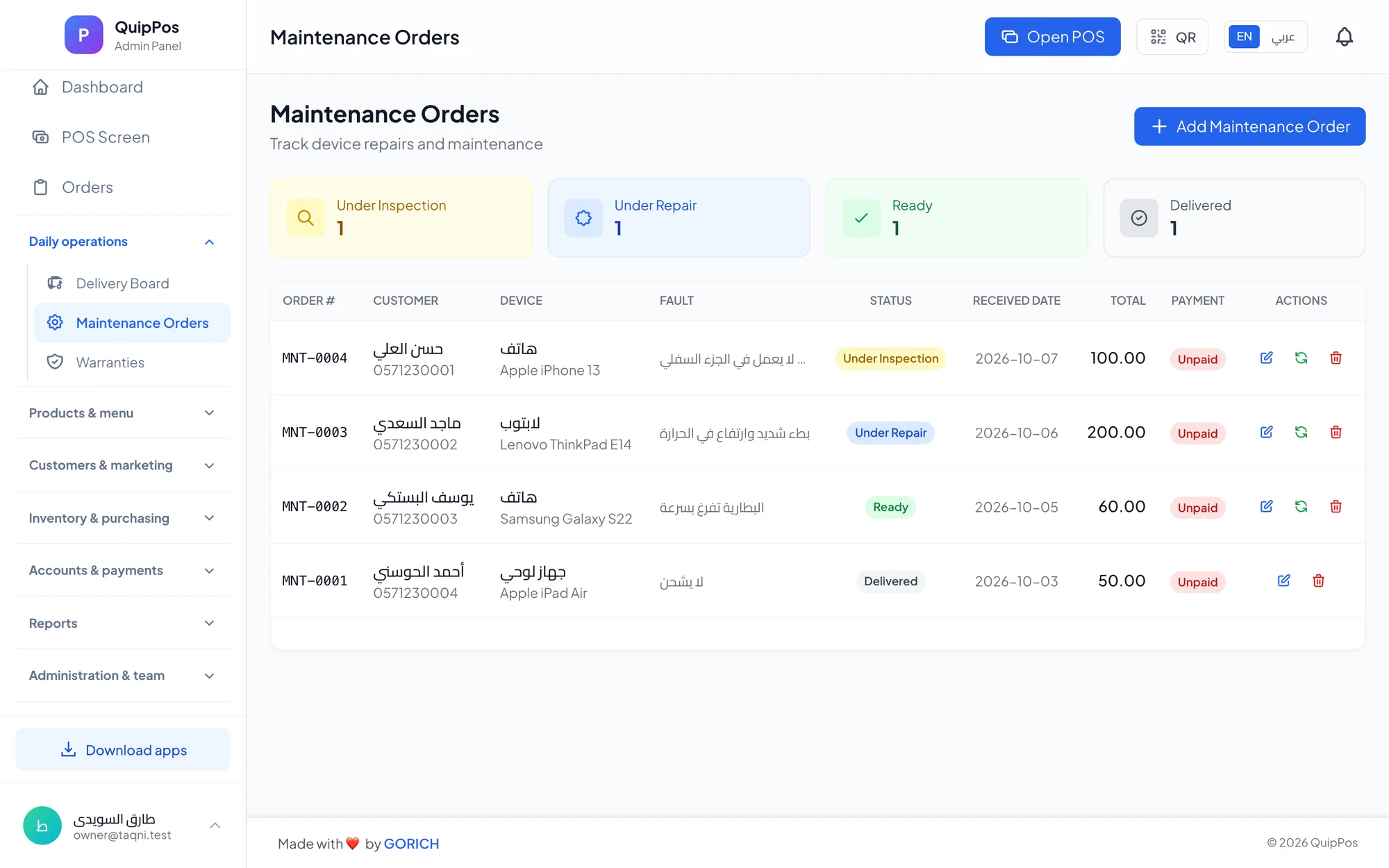
Repair shop software is a system that records every device you receive as a numbered repair order, tracks its status from intake to pickup, assigns it to a technician, deducts the spare parts used from stock and bills priced services and parts on one invoice. It replaces paper job cards, notebooks and scattered chat threads with one shared record.
Whether you fix phones in Riyadh, laptops in Cairo, air conditioners in Dubai or watches in Manchester, the daily problems look the same. A customer calls to ask whether the phone is ready and nobody knows which technician has it. A screen was fitted but never deducted from stock. The invoice includes the part but forgets the labour.
This guide explains what good repair order software should do, how to design a workflow from the counter to pickup, how to price services and parts, and what to check before you choose a system for your maintenance centre.
- Give every device a numbered repair order at the counter; that number is what the customer and the team refer to.
- Record the receiving date and a clear device status so anyone can answer “is it ready?” in seconds.
- Assign one technician per job so responsibility and workload are visible.
- Sell spare parts from tracked stock and price labour as a separate service, so every invoice is complete.
- Attach a warranty to each unit sold and protect refunds with permissions.
What should repair shop software do?
A repair business is part workshop, part shop. You sell time and skill, but you also sell parts, accessories and sometimes refurbished devices. The software has to cover both sides without forcing you to run two systems.
- Intake: create a repair order in under a minute with the customer, the device, the reported fault and the receiving date.
- Unique numbering: sequential numbers per branch so one job is never confused with another.
- Status tracking: a short list of statuses that shows where every device is right now.
- Technician assignment: one named owner per job, with a technician role that sees only what it needs.
- Parts inventory: spare parts as stock items, deducted when sold, with low-stock alerts and supplier purchases.
- Service pricing: priced labour items such as “screen replacement” or “board diagnosis” that sit next to parts on the invoice.
- Payments: deposits, unpaid balances and mixed payments collected at pickup.
- Customer history: every past job and purchase per customer, searchable by name or phone.
- Warranty: a warranty on each unit sold, so the counter can check cover quickly.
- Reports: sales, parts, services and profit by day, technician and branch.
How does a repair order workflow work from intake to pickup?
The best workflows are boring and consistent. Every device follows the same path, and every step leaves a trace. Here is a sequence that works for phone shops, computer repair and appliance service centres alike.
- Receive the device. Find the customer by phone number or create a new profile. Open a repair order and note the device, the fault as the customer describes it and the visible condition (scratches, cracked back, missing SIM tray).
- Give the customer the order number. Print it on a receipt or send it by message, and ask them to quote it whenever they call.
- Diagnose and estimate. The assigned technician checks the device and records what is needed: parts and labour.
- Get approval. Contact the customer with the price before any work starts, and record the approval or the refusal.
- Repair and test. Parts are taken from stock and added to the order; the technician updates the status.
- Mark it ready. Move the order to “ready for pickup” and tell the customer.
- Collect and hand over. Take the balance, print or send the invoice, hand over the device and close the order.
Two habits make this workflow reliable: nobody touches a device without an open order, and nobody changes a status without doing the work behind it.
Which repair order statuses should you use?
With too many statuses, technicians stop updating them; with too few, the counter cannot answer questions. Six or seven are enough for most shops. Use this as a starting model and adapt the names to your trade.
| Status | What it means | Who updates it | Customer hears |
|---|---|---|---|
| Received | Device logged, not yet checked | Counter | Order number and expected time |
| Diagnosing | Technician is checking the fault | Technician | Nothing yet |
| Awaiting approval | Price sent, waiting for a yes | Counter | The quote |
| Awaiting parts | Part ordered from a supplier | Counter or manager | A new expected date |
| In repair | Work in progress | Technician | Nothing yet |
| Ready for pickup | Repaired and tested | Technician | “Your device is ready” |
| Delivered | Paid and handed over | Counter | Invoice and warranty |
Review every order that has stayed in the same status for more than a few days. Old “awaiting approval” jobs usually mean a customer was never called back; old “in repair” jobs usually mean a technician is overloaded.
How should you assign technicians and balance the workload?
Every repair order needs exactly one assignee. Shared ownership sounds friendly but leads to devices nobody is responsible for. When a job has to move, for example from a general technician to a board-level specialist, reassign it so the order always shows its current owner.
Give technicians their own role with limited permissions. They should see their assigned jobs, update statuses and add parts, but they do not need to give discounts, issue refunds or view the full sales report. This protects the business and keeps the screen simple for the person holding a soldering iron.
Start each morning with a quick look at open orders per technician. If one person has fifteen jobs and another has three, rebalance before the day begins. Over a month, compare completed jobs per technician to spot training needs and plan hiring.
How do you manage spare parts inventory without losing money?
Parts are where repair shops quietly lose margin. A screen is fitted but not billed, a battery is taken “for testing” and never returned, or the same connector is ordered twice because nobody trusted the count. Treat parts exactly like retail stock.
- Create each part as a product with a barcode, a cost and a selling price.
- Add parts to the repair order as you use them, so stock goes down with the sale.
- Set low-stock alerts on fast movers such as popular screens, batteries and charging ports.
- Record supplier purchase invoices so costs and supplier balances stay accurate.
- Use stock adjustments with a reason for parts damaged during repair or returned faulty to the supplier.
- Count high-value parts every week and compare the count with the system.
A phone shop in Jeddah that scans every part into the repair order knows at closing time exactly which screens were sold, which are left and which need reordering the next morning.
How should a repair shop price services and parts?
Separate labour from parts on every invoice. Customers understand the bill better, and you can see which side of the business makes money. Create your common jobs as priced services: diagnosis, screen replacement labour, battery replacement labour, software restore and cleaning after liquid damage.
For example, if a screen costs you AED 180 and sells for AED 260, and the fitting labour is a AED 90 service, the invoice shows both lines and your reports show the margin on the part and the revenue from labour separately. When supplier costs move, you change the price in one place.
Decide your policy on diagnostic fees and deposits before the counter faces an argument. Many shops charge a small diagnostic fee that is waived if the customer approves the repair, and take a deposit on expensive parts ordered specially. Whatever you choose, record it on the order so the unpaid balance is followed up until it is collected.
What to look for when choosing repair order software
Use this checklist when you compare systems or test one during a trial.
- Repair orders numbered automatically per branch, with receiving date and status.
- A technician role and one assignee per order.
- Spare parts sold from stock, with barcodes, suppliers and low-stock alerts.
- Repair services with fixed prices next to parts on one invoice.
- A warranty recorded against each unit sold and cancelled when the sale is refunded.
- Deposits, unpaid balances and split payments handled at pickup.
- Customer search by phone or name with full history.
- Messages to customers on WhatsApp from your own number.
- Roles, permissions and an audit log for refunds, discounts and voids.
- Works on the devices you already own and keeps selling if the internet drops.
- Available in the languages your team and customers actually read.
How Quip POS handles repair and maintenance centres
Quip POS includes a repair and maintenance workflow alongside its retail selling, so a shop can fix devices and sell accessories from the same screen. The full picture is on the maintenance centre solution page.
- Numbered repair orders per branch (MNT-0001, MNT-0002…) with the receiving date and the device status.
- A technician role and an assignee per order, with permissions that control what each employee can do.
- Spare parts sold with stock tracking, plus barcodes, suppliers, purchase invoices and low-stock alerts.
- Priced repair services billed on the same invoice as parts, with split payments and unpaid balances followed up until collected.
- A warranty per unit sold, cancelled automatically if the sale is refunded. Our guide to warranty tracking covers this in detail.
- WhatsApp receipts and messages from your own number through QuipWhats; see how to use WhatsApp receipts well.
- Customer history, reports, an audit log, and combined reports when you run several branches.
If you also sell phones and accessories, read our guide to POS for mobile phone and electronics shops. The system runs in any browser, on Windows and Mac (with offline selling and printing), and on iPhone, iPad and Android, in 20 languages.
Next step: run a week of real jobs in the system
The fastest way to judge repair shop software is to use it. Open the live demo of a repair company to see repair orders, technicians and parts already set up, then start a 14-day free trial with no card, add your top twenty parts and services, and log a week of real devices. By the end of the week you will know whether every job, part and payment is accounted for.
Frequently asked questions
What is the best software for a repair shop?
How do I keep track of repair orders in my shop?
How should a repair shop manage spare parts inventory?
Should a repair shop charge a diagnostic fee?
Can one system manage several repair branches?
Can I try repair shop software before I pay?
Talk to the Quip POS team
Tell us about your business and we will show you the right setup, help you add your products and connect your printers.
Related articles
Repair & maintenance centres
Warranty Tracking for Repair Centres and Electronics Stores
A practical guide to warranty management for repair centres and electronics shops: what to record, how to check claims at the counter and how to stop warranty abuse.
 Retail stores
Flower Shop POS for Gift, Chocolate and Bouquet Orders
A flower shop POS should handle bouquets, chocolates, gift bundles, delivery, and deposits without slowing checkout. This guide shows what to set up before busy seasons.
 Restaurants & cafés
Opening a Restaurant: Technology and Operations Checklist
Before you open a restaurant, make sure your menu, printers, kitchen screens, staff roles and payment methods are ready. This checklist helps you test service before day one.